Dashboard
Finish the four setup steps and the checklist hands you this – your first working dashboard, and the screen you land on at every login from then on. It answers “is everything healthy, and what needs change right now?”
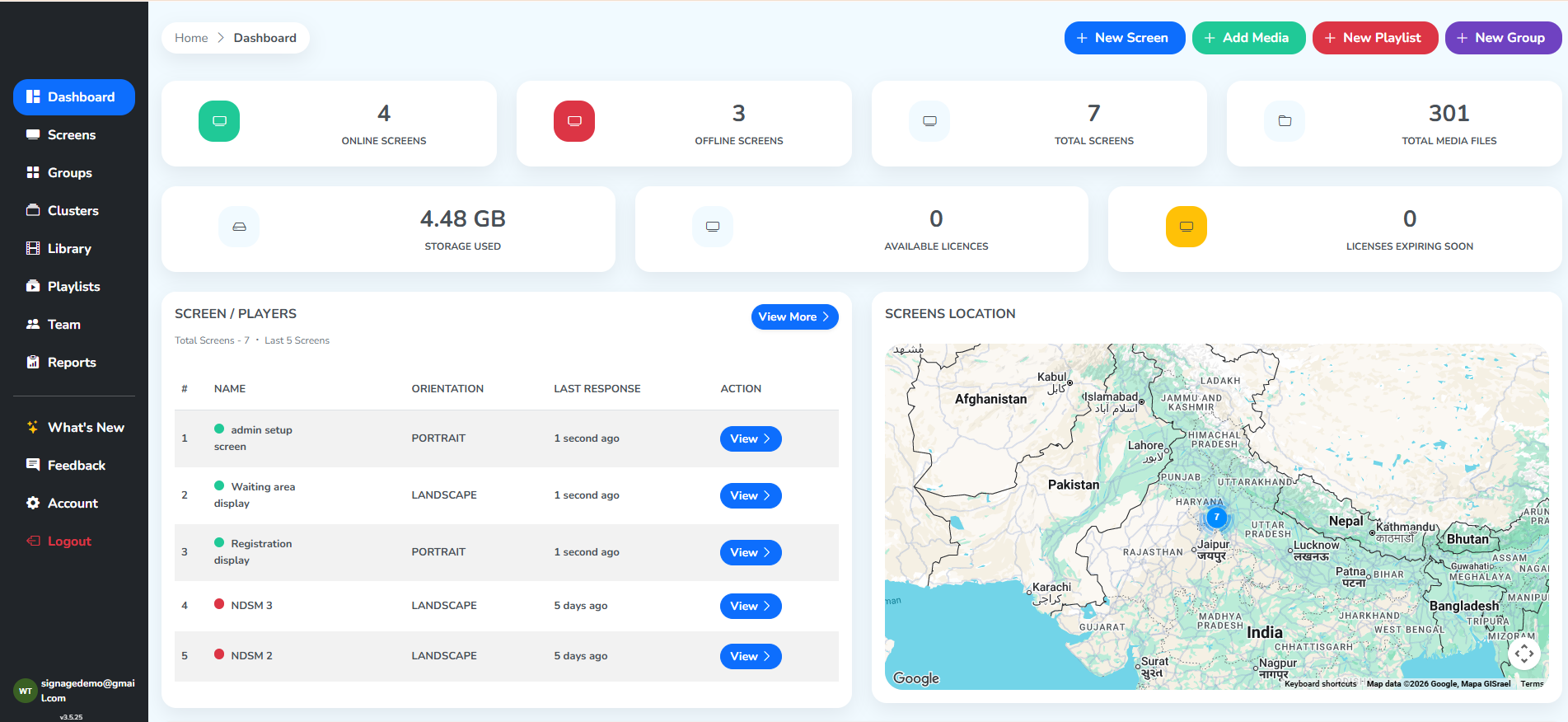
Dashboard, region by region
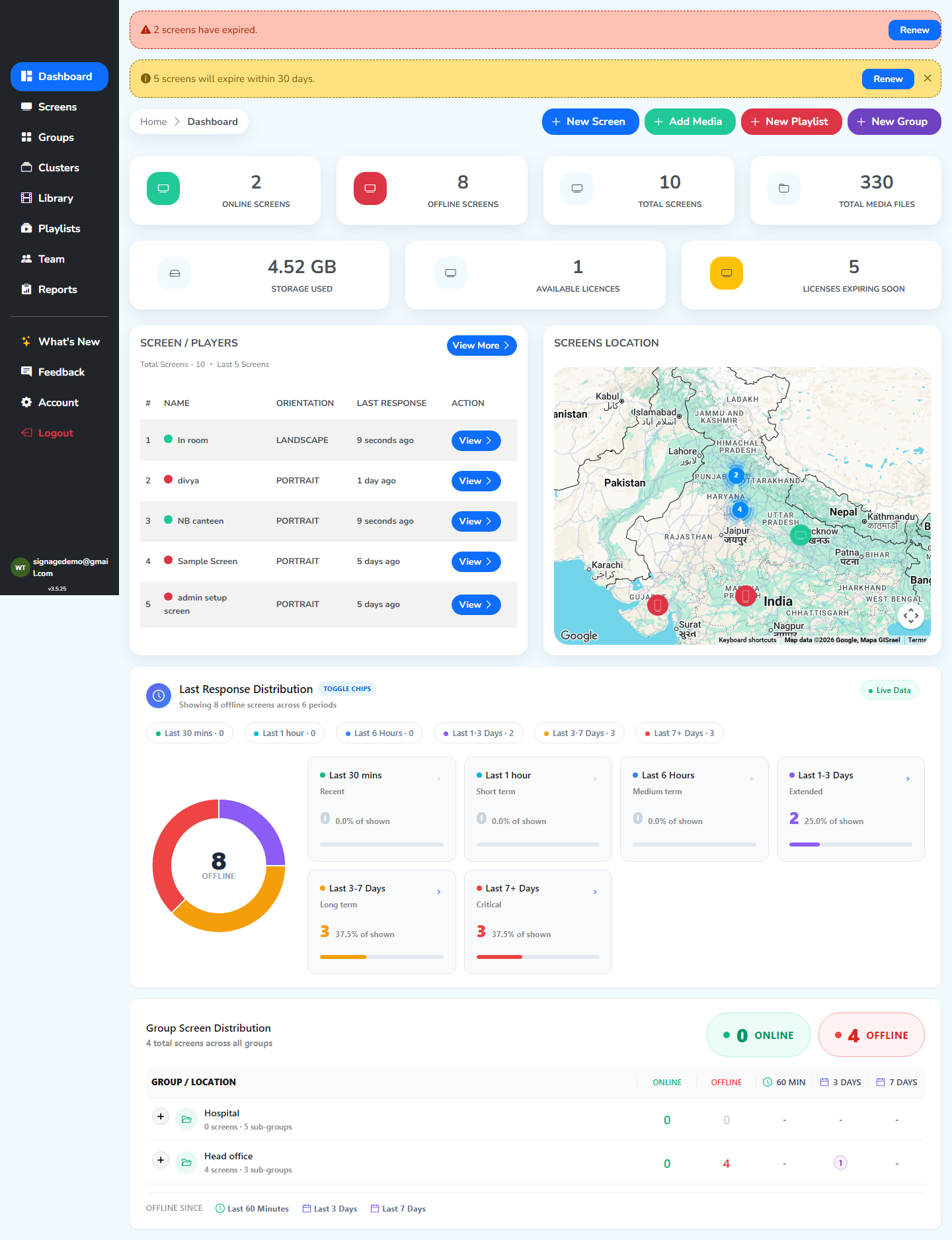
Below in the right side is one screenshot of the whole page, showing every alert and panel you can meet on it. It stays pinned as you read and moves to whichever region the text is describing. The purple outlines mark what each paragraph is talking about.
Left side panel
Down the left of every page sits the left side panel – it is how you reach every other part of the CMS.
- The main sections (top group) – Dashboard, Screens, Groups, Clusters, Library, Playlists, Team and Reports. Whichever one you are on is highlighted in blue.
- Below the divider (bottom group) – What’s New, Feedback, Account and Logout, with the signed-in email at the very bottom.
Each of these options is covered in depth in the documentation that follows – this page stays on the Dashboard itself.
Banner alerts
The strips at the very top are reserved for license-expiry alerts. They stay on the Dashboard and the Screens page until the licenses behind them are renewed. There are two, and you may see either, both, or neither:
- 🔴 Red banner – “N screens have expired.” The licenses on these screens have run out. Every screen carries its own license, so this count is the number of screens affected, not a single plan. Content stops playing on them until the license is renewed.
- 🟡 Yellow banner – “N screens will expire within 30 days.” These screens are still playing content smoothly – this is only advance information, so you can renew before the licenses run out.
Both carry a Renew button. The yellow strip also has an ✕ that hides it for the session; the red one has no ✕ and stays until you renew.
Clicking Renew opens the Renew Licenses modal, covered in Renewing an expiring license below.
Who renews: if your account does not allow you to buy or assign licenses, ask your admin. For new plans and pricing, reach the sales team on
+91 8595119451– the same number works for both call and WhatsApp.
Pair a screenUpload filesCreate a playlistCreate a groupQuick actions
Four buttons at the top-right open the panels for the most common starting actions, bypassing the sidebar.
+ New Screen– add a screen. How to do it+ Add Media– upload images and videos. How to do it+ New Playlist– arrange your media into a playlist. How to do it+ New Group– put screens together in a group. How to do it
Playing nowOff or no internetAll screensYour filesScreens & content summary
Four live counts. Each card is a link – click one to open that list.
- 🟢
Online Screens– screens that are playing right now. - 🔴
Offline Screens– screens that are powered off or not connected to the internet. - ⚪
Total Screens– every screen you have. - 📁
Total Media Files– your content count.
What to look for: if most of your screens are offline (here 8 of 10), the Last Response Distribution panel below tells you how long they have been off.
Library storagePlans you havePlans running outPlan summary
This row describes your plan: what you’ve used and what’s about to run out.
- 🗄
Storage Used– space your files are taking up (like here 4.52 GB). - 💻
Available Licenses– plans you have bought but not put on a screen yet. 0 means you need to buy more before adding a screen. - ⏰
Licenses Expiring Soon– plans that run out within the next 30 days. Same number as the yellow banner at the top.
Full Screens listScreen / Players region
Below the cards, on the left: the most recently-active screens, newest first.
View More(top-right, blue) – opens the full Screens list.- Columns –
#,NAME(with a status dot: green = online, red = offline),ORIENTATION(LANDSCAPE/PORTRAIT),LAST RESPONSE(relative time, e.g. 8 seconds ago / 5 days ago), andACTION. View(per row) – opens that screen’s Settings page.
This is the quick “is everything OK?” glance with green and red status dots, and recent timestamps.
Pins merge when zoomed outScreens Location map
To the right of the Screen / Players region: every screen that has location data, pinned on a map.
- Pins merge when you zoom out – a blue circle with a number on it stands for that many screens close together.
- Green and red circles mark individual screens – green for online, red for offline.
- Pan & zoom with drag + scroll wheel.
- Only screens with location data appear – set each screen’s location (in its
Configurationstab, underLocation Settings) so this view is complete.
Toggle chipsTotal offlineWent offline this long agoLast response distribution
This panel turns the single Offline number into an investigation of the offline screens, when was each of these screens last seen?
- The circular chart centres the total offline count and splits it into colored arcs by period. This entire panel refreshes on its own.
- Toggle chips across the top – Last 30 mins, Last 1 hour, Last 6 Hours, Last 1-3 Days, Last 3-7 Days, Last 7+ Days – you can switch each period on or off for filtration by clicking on it.
- Six period cards to the right of the circular chart – each shows the percentage of total offline screens in that duration, the count, and a severity label.
Going deeper: Click a card’s › sign to look at that period closely – it opens the list of screens in it, so you can see exactly which screens went offline and when.
Top leftTop rightColumnsGroup screen distribution
The last panel counts every screen by group.
- Top left – the total number of screens across all groups.
- Top right – the total online and offline screens across all groups.
- Columns – five of them:
GROUP / LOCATION– the group’s name.ONLINEandOFFLINE– how many of that group’s screens are playing, and how many are powered off or without internet.60 MIN,3 DAYSand7 DAYS– the last response of that group’s screens, split into three: seen within the hour, within three days, and three to seven days or older. A dash means zero.
- Rows – one per group. Under each group name is a small line reading “N screens · M sub-group”.
Groups here are for viewing only. The + icon expands a group to view it in detail.
Renewing an expiring license
The banner alerts’ Renew button opens the Renew Licenses modal – where you see exactly which screens are affected and renew them.
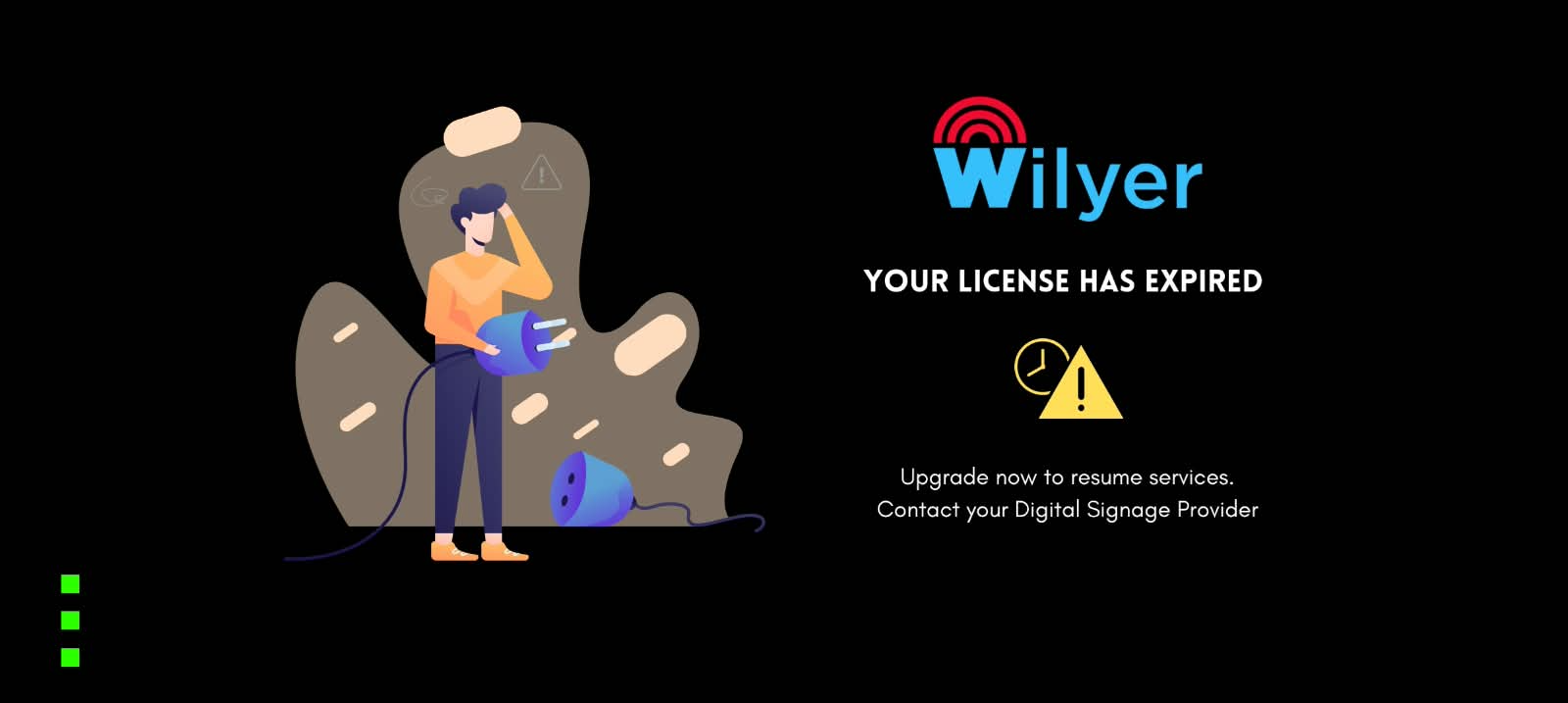
This is what the display itself shows once its license runs out.
How to renew a screen
Both banners renew the same way. Only the screens listed for selection change:
- Red banner’s Renew – the screens that have already expired, the ones counted in its alert message.
- Yellow banner’s Renew – the screens that are about to expire.
The procedure from there is common to both:
Step 1: Click Renew. The Renew Licenses dialog opens. Its top-right corner carries your plan summary in blue, below that comes the Available Licenses section, and under that the screens this banner is about.
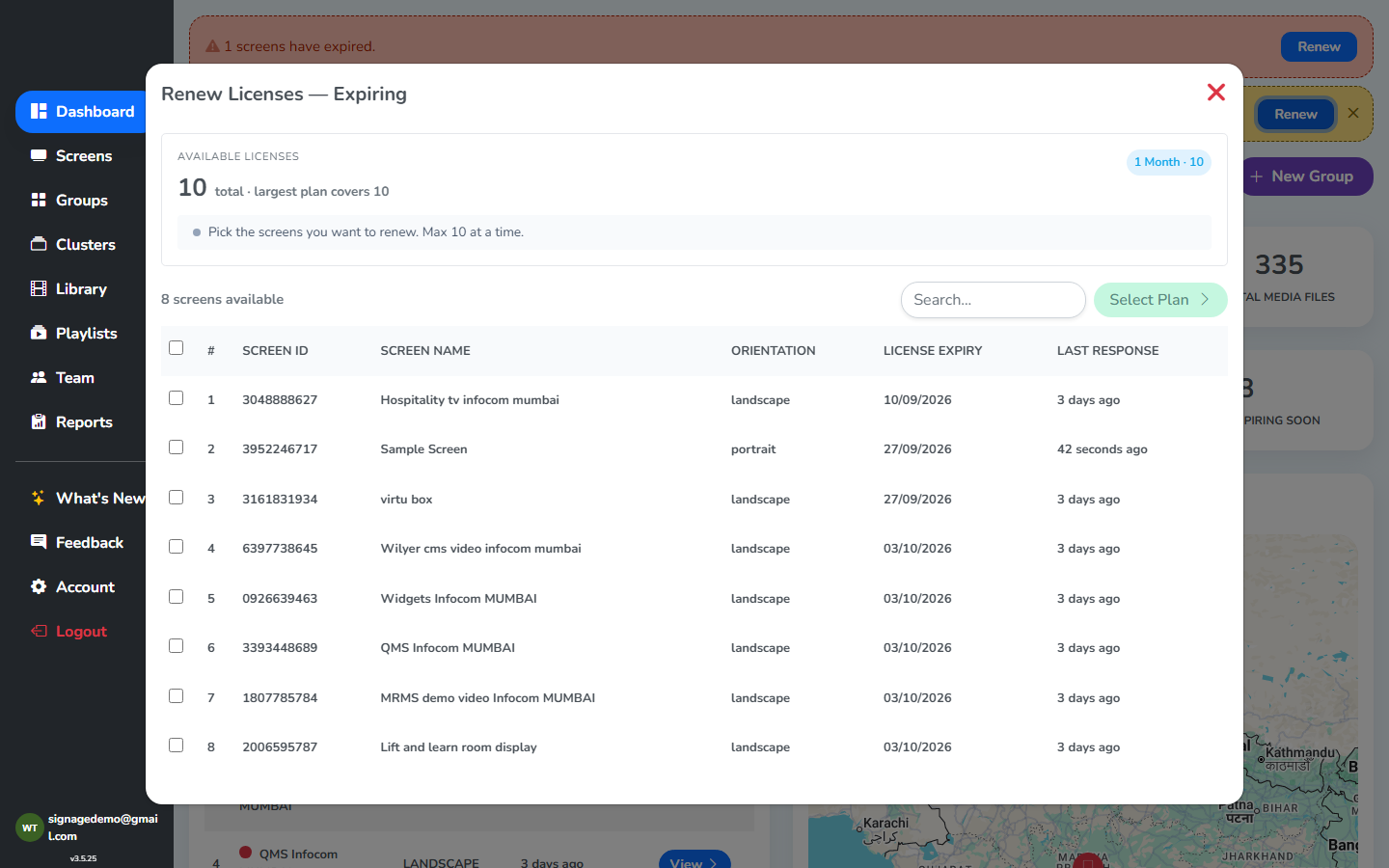 Available licensesPlan summaryScreens listed
Step 2: Tick the box beside the screen you want to renew.
Step 3: Click the green Select Plan button.
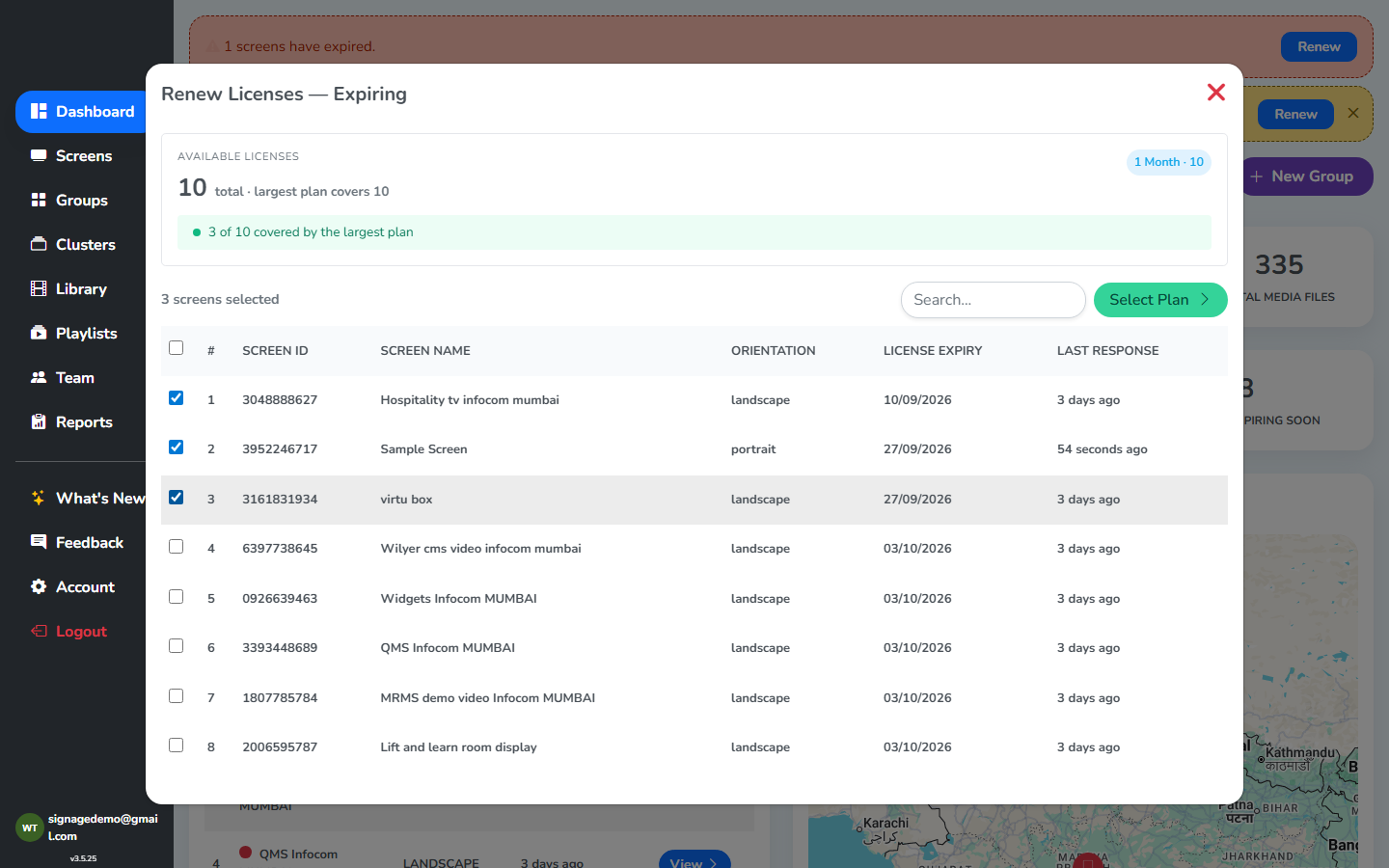 Selected screensNow clickable
Step 4: Pick a plan from the ones you have, then click Renew.
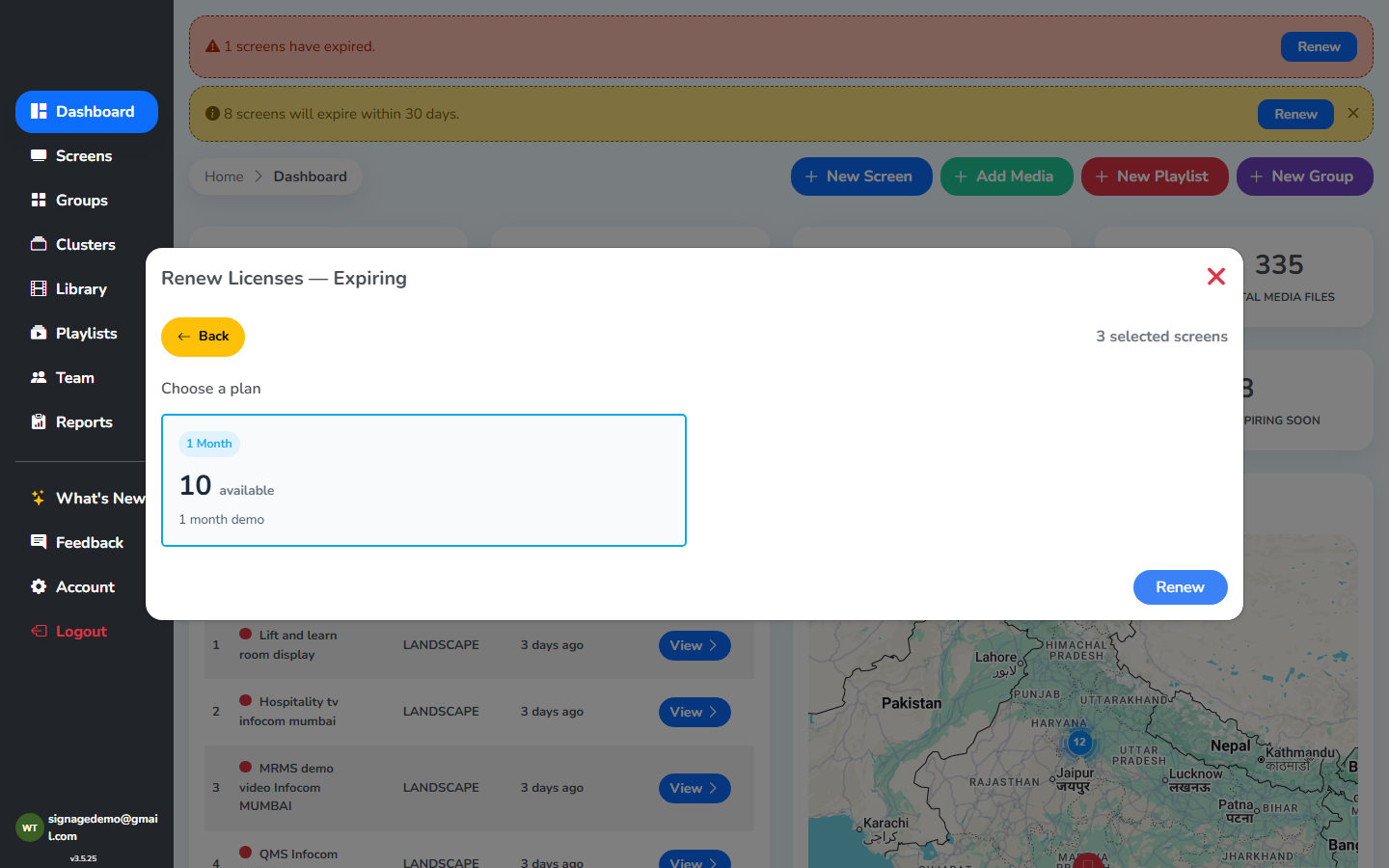 Plan selectedThen click Renew
Once you click Renew, the license applies, the screen drops off the banner.
No licenses to pick from? If the
Available Licensessection is empty, you hold no plans and nothing can be renewed until you buy one. Contact the sales team on+91 8595119451– the same number works for both call and WhatsApp.
Where each ‘Screens & content summary’ card takes you
Every card in the Screens & content summary row is a one-click shortcut into a pre-filtered list. Here’s where each of the four lands, and why you’d click it.
Online Screens → the Screens list, filtered to the online screens. Confirms which screens are playing your content right now.
Offline Screens → the Screens list, filtered to the offline screens. Every screen that is powered off or not connected to the internet – the list to work through, switching them on or getting them back on a connection. Pair it with the Last Response Distribution to see how long each one has been off.
Total Screens → the full Screens list, unfiltered. Every screen you have in one place, online and offline together.
Total Media Files → the Library. Browse, search, and organize every image, video, and widget you’ve uploaded.
Permissions
The Dashboard is gated by the VIEW permission – the only permission dedicated to this page. A member without it lands on whichever section they do have access to after login, not here.
With the permission turned off, the Dashboard is not just closed to that member – it is gone from their left side panel. Every other section they are allowed to use stays there as usual, so the panel simply opens without a Dashboard entry on it.
See Team → Roles & Permissions for the full list of permissions.