Library
The Library section holds all the media and widgets on the account, ready to be added to playlists or published to screens.
Upload Media
+ Upload Media opens the Upload Files page, where you add images and videos to the Library. Drop files onto the panel, or click Browse Files to pick them from your device. .jpg, .jpeg, .png and .mp4 files are accepted.
Upload files to names where the files will land, so opening the page from inside a folder puts the files in that folder.
Upload Some Media in Initial Setup walks through an upload.
Upload Requests and Publish Requests
Upload Requests holds the uploaded media waiting for approval, and Publish Requests holds the direct-from-Library publishes waiting for approval. A playlist’s own publish goes through its own queue on the Playlists page; the Maker-Checker permission section walks through that one. Both queues here follow the maker and checker settings given in the Team section, along with group access.
Media Toolbar
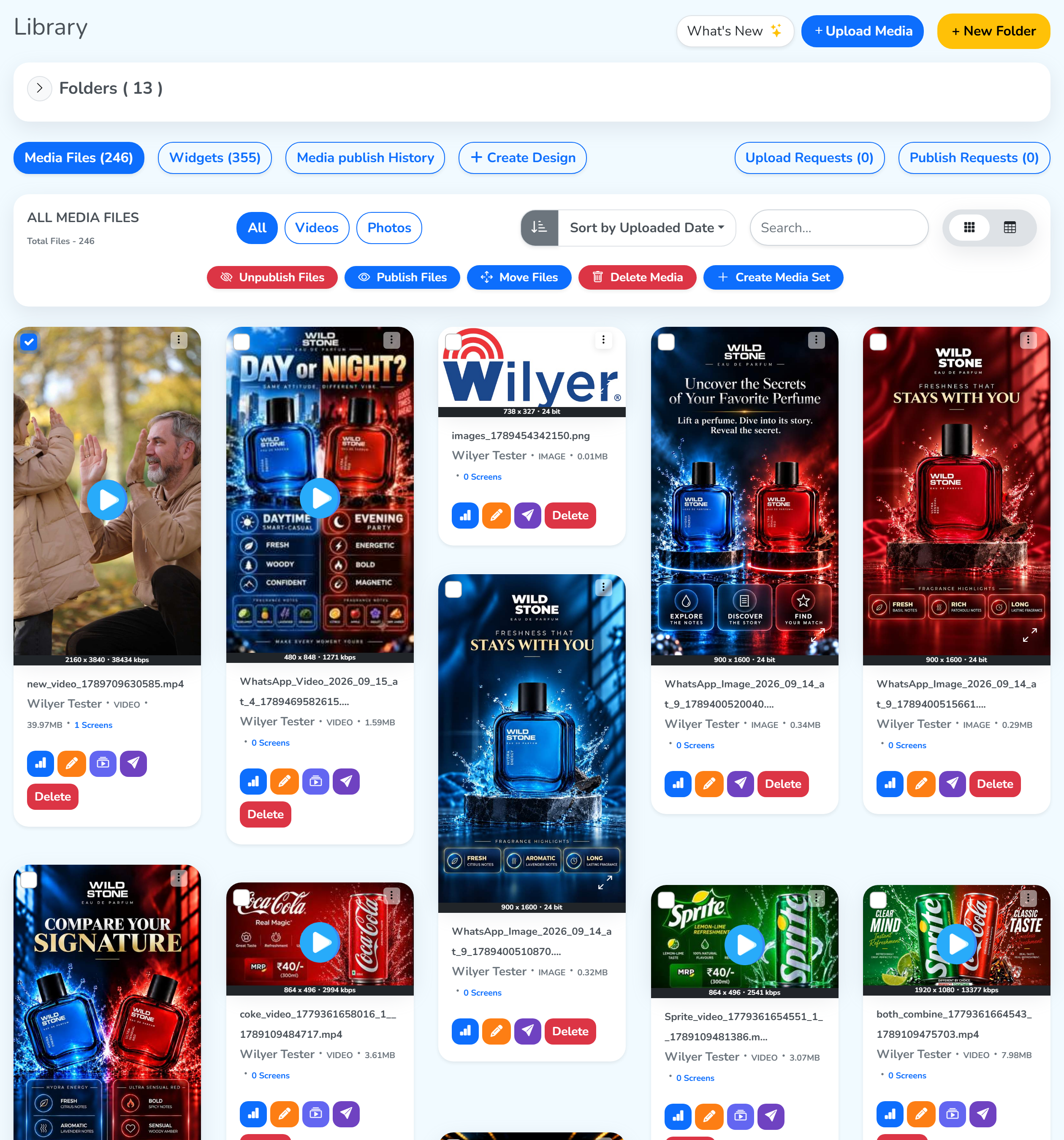
ALL MEDIA FILES carries the total number of media, with the controls for the grid beside it:
All,VideosandPhotosfilter the grid by type.- The sort menu has two options:
Sort by Uploaded Datelists the media by the date they were uploaded, andSort by Sizelists them from the largest to the smallest. The grey button beside it reverses the order. Searchfinds media by name.- The switch at the right moves between the grid and a list.
AnalyticsAnalytics
The blue Analytics button opens the media’s own page. The card at the top carries its details, with a Download button, and the tabs below it show where the media played: Playback Reports between two dates, Delivery Report, Target Screens and Publish History. File Analytics in Reports covers Playback Reports in depth.
EditVariantsPublishPublish
The purple Publish button opens the publish page for that media. The media sits in Active Media, where you set how long it plays, and Default Duration(sec) if not set covers the media if their own duration is not set. More media and widgets can be added from the panel on the right using drag and drop, and Select Screens carries you to the screens the media goes to.
The sections and options above have their own documents, each taking one of them in depth: Tabs, Media Toolbar, Media Options and Widgets.