Screens
We now move to the second section of the left side panel – the Screens section. The Dashboard answers “is everything healthy?”; Screens is where you act on the answer – pair a new display, see what each one is playing, change its settings, renew a license or retire it.
Overview
Every icon below in the flow chart is clickable. Click them to see what the headings in the right side panel mean.
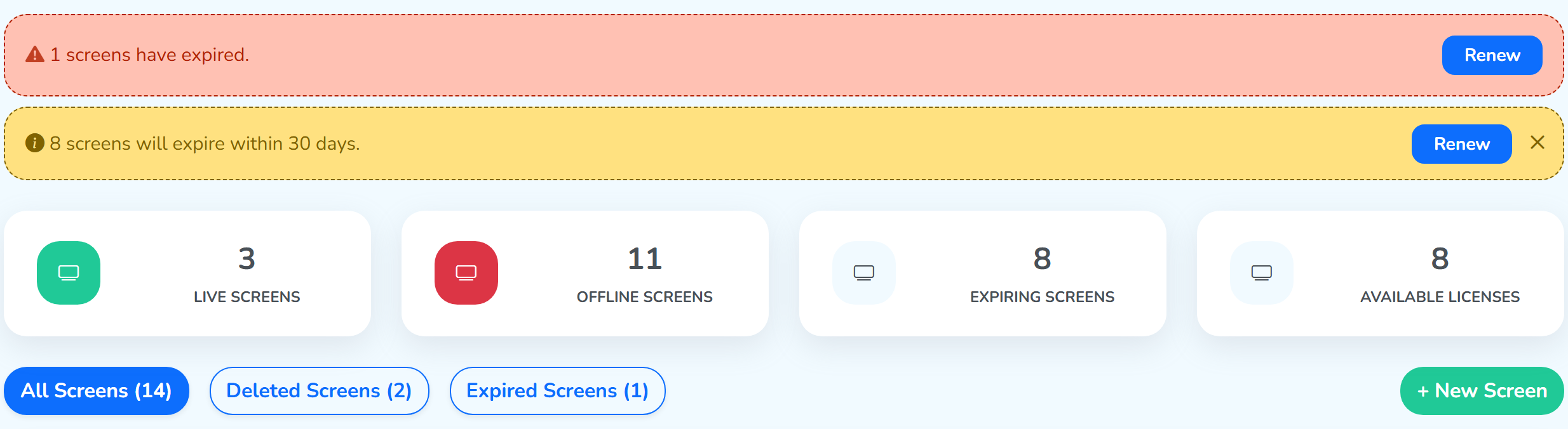
Point at a card on the page above to name the section it belongs to.
In the cloud, you can manage screens in the following ways:
Banner alerts
Screens is the only section apart from the dashboard that shows the banner alerts across the top – the red strip for licenses that have already expired, and the yellow one for those expiring within 30 days. They stay on both pages until the licenses behind them are renewed.
For what each strip counts and what to do about it, see Banner alerts on the Dashboard.
Screen status
- 🟢 Live Screens – Click this card to view the screens that are playing and connected to the internet.
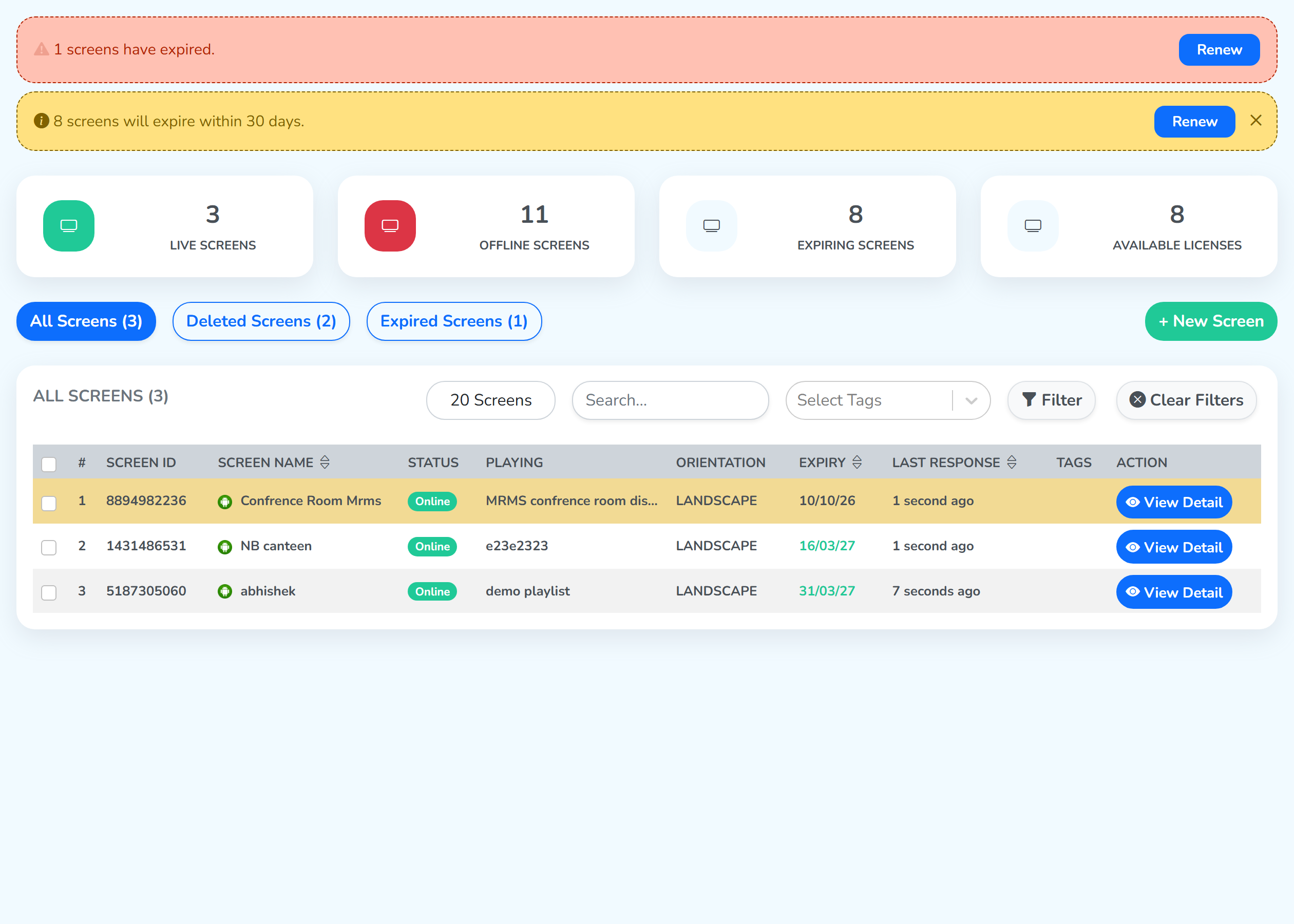 The card you clickedAll Screens: 14 → 3
- 🔴 Offline Screens – Click this card to view the screens that are powered off or not connected to the internet.
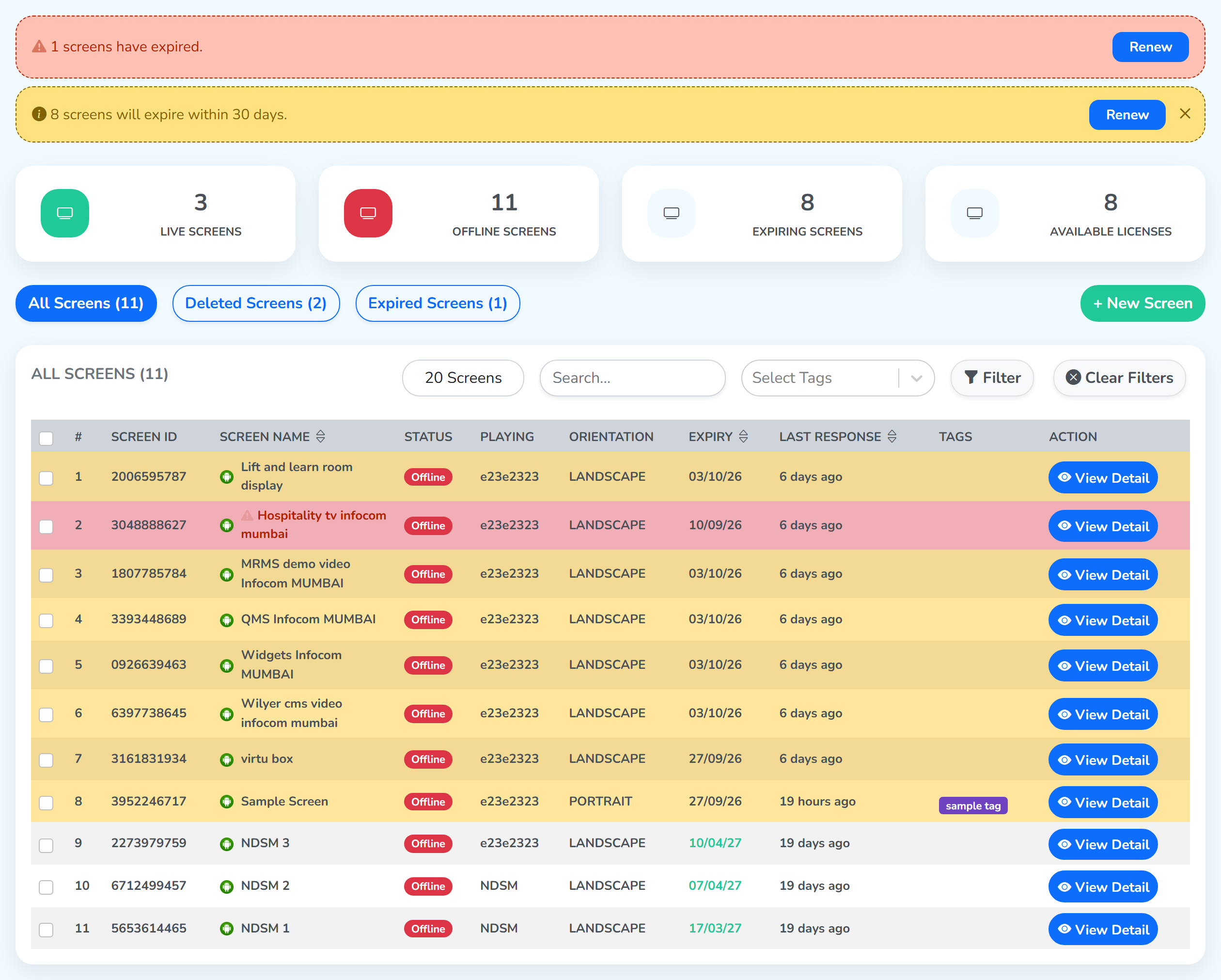 The card you clickedAll Screens: 14 → 11
The count follows the filter: clicking a card filters the All Screens list below to just those screens, and the number on that icon changes with it – it always matches the list you are looking at.
Plan and expiry
- 🟡 Expiring Screens – Click this card to view the screens whose licenses run out within the next 30 days.
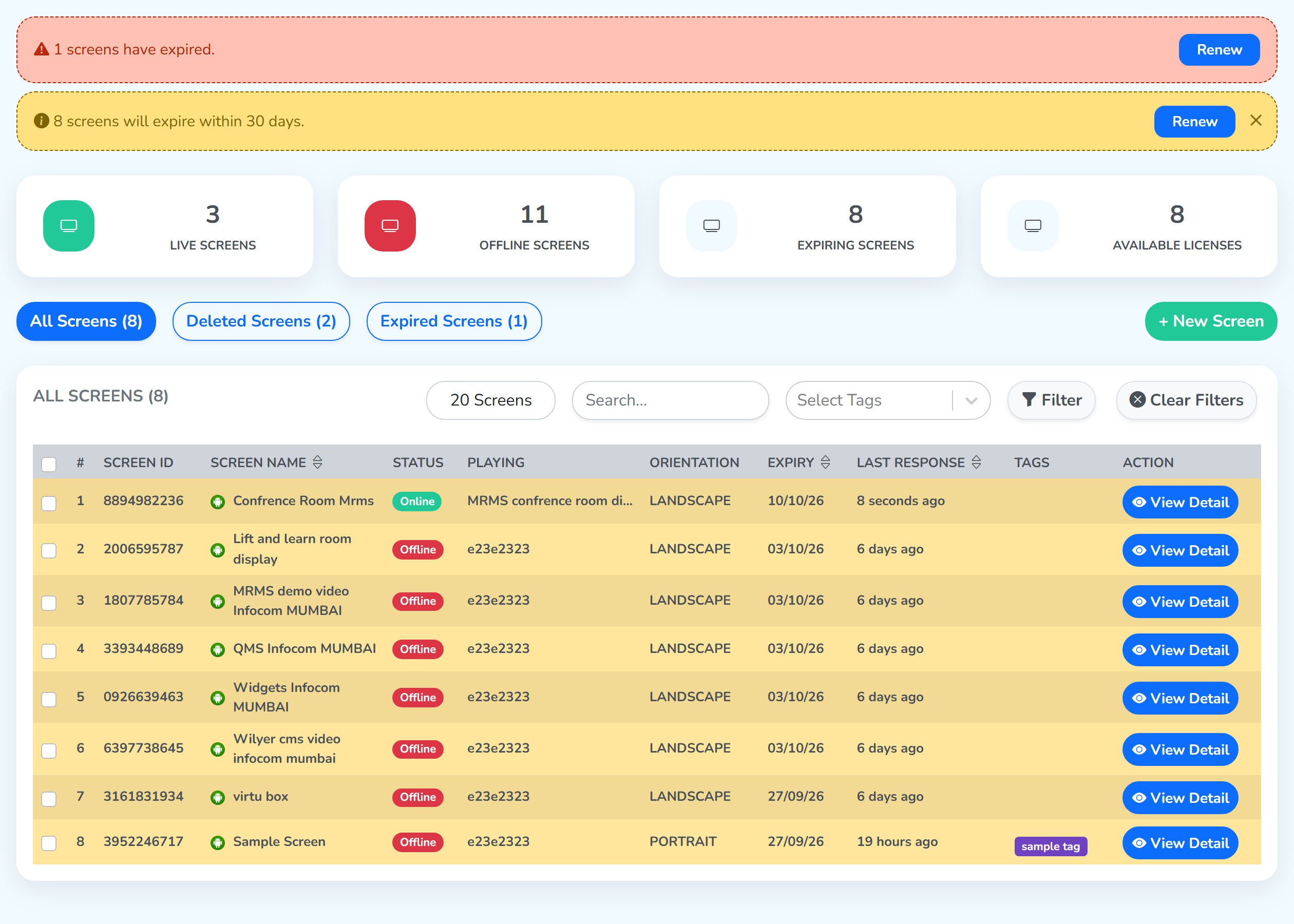 The card you clickedAll Screens: 14 → 8
- 🔵 Available Licenses – Click this card to open the Available Licenses window: how many screens are expiring soon, how many have already expired, and the plans you still have left to assign.
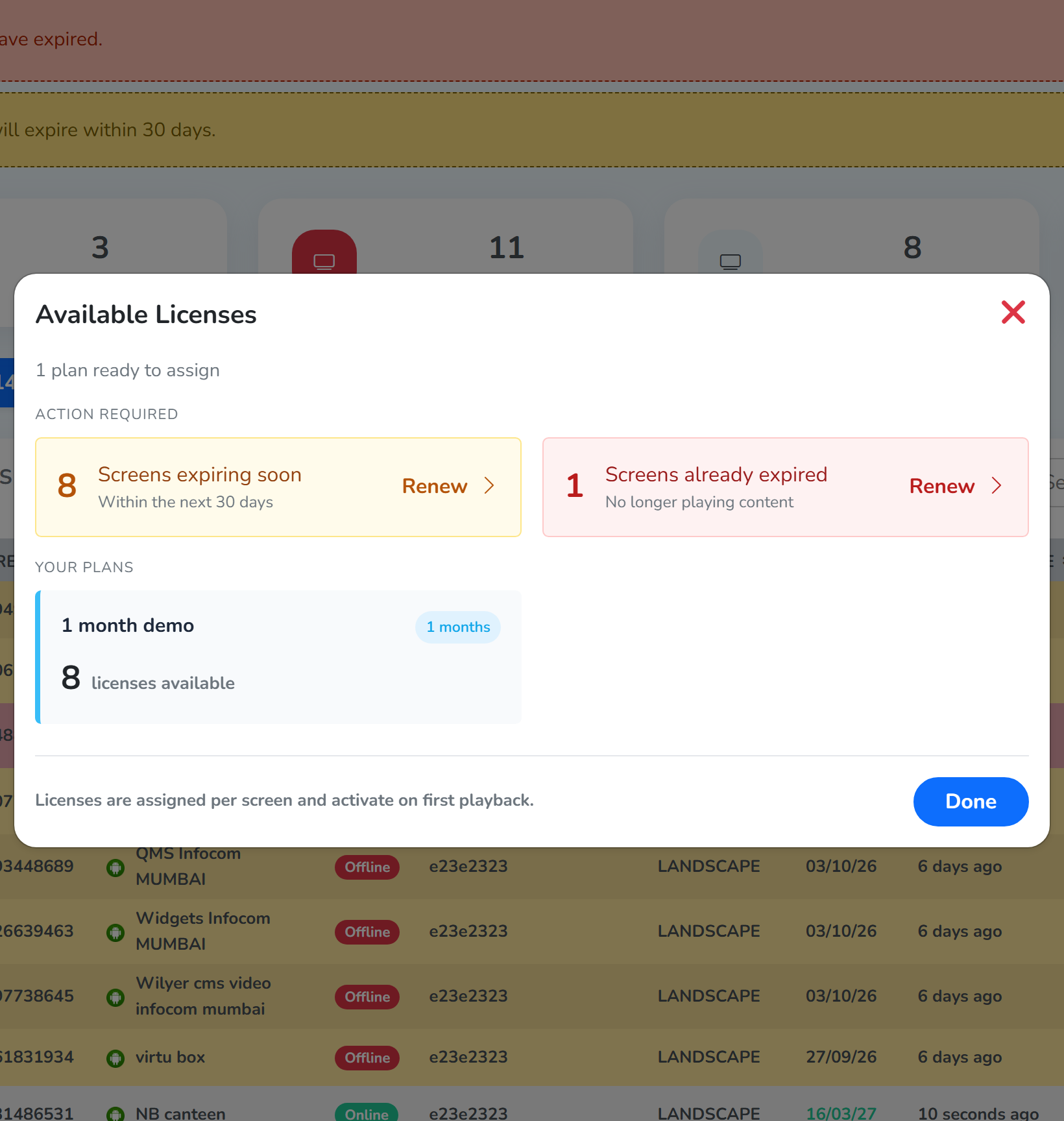
Each row in Action required has its own Renew link, and it opens the Renew Licenses dialog on the screens behind that number. The steps from there are the ones set out in Renewing an expiring license on the Dashboard, with one addition: this dialog opens with two choices across the top – Expiring and Expired – so you can move between the two sets while you work. Done closes the window and leaves the list as you had it.
View All Screens
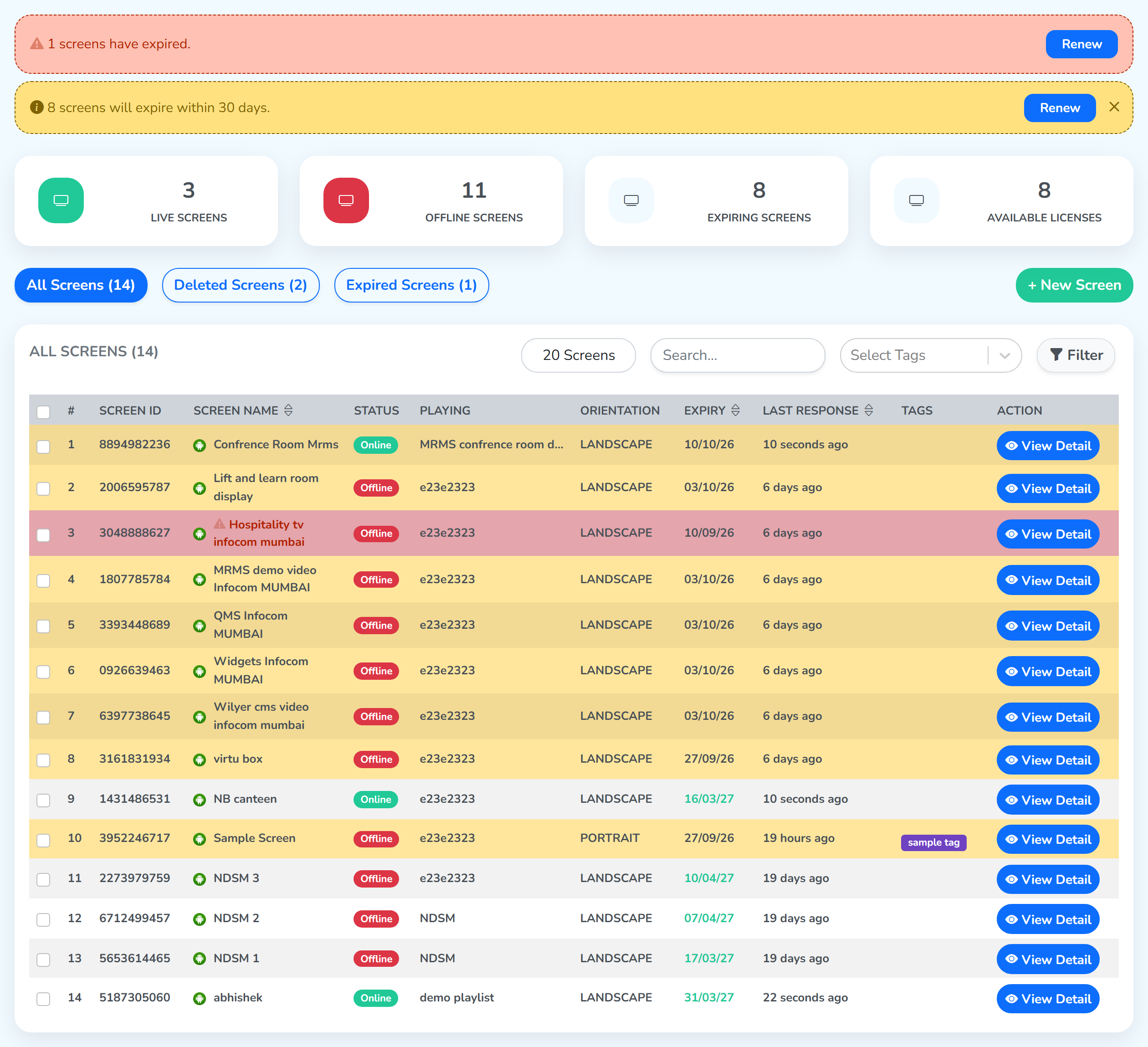
The section opens on All Screens – every screen on the account, one to a row, and the columns carry enough that the row answers most questions on its own.
PLAYINGcarries the name of what is on that screen right now, exactly as the item is listed in your library or playlists – so reading down the column tells you what all of your displays are showing.EXPIRYcarries the license expiry date for that screen, so the date you would otherwise go looking for is already in front of you.TAGScarries the tags the screen was given, so you can see at a glance which set it belongs to.
Alongside them are the screen’s ID and name, its STATUS, its ORIENTATION and its LAST RESPONSE, with View Detail at the end of the row.
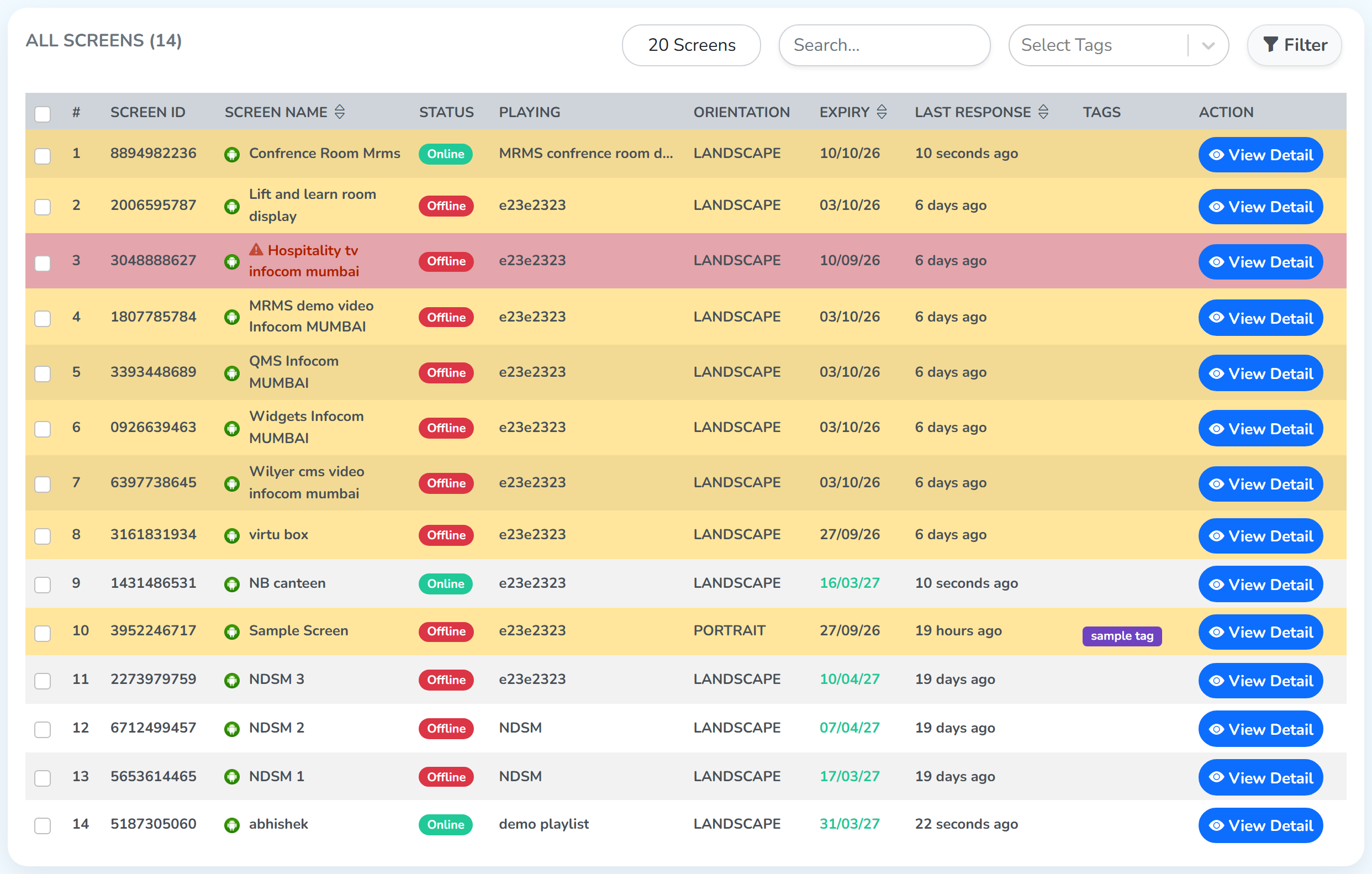 What it is playingLicense expiryTags on this screen
Why some rows are yellow or red: the row is tinted by its license expiry – yellow while the license is expiring within the next 30 days, red once it has expired.
View all Deleted Screens
Click the Deleted Screens tab.
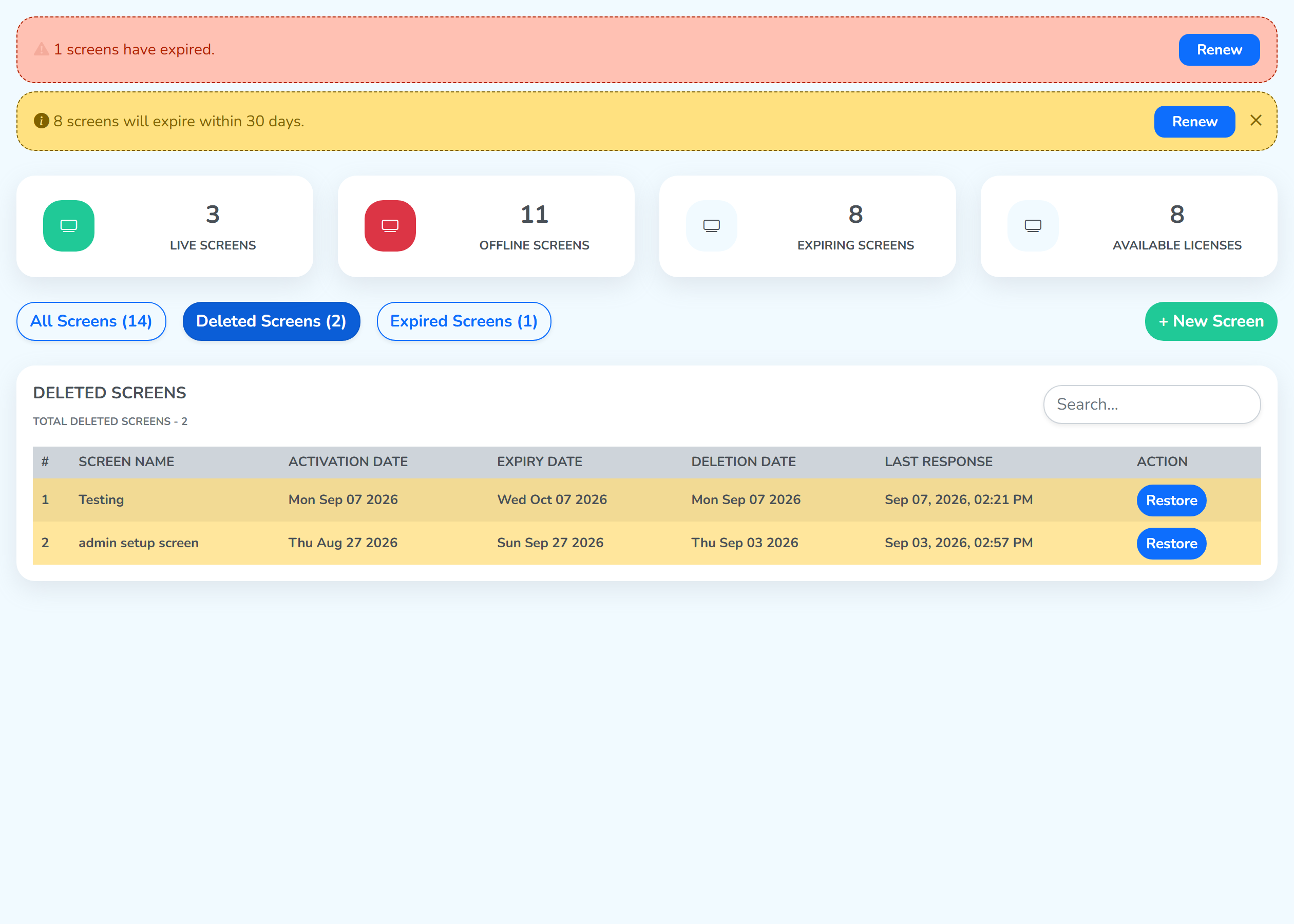
The list gives each deleted screen its activation, expiry and deletion dates, when it last responded, and a Restore button of its own.
Recover a deleted screen
Open the Deleted Screens tab and find the screen you want back. Each row there carries its own Restore button – click it and enter new pairing code from your display to recover it.
View Expired Screens
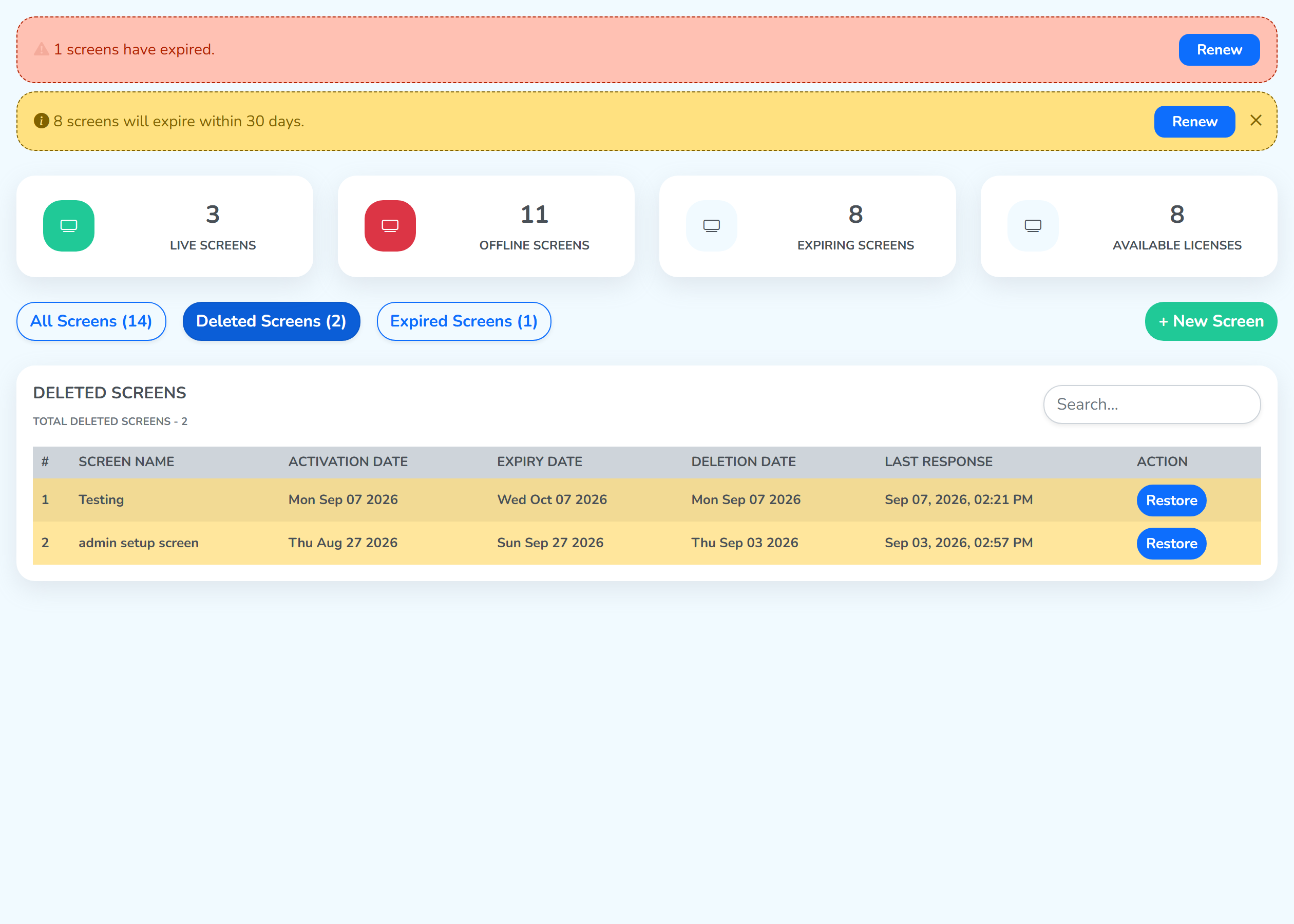
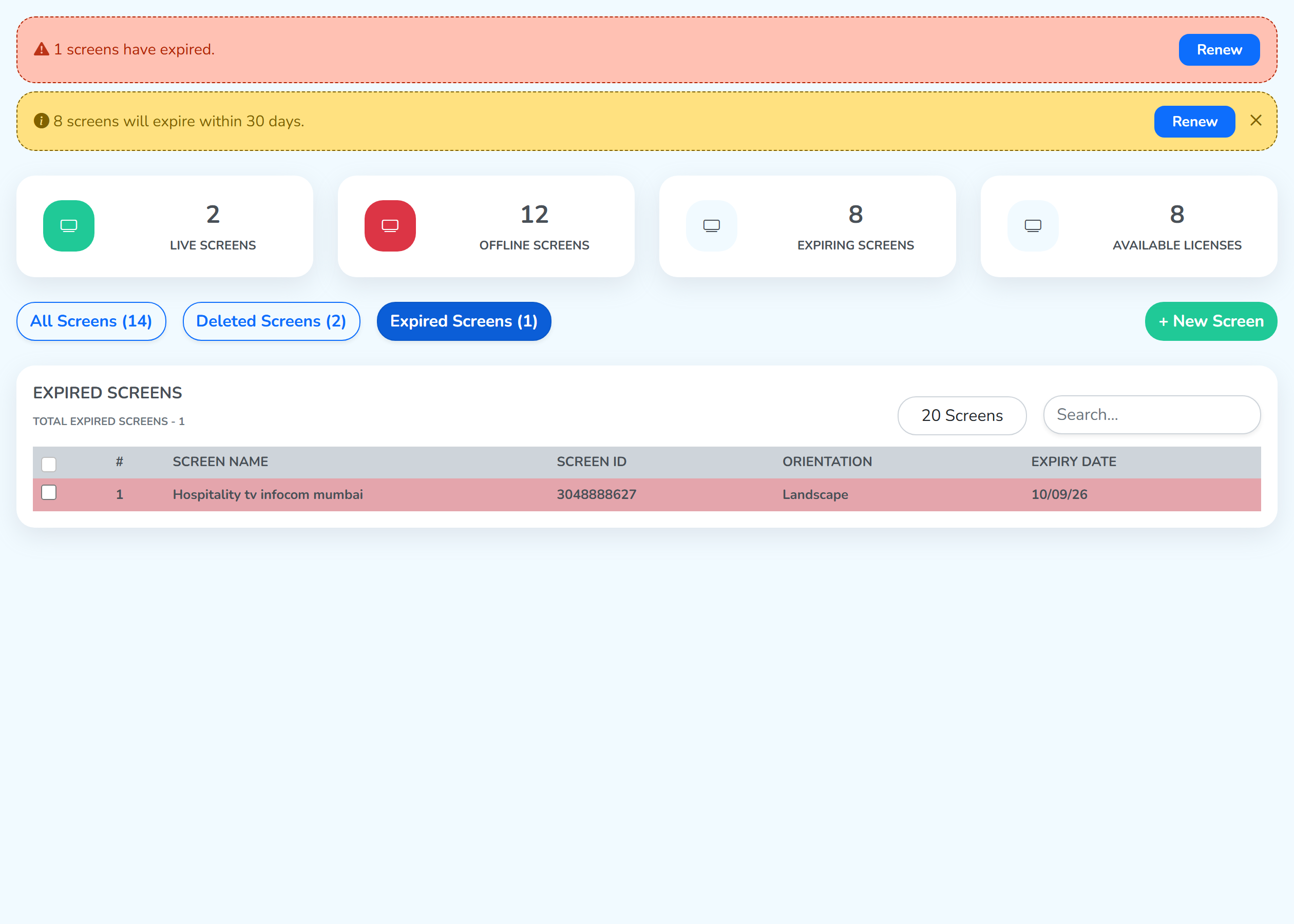
Click the Expired Screens tab. It lists every screen whose license has run out, each with its name, ID, orientation and the date it expired, and the heading carries the running total.
Pair a New Screen
A display joins your account when the 6-digit code it shows is matched with the one you enter here. The + New Screen button that starts it sits at the top right of this page, and the same button is on the Dashboard.
It opens the New Screen window, with the screen’s details down the left and a map on the right for placing it.
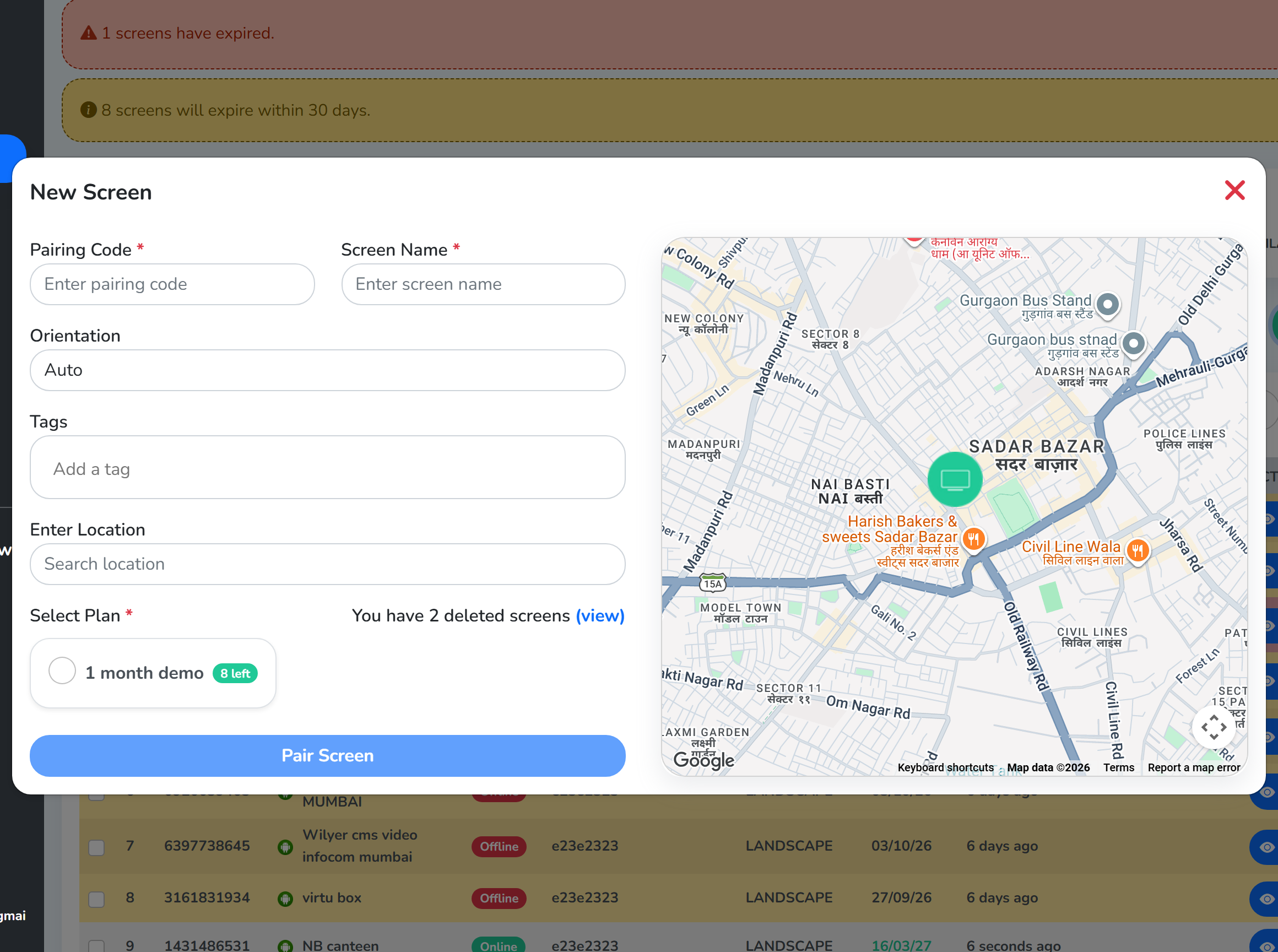 The code from the displayWhat you will call itThe plan to spendRead the box after stepsPairs the screen
Step 1: Open the Signage Player on the display. A 6-digit pairing code appears on it – for example, 617890.
Step 2: Type that code into Pairing Code.
Step 3: In Screen Name, give the screen a name that tells it apart from the others – for example Lobby Display, Display 1, or Sector 14 screen.
Step 4: Set Orientation to Auto, Landscape or Portrait.
Step 5: Add Tags to group this screen with others, and search for its address under Enter Location to place it on the dashboard map.
Step 6: Under Select Plan, pick the plan to spend – the badge on each one shows how many licenses it has left.
Step 7: Click Pair Screen. The screen joins the All Screens list and starts playing.
Reusing a deleted screen’s license: deleting a screen doesn’t return its license to Available Licenses. The license stays as it is, counting down from the day it was first assigned, and expires on schedule even if it’s never put back on a screen. Click
(view), beside You have N deleted screens, to see each deleted screen by name with its license’s expiry date, and pick one to put that same license on this new screen instead of spending a fresh plan.
Apply filters
Four controls narrow what the list shows, and they apply together.
All Screens– the tab the list is drawn from, carrying the count of what is in it.20 Screens– the most screens a single page of the list holds. Click it for the other sizes: 50, 100, 200, 500 and 1000 screens a page.Search– search by screen name, and by screen ID too, so whichever of the two you have to hand reaches the screen. It is case insensitive, so any mix of capitals finds the screen.Select Tags– pick a tag to see the screens carrying that same tag.
Max screens per pageSearch by name or IDFilter by tagsFilter sits at the end of the same row and opens a panel of five more conditions from the right. Filters page explains each condition one at a time.
How to view Screen Settings
Every row of the table ends with View Detail in the ACTION column, and it opens that screen’s own page: a live view of what it is playing, with nine tabs across the middle for everything you can change.
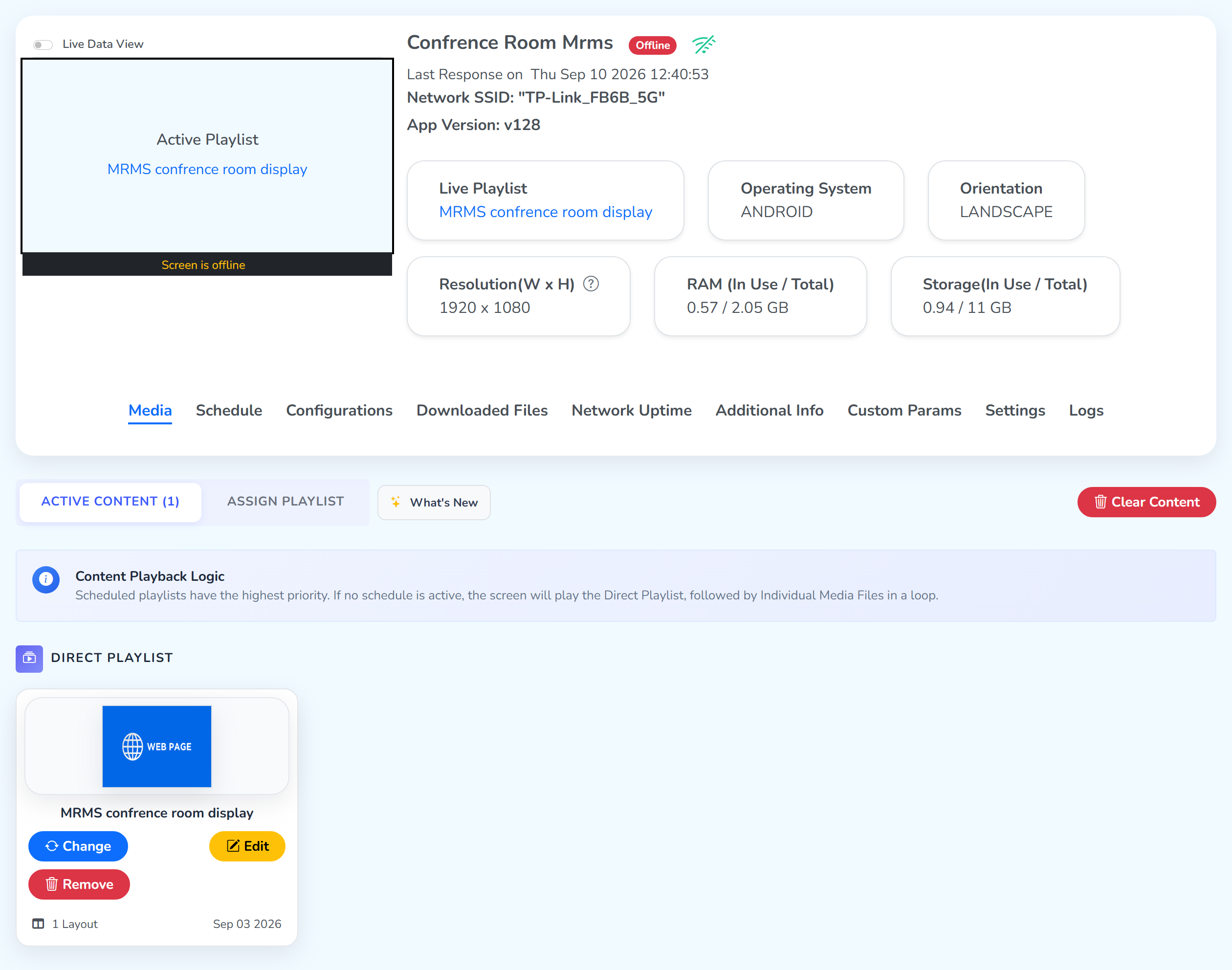 Nine tabs, one screen
Almost everything you do to a single screen happens on this page – what it plays, its schedule, its settings, its reports, and the actions that restart it or delete it.
Read Screen Settings for all nine tabs, one at a time.
Run Bulk Operations
One action can reach every screen you pick, so you set the whole fleet from one place.
Step 1: Tick the checkbox beside each screen you want. Next appears above the table as soon as one is ticked.
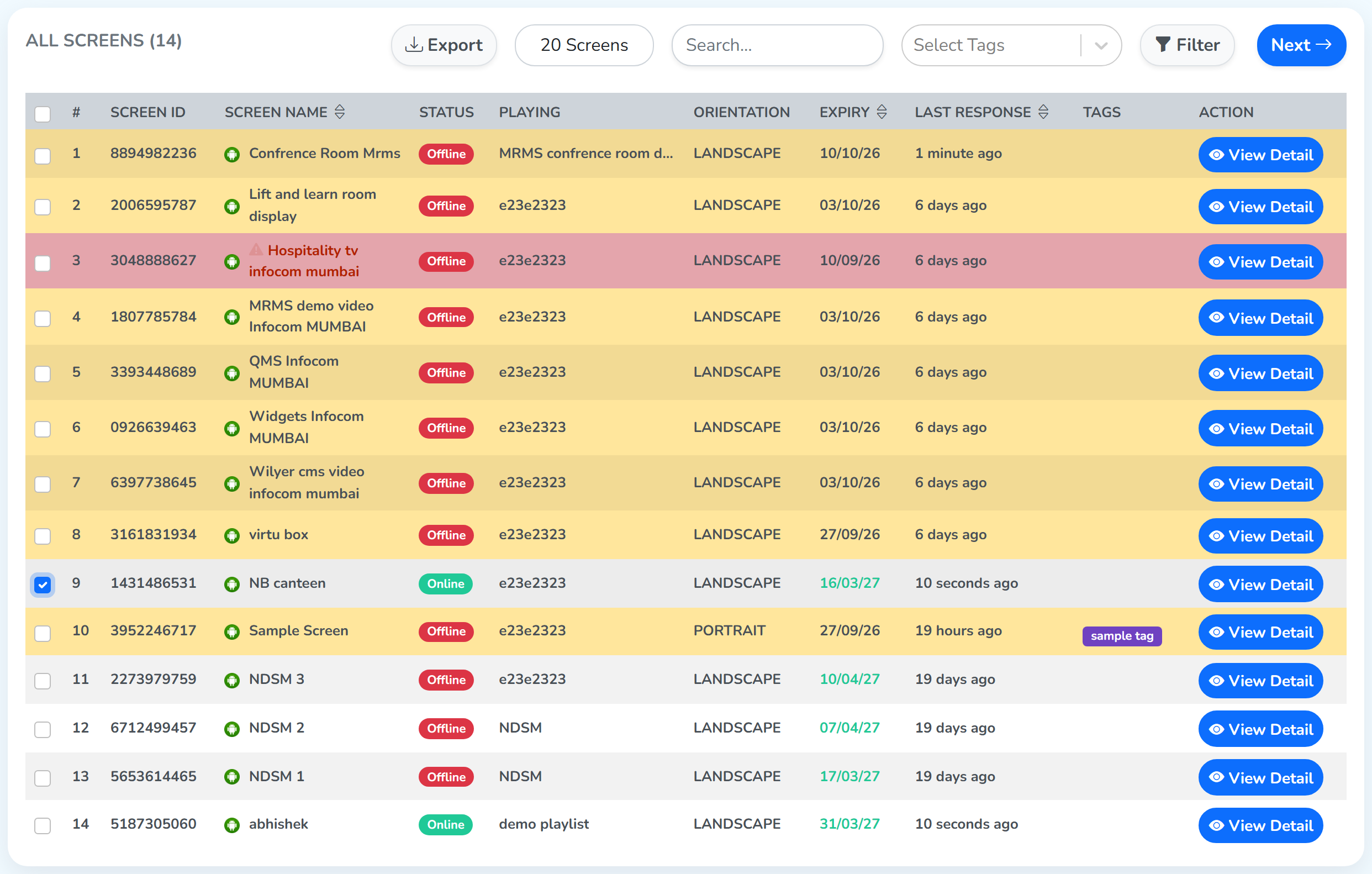 Screen selectedNext appears
Step 2: Click Next. The Screens Operations page opens, with the screens you picked on the right and the operations you can run on them down the left.
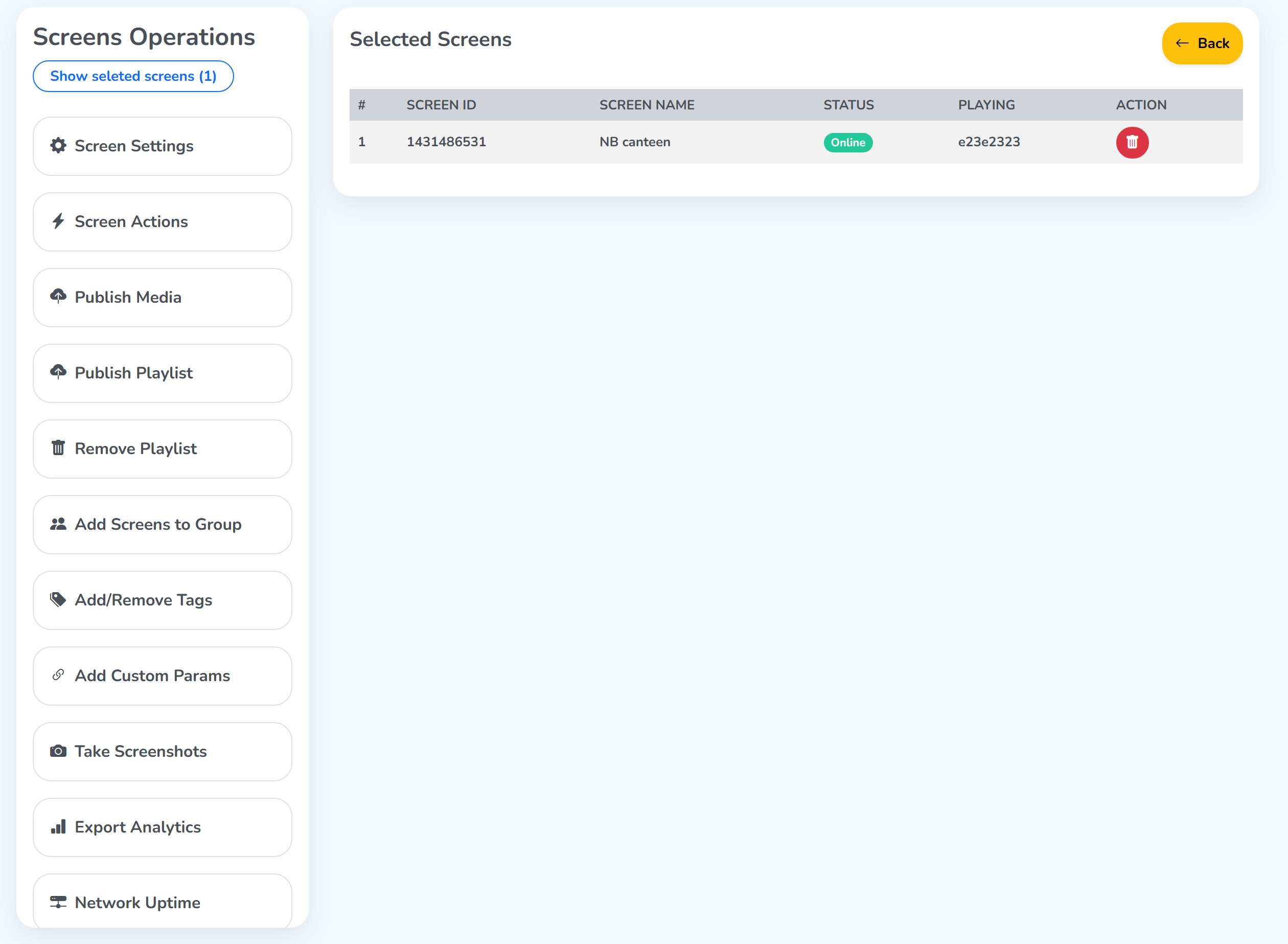 Eleven operations
Each of these options is covered in detail on the Bulk Operations page.