Account
Account holds your profile settings. This is what opens first when you click Account in the left panel.
Profile
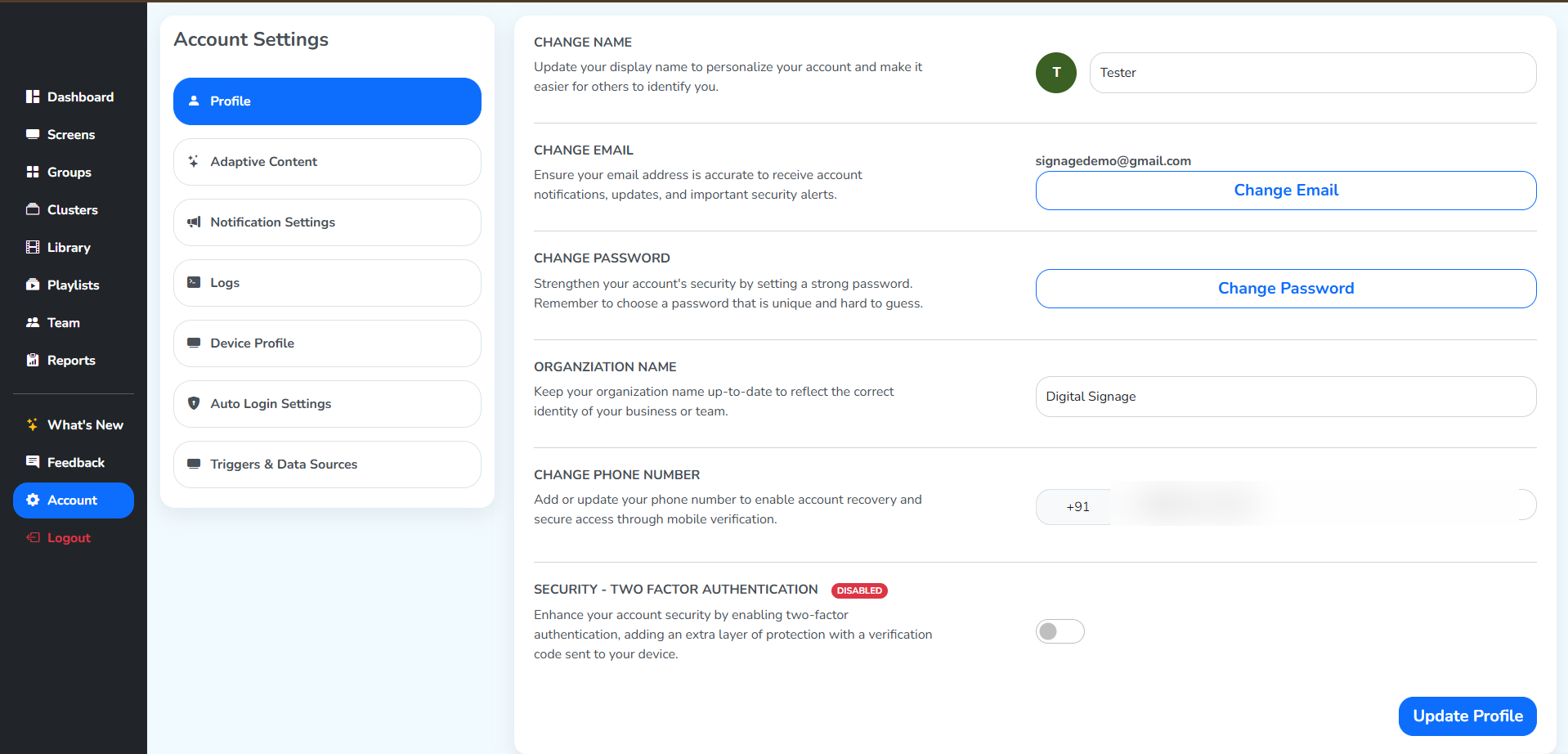
The Profile tab holds these settings:
Change Name– the account’s display name.Change Email– the email used to sign in. A given email address can only belong to one user.Change Password– set a new password for the account.Organization Name– the name of the organization this account is for.Change Phone Number– a given phone number can only belong to one user.Security – Two-Factor Authentication– once turned on, logging in needs one more step beyond email and password: an OTP goes to that user’s email, and only entering it correctly lets them into the account.
Adaptive Content
Adaptive Content automatically prepares uploaded videos so they play smoothly on every screen, in two steps.
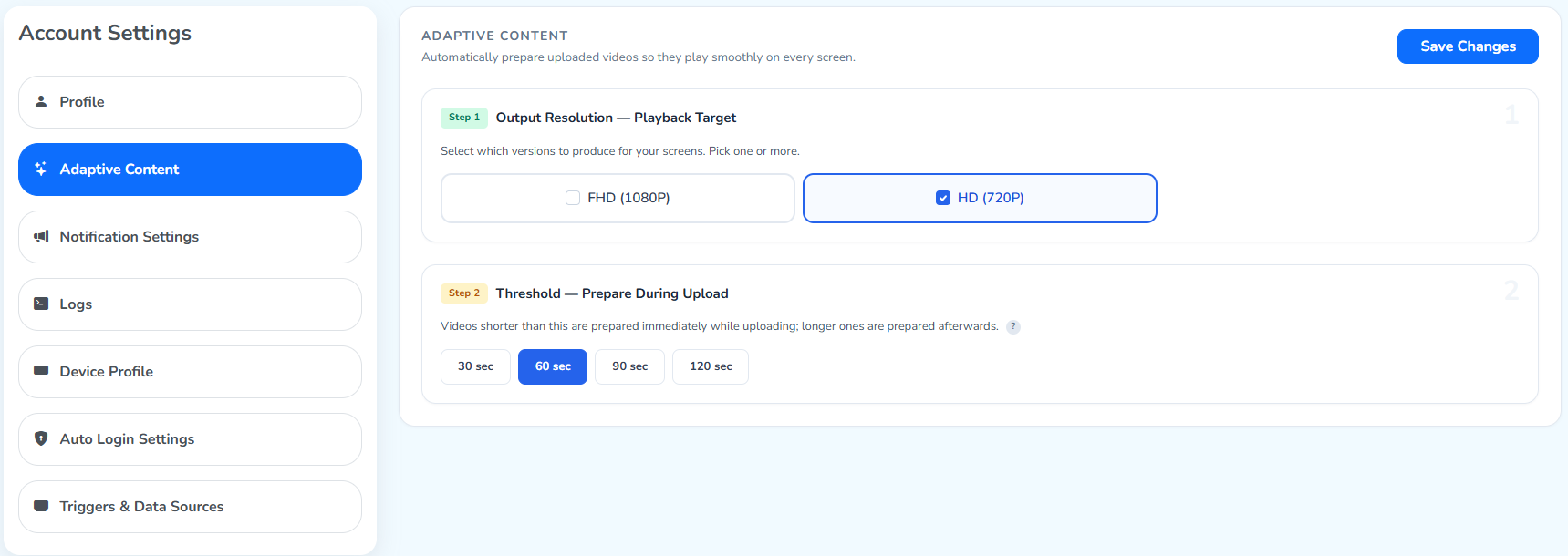
Threshold – Prepare During Upload– set the maximum video duration this applies to.Output Resolution – Playback Target– for videos at or under the given duration, pick one or more versions for the CMS to produce:FHD (1080P),HD (720P).
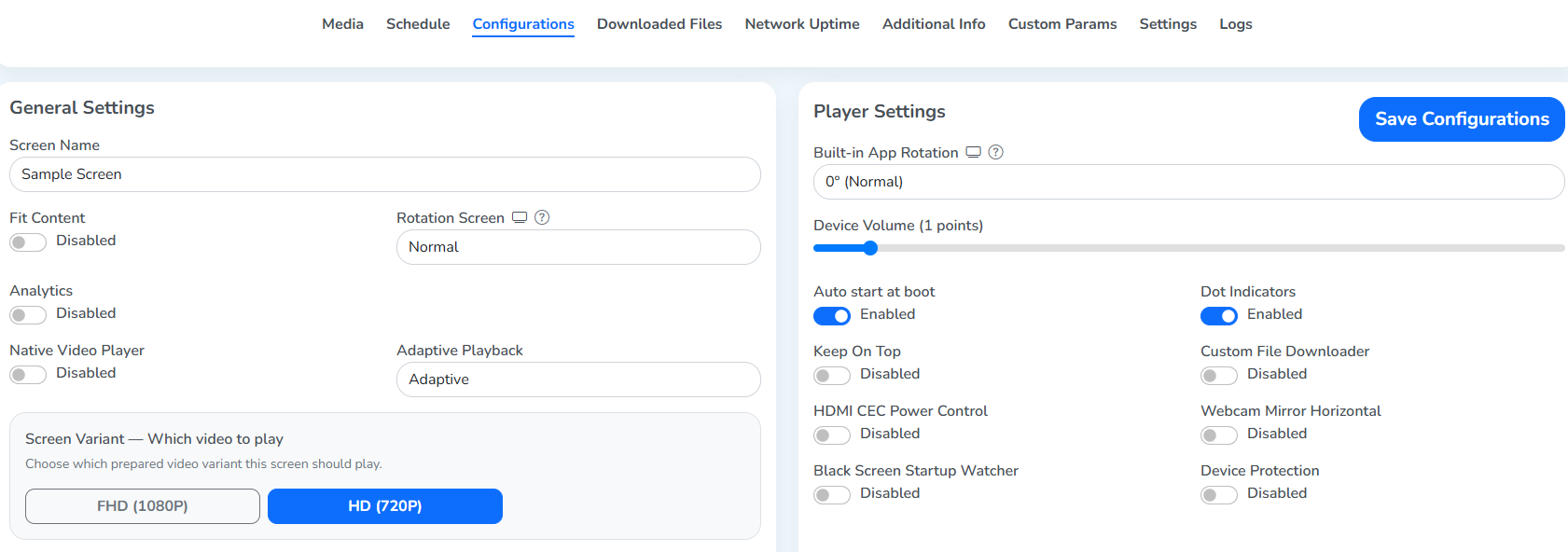
Save Changes saves both steps together, and puts the versions picked onto every screen’s own Screen Variant setting, in General Settings.
For this example, both FHD (1080P) and HD (720P) were picked before saving, so both show up there:
A video that crosses the threshold isn’t covered here. Producing versions for it is a manual step: find Variants on the video’s tile in the Library, then create them.
Notification Settings
The candidates selected for a notification are notified about its chosen matter, over email.
Click + Create New Setting, at the top right.
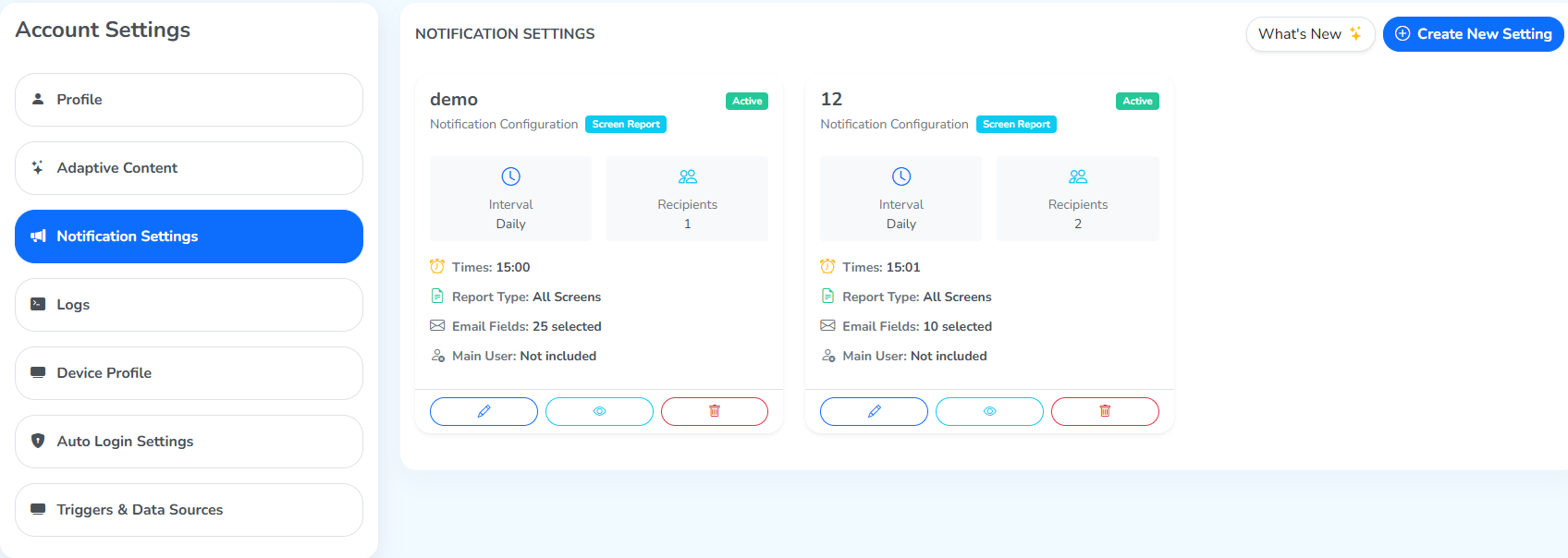
This opens a panel to configure when, who, and about what to notify.
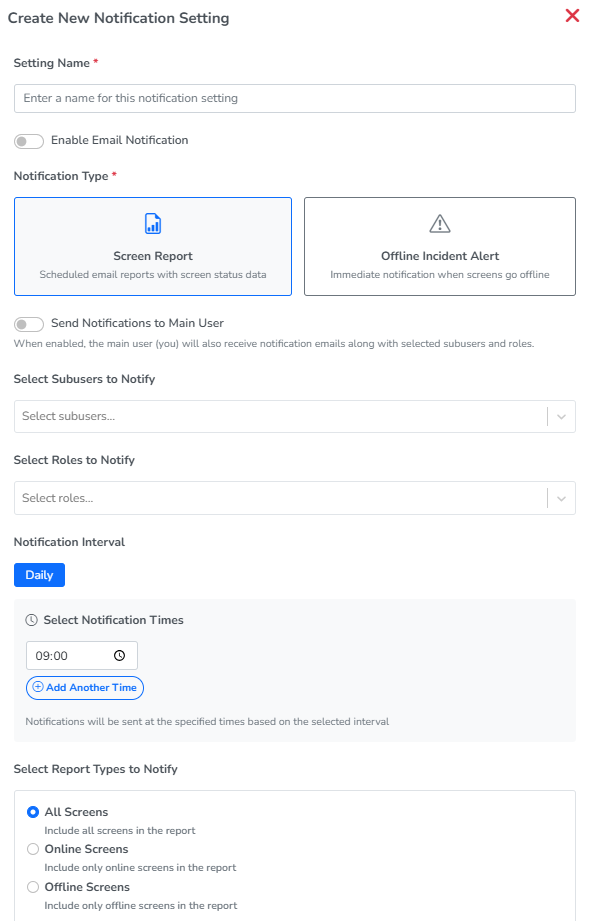
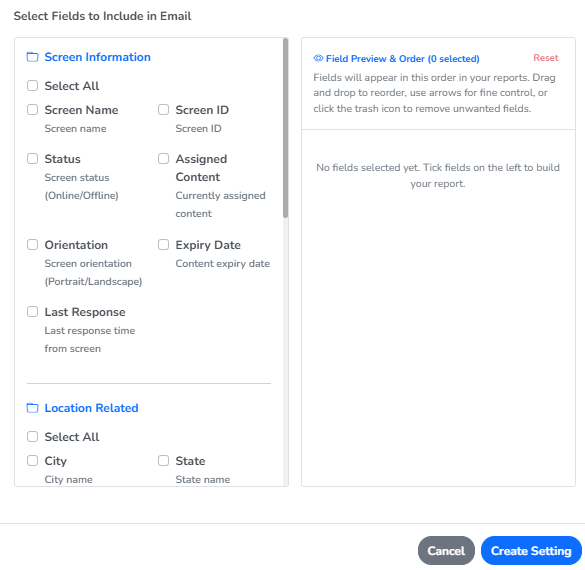
Setting Name– a name for this notification setting.Enable Email Notification– turns the setting on.Notification Type– the matter to notify about. This one is forScreen Report.Send Notifications to Main User– includes the account itself among the recipients.Select Subusers to Notify– the team members created in Team.Select Roles to Notify– the roles created in Team.Notification Interval– set toDaily.Select Notification Times– when, on that interval, it’s sent.Select Report Types to Notify– which screens the report covers:All Screens,Online Screens, orOffline Screens.Select Fields to Include in Email– tick fields on the left, then reorder their format on the right.
Choosing Offline Incident Alert instead opens this panel.
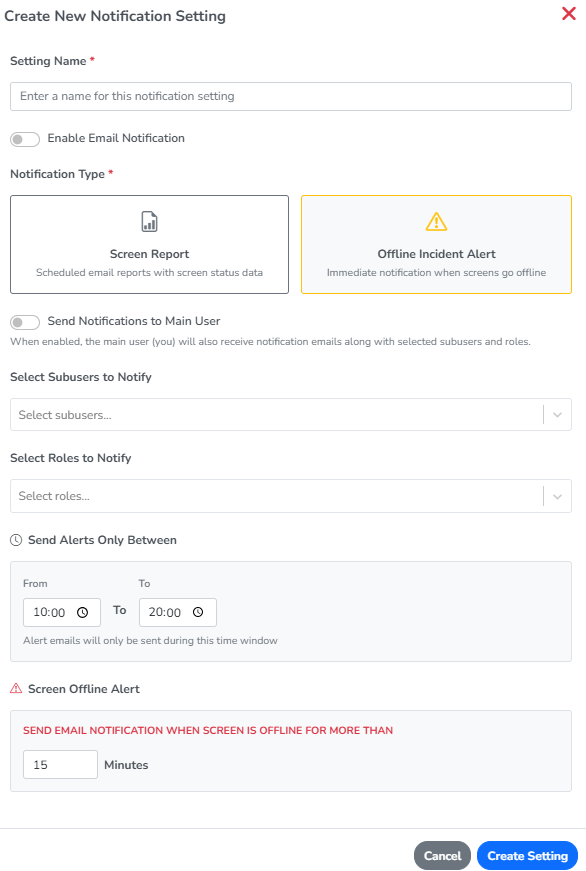
In place of the interval and report fields above, it adds:
Send Alerts Only Between– the time window the alert can be sent in.Screen Offline Alert– the minutes a screen must stay offline before it’s sent.
Create Setting creates it.
Logs
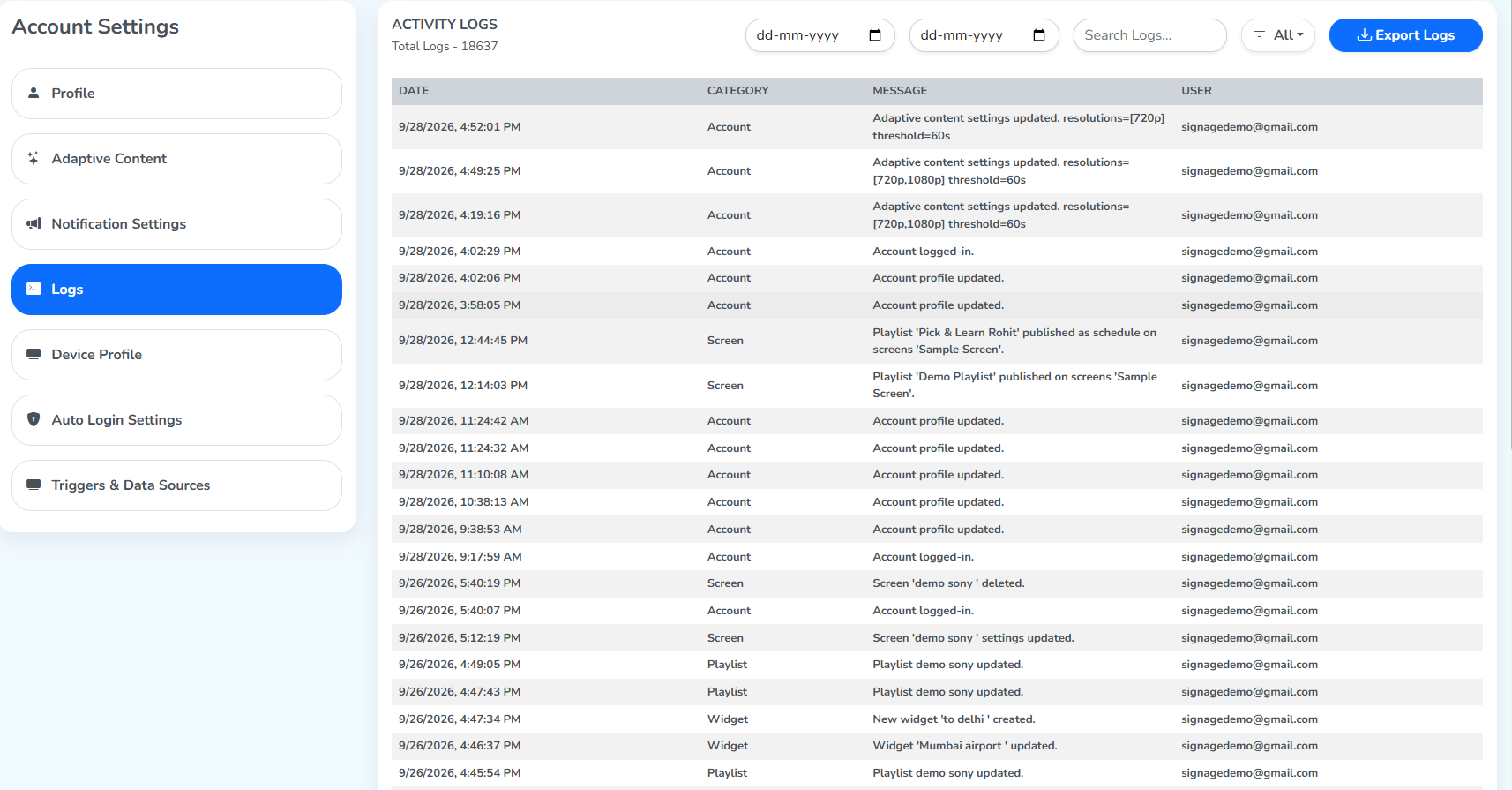
Each entry shows the Date it happened, the Category it relates to, a Message describing what changed, and the User who made the change on this account. This works the same way as the Logs section in Team.
Device Profile
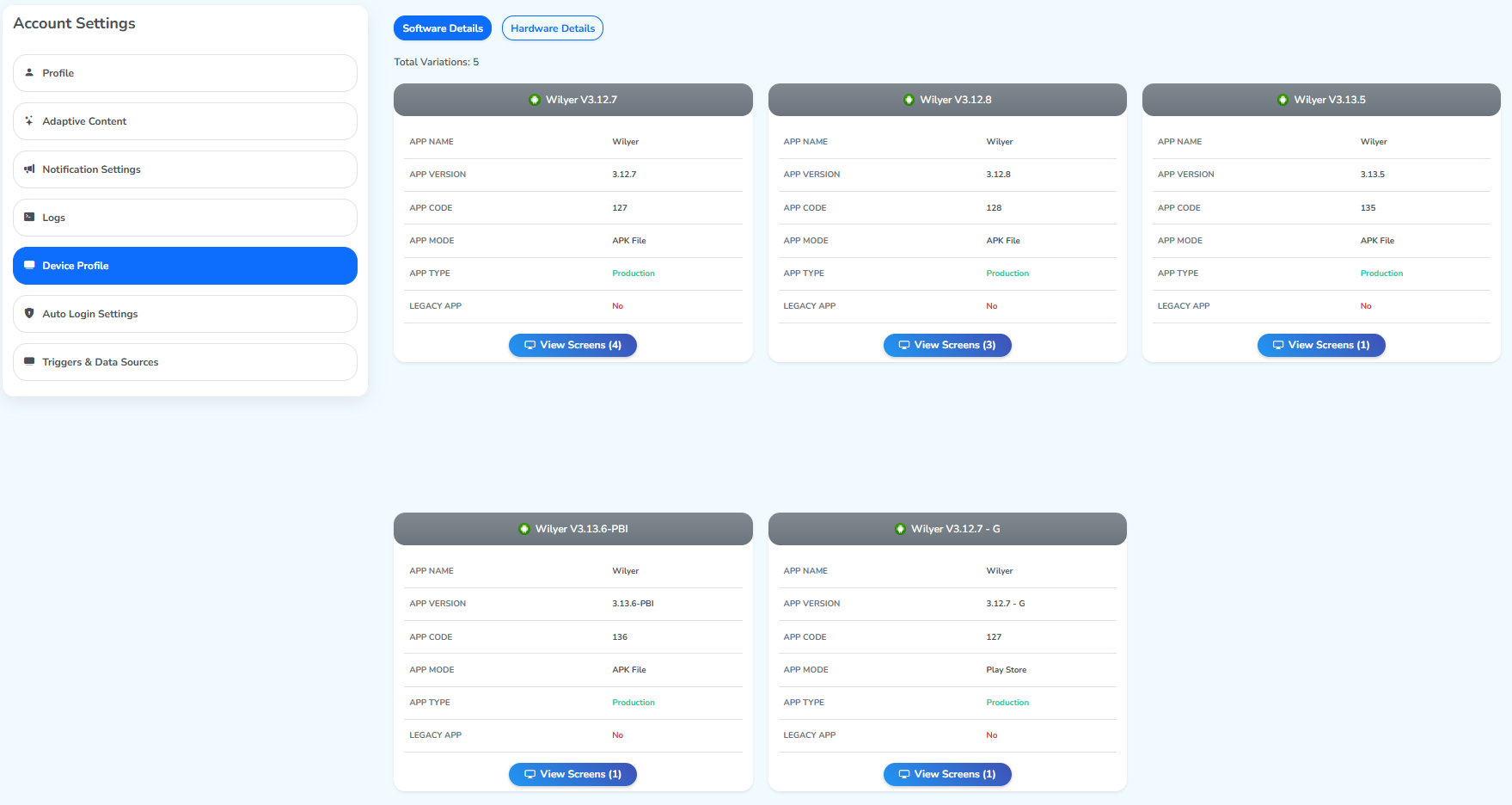
Device Profile lists every player app variation running on the account’s screens, one card per variation.
 Android
The icon at the top of each card shows the operating system it runs on, Android here for all of them.
Each card shows:
- App Name – the player app’s name.
- App Version – its version number.
- App Code – its build code.
- App Mode – how it’s installed, e.g.
APK FileorPlay Store. - App Type –
Productionor a test build. - Legacy App – whether it’s an older, unsupported build.
View Screens, with the count of screens on that variation, opens the list of screens running it.