Team
Team is where you control who has access to your account, group them into roles, and see what they do inside it.
Overview
Let’s take a quick overview of this page. Click Team in the left panel to open it.
 Top section
Top section
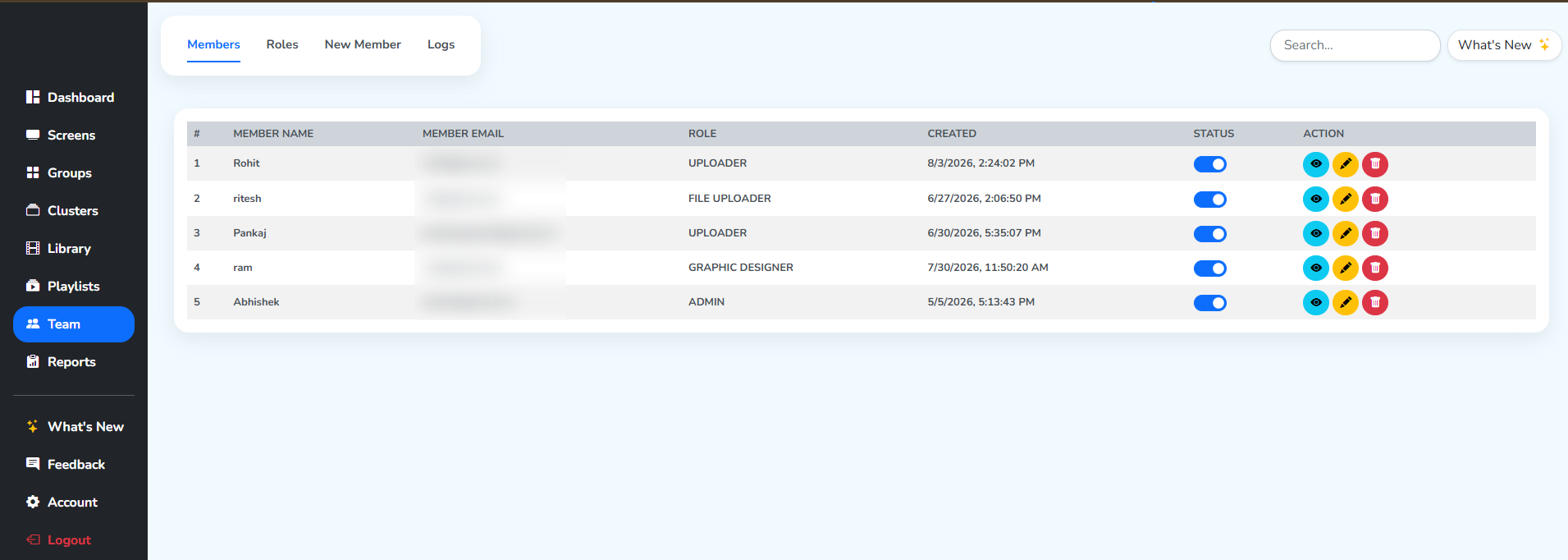
- The top section holds four tabs, a search box and the What’s New button.
Search..can be used to find a member by its name, email or even role.What's Newopens the Roles & Teams explanation section.
Members
- Team section opens on the Members tab, which lists the team members working on this account with you.
- Each member can hold a different role and access level, under Role Based Access Control (RBAC).
- The table below carries a heading row: member name, email, role, the date the member was created, and status.
Statusdecides whether the member can log in to this account with the credentials you gave them.- The
Actioncolumn holds three options: view the member (cyan eye icon), edit the member (yellow icon) and delete the member (red icon).
 StatusAction
Roles
- The
Rolestab lists every custom role as a card.
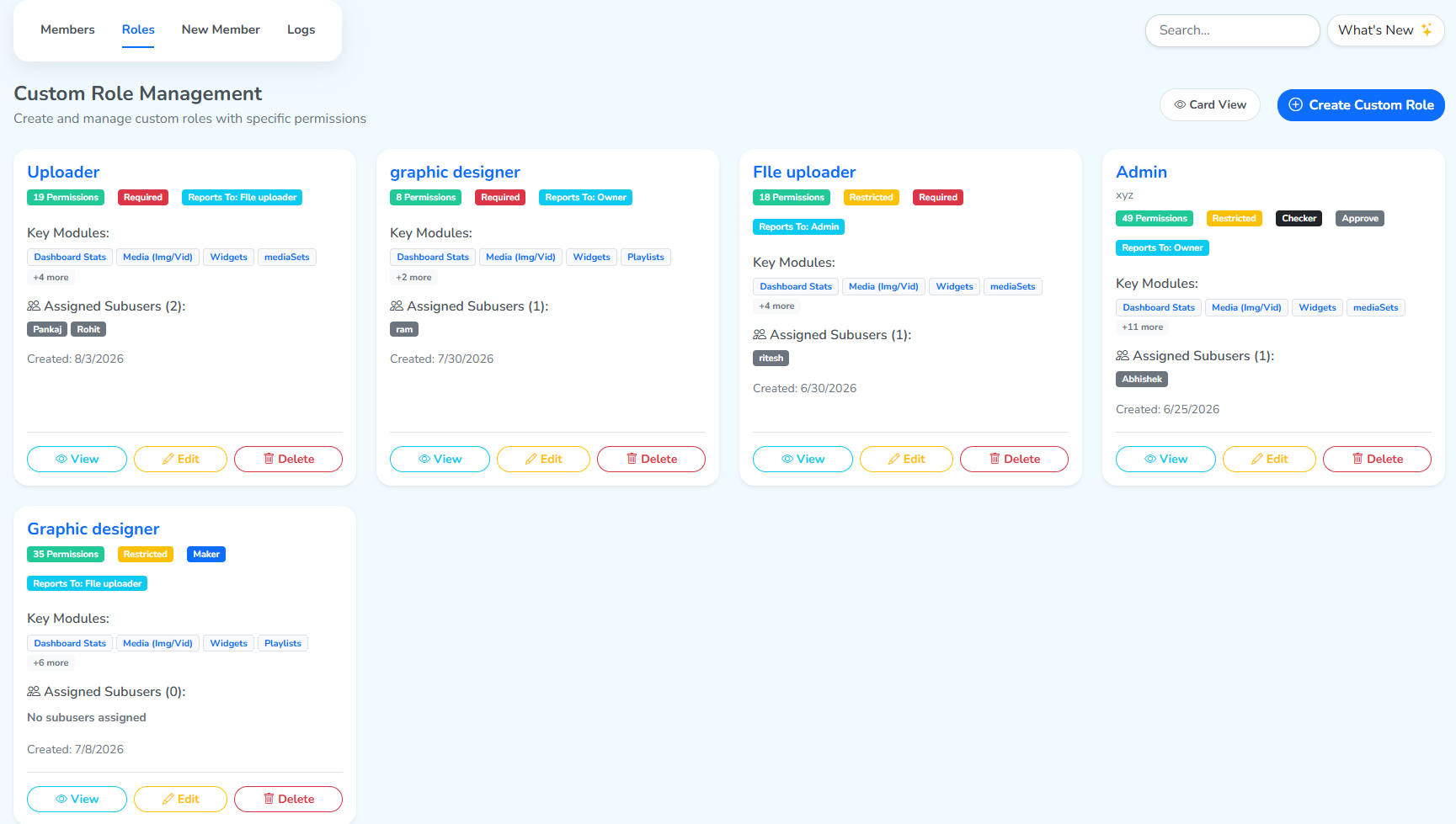 Card ViewCreate Custom RoleA role, as a card
- The current roles view is
Card View, top right, clicking on it switches the style to Hierarchy View, and+ Create Custom Rolebeside it builds a new role.
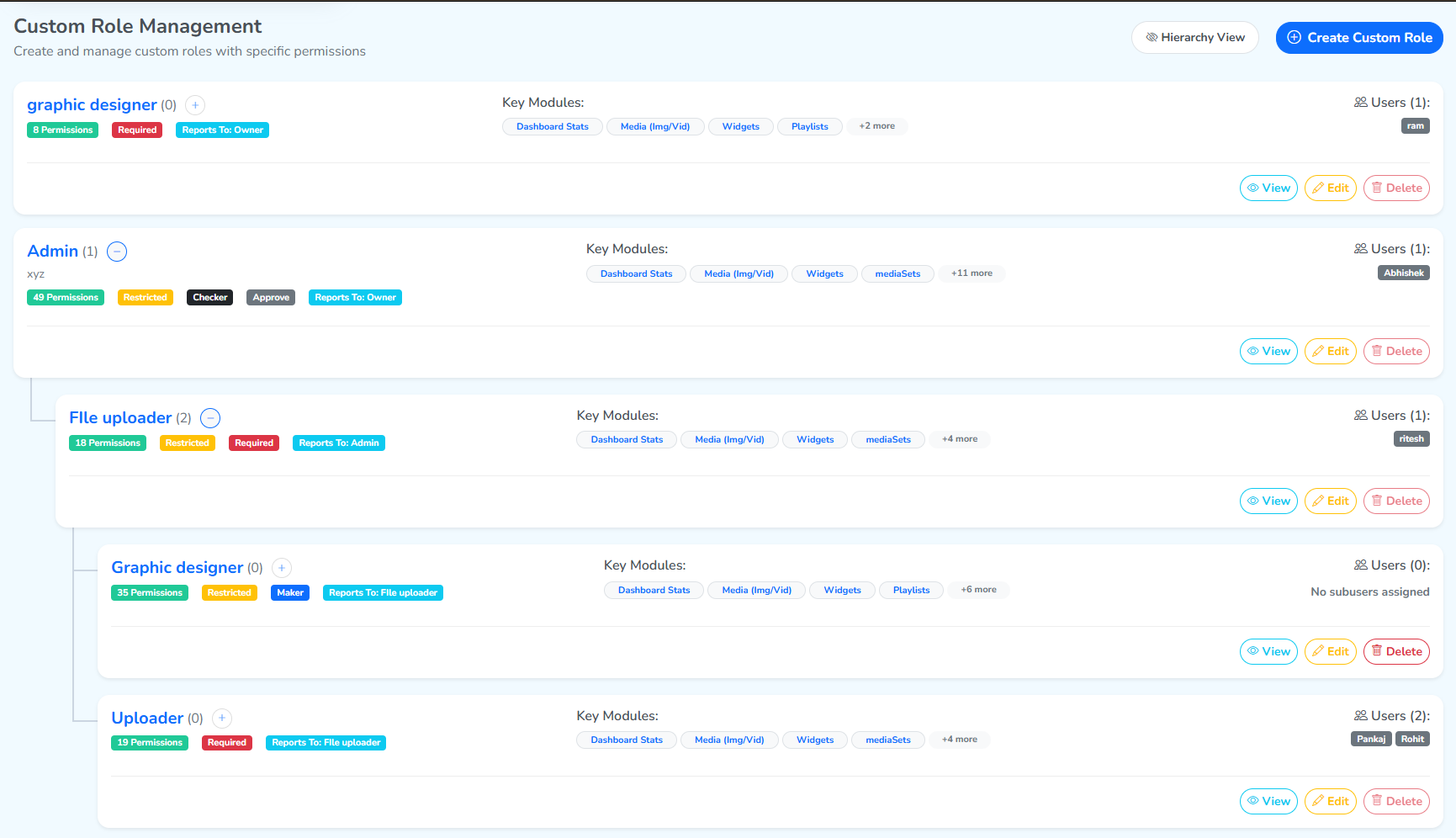 Style changed to Hierarchy ViewExpandCollapse
- Each card carries its permission count, with more colored tags for its other attributes. The
+/-beside a role’s name expands or collapses the roles that report to it, depending on who reports to whom, set from each role’s Reports To field. View,EditandDeleteat the foot of the card open, edit or remove that role.
New Member
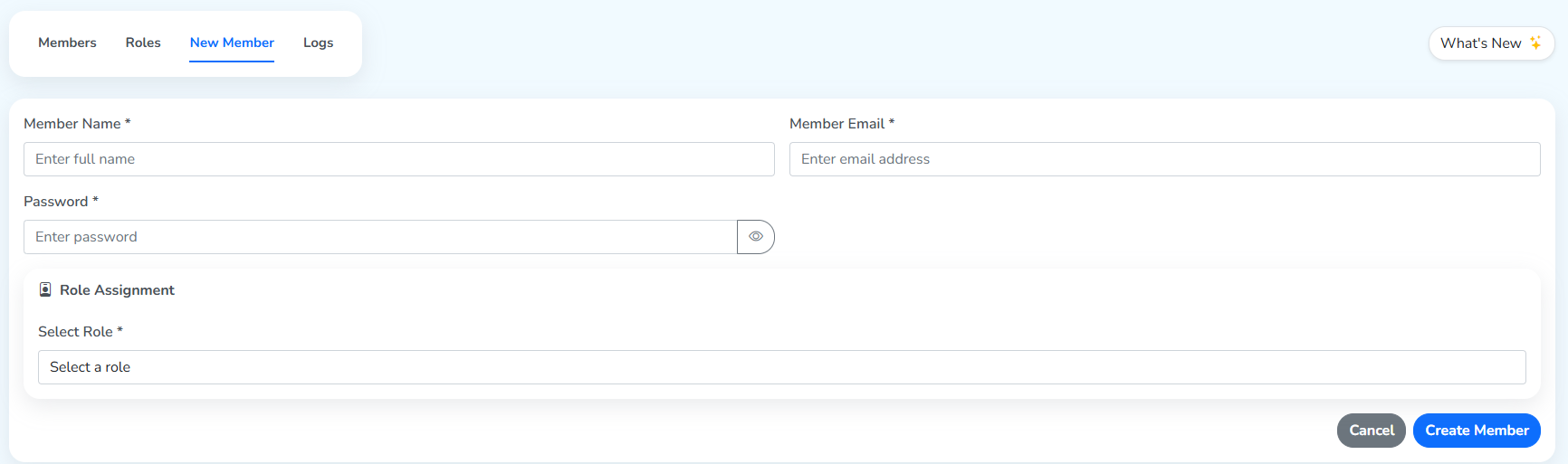
- The
New Membertab assigns a role you already created to one or more members, and creates their login credentials at the same time. - The details filled in here, member name, email and the assigned role, appear against that member in the Members tab.
- The password set here is the one the member uses to log in, along with their email, once their account is created. Signing in with that email and password gives them the access their role permits.
- Clicking
Create Membercompletes the process.
This flow is covered step by step on the Create a New User page.
Logs
- This section lists the team members’ activities with time stamps.
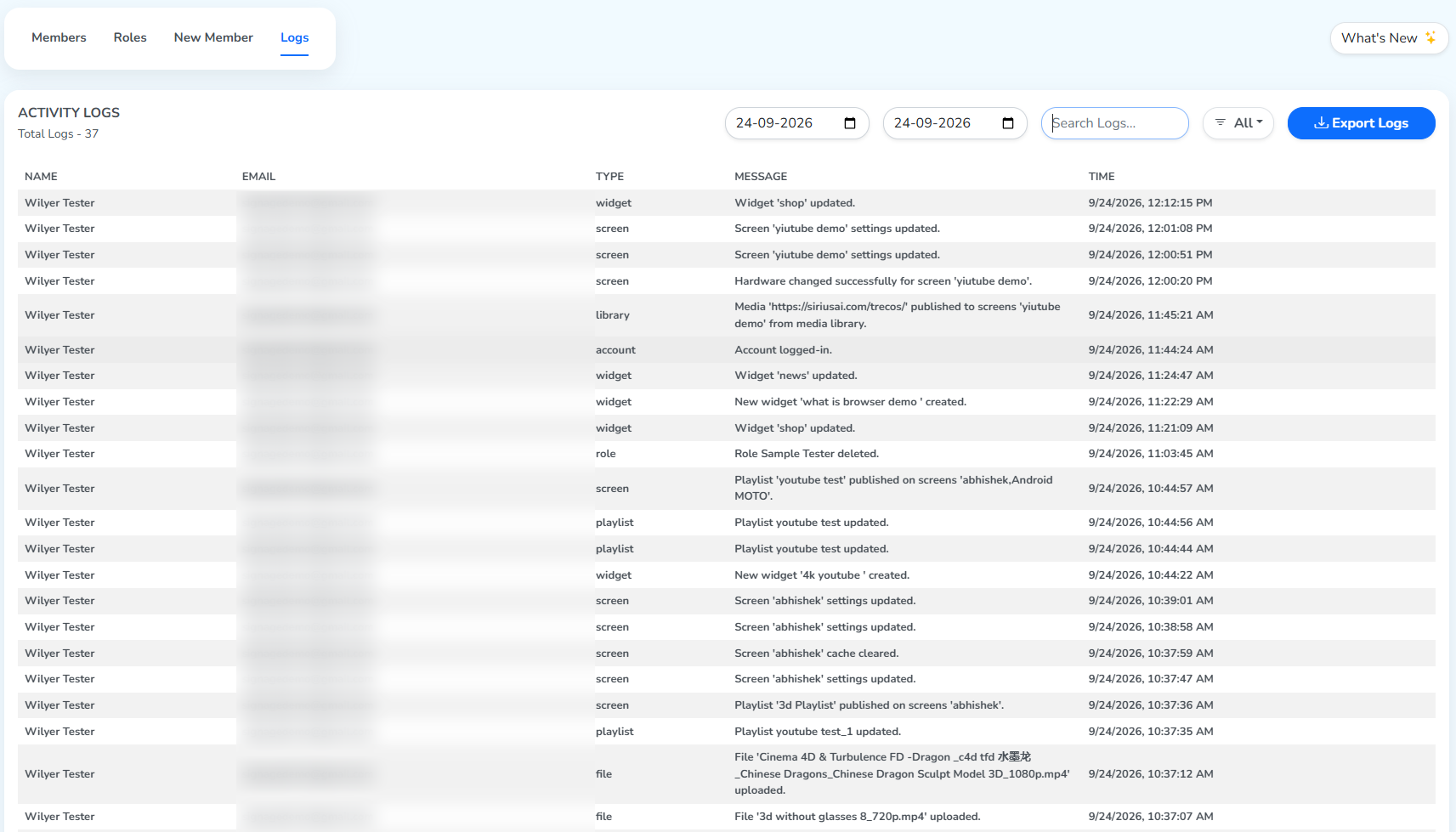 FiltersTypeMessage
- The two date pickers set a start and end day, and the list narrows to just what happened in that date range. Set them to the same day, as here, to see one day’s activity only.
Search Logs...finds a log by the entries in itsTypeorMessagecolumns.- The
Alldropdown, next to the search bar, opens the log types below. Select one, and the logs list is filtered to theTypeselected.
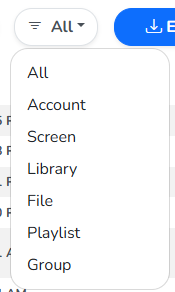
Total Logs, on the left, counts what the current filters return.Allis the default, and lists every type.Export Logsdownloads the logs currently in view as a CSV file.