Previous Reports
Click the Previous Reports tab, beside Analytics, to open Stored Analytics – every export your team has generated, ready to download without regenerating it.
Open Previous Reports
Each row shows the date range (From / To), number of Screens, Status (Completed / Failed due to some issue), Type (Screen / File), and Created At.
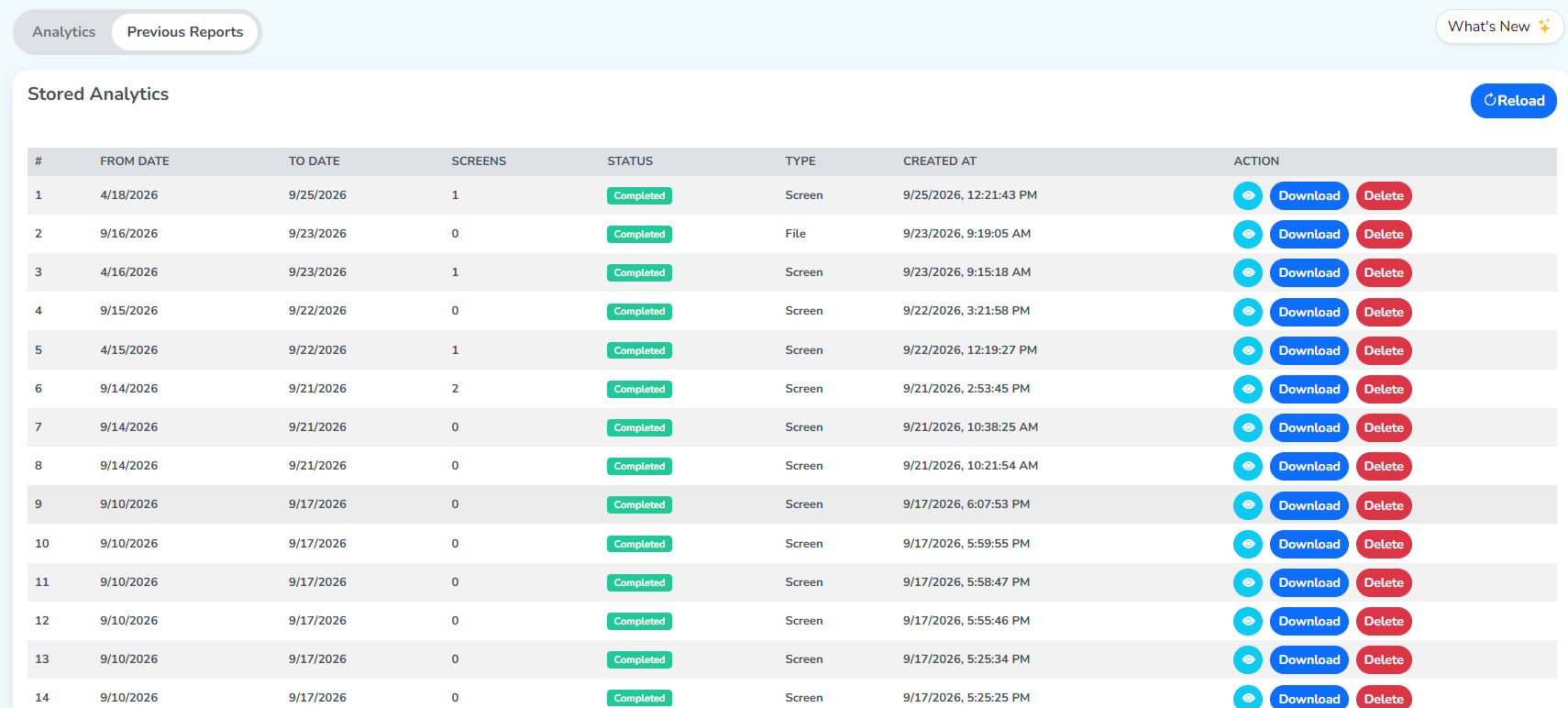
Act on a report
An Action column carries three buttons, plus a Reload button at the top-right of the page:
- View – lists the screens the report covers (ID, name, status).
- Download – saves the stored export (PDF / CSV / XLSX) to your machine.
- Delete – permanently removes the export, after a confirmation. Deletion is irreversible.
- Reload – refreshes the list so newly-finished exports appear here.
Bulk-export from screens
Bulk Operations, for acting on multiple screens at once, also carries an Export Analytics option. An export started that way lands in this same Previous Reports table too, ready to download. Review both the links given in this paragraph to visually locate how this happens.