Filters
Filter sits at the end of the row of controls above the All Screens table. It opens a panel of five conditions from the right, and this page takes every choice in it, one at a time.
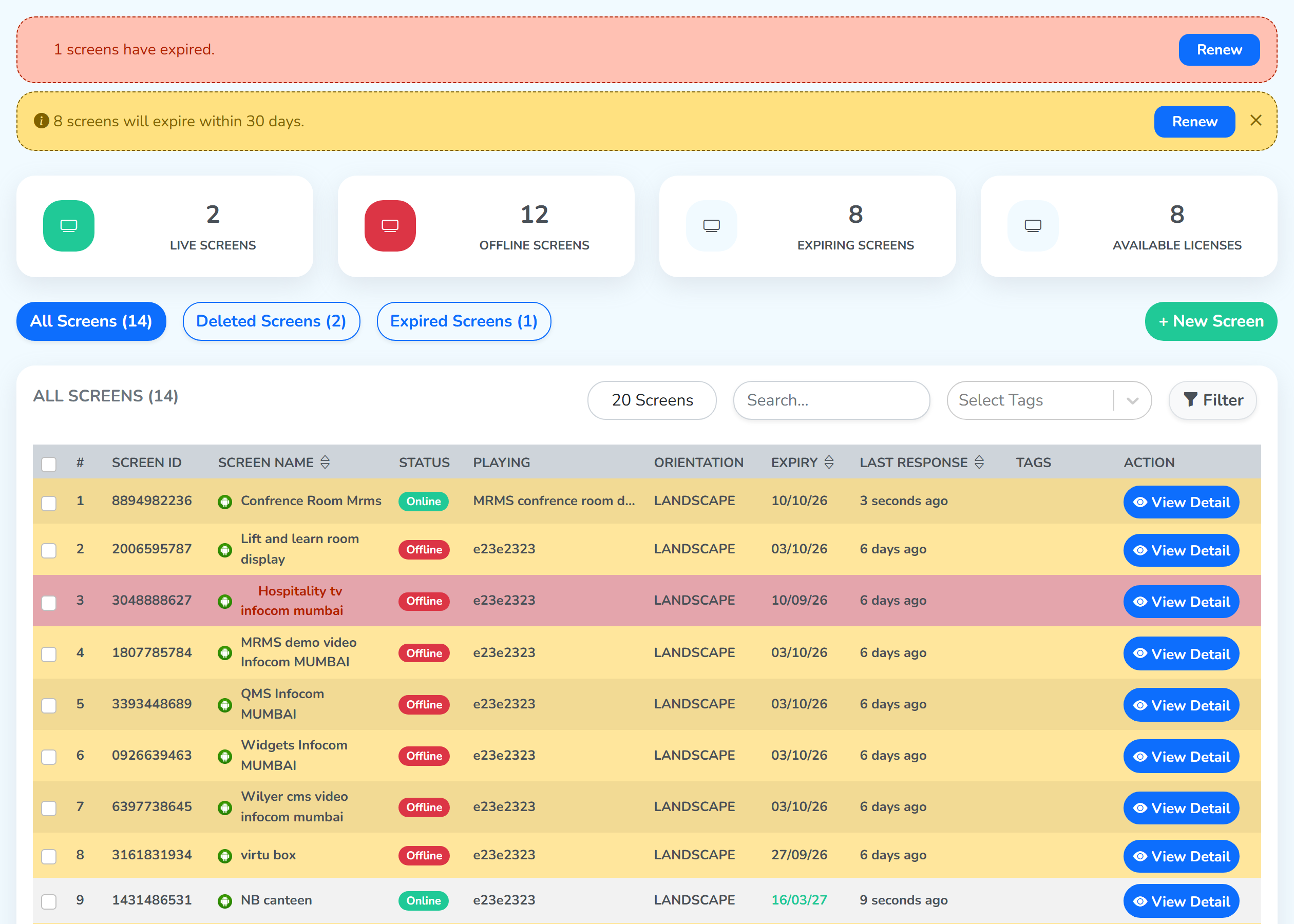
These are the conditions that open on the Filter panel. One click applies a choice straight away – the list behind the panel changes as you go, so you can keep the panel open and work down it.
The conditions stack: each one you set narrows what the last one left, so everything you pick applies together.
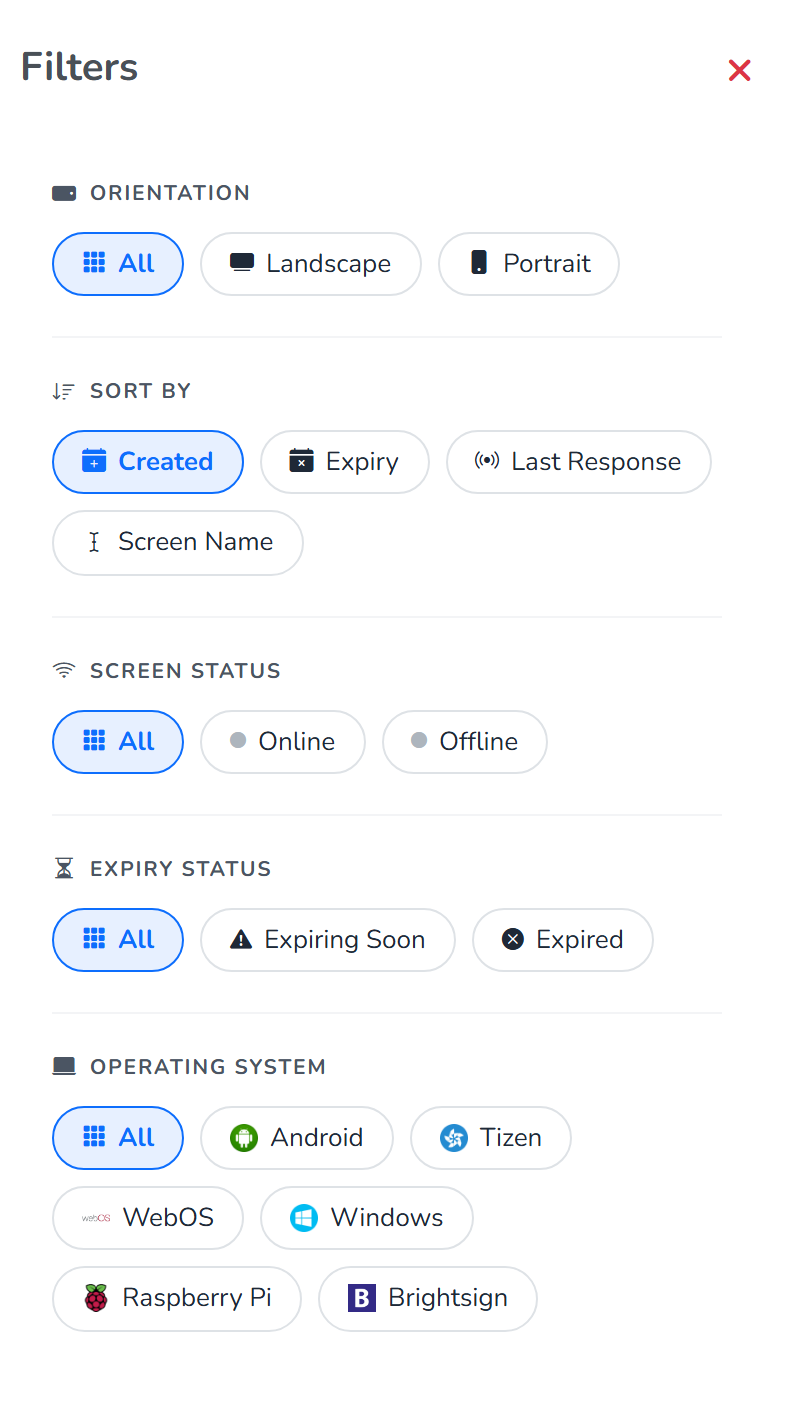
Each of the five sections in the picture is clickable, and takes you to that condition below.
Orientation
All · Landscape · Portrait – the way the display is mounted, which is the value the ORIENTATION column carries.
Landscape
The screens that are in landscape mode – thirteen of the fourteen here.
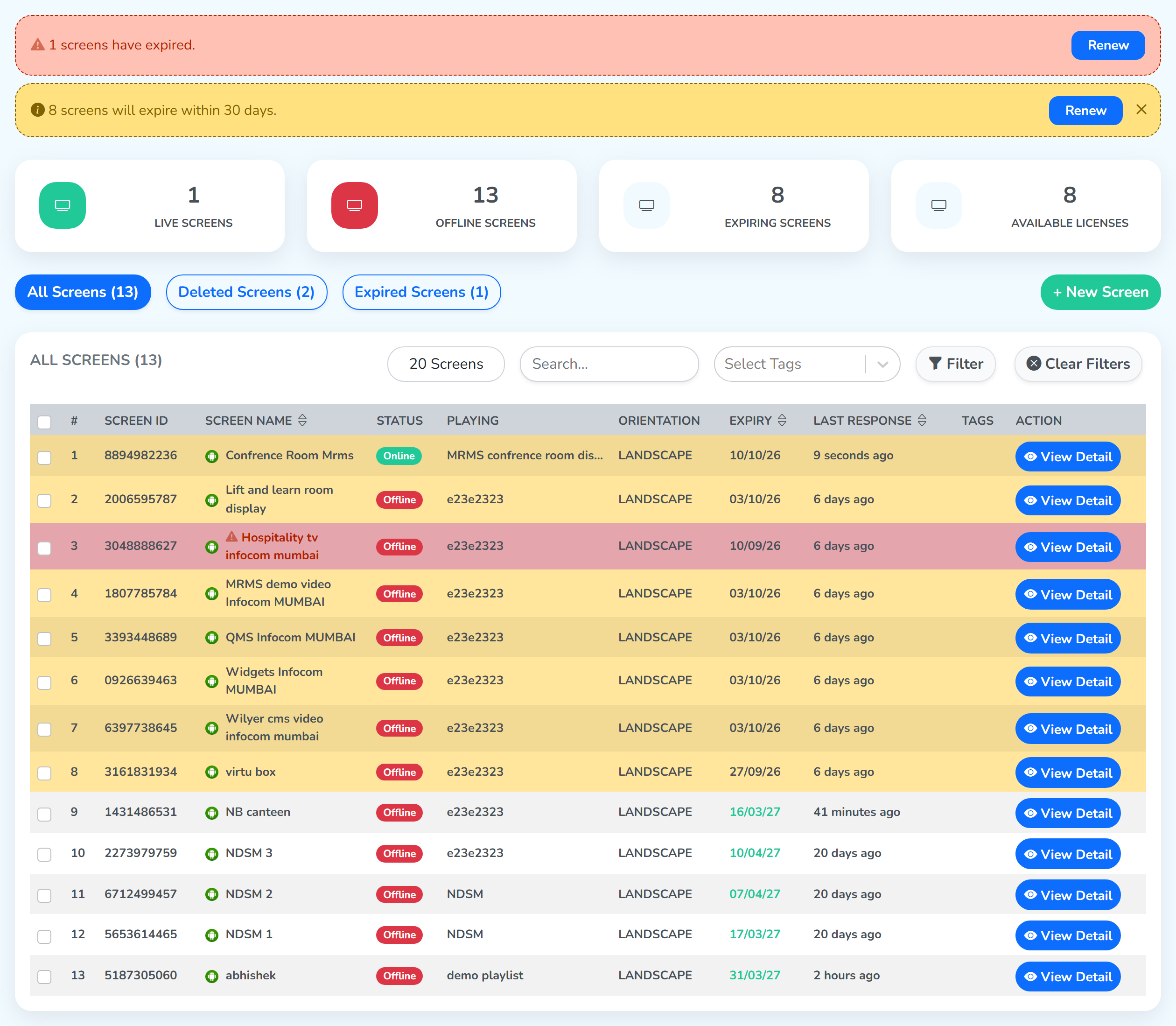 All Screens: 14 → 13Every row is Landscape
Portrait
Screens in portrait mode – one of the fourteen.
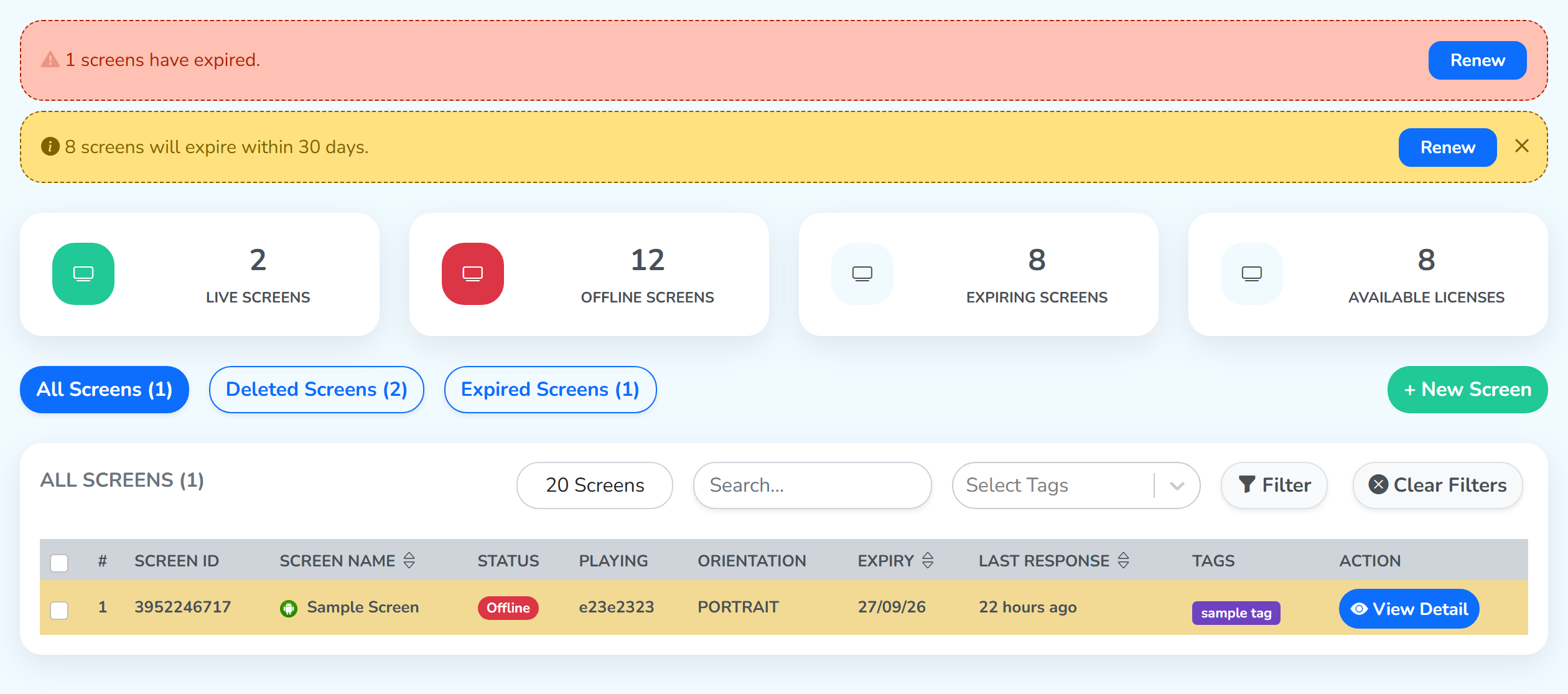 All Screens: 14 → 1Every row is Portrait
Sort By
Created · Expiry · Last Response · Screen Name – the order the rows are laid out in.
This is the condition to know, because it reorders the list and keeps all of it: the count on the tab stays the same whichever choice you make. Each one reads a different column, and each has a direction worth knowing.
Created
The order the list opens in, by when each screen joined the account: the one you paired most recently sits at the top, and the earliest one is at the foot.
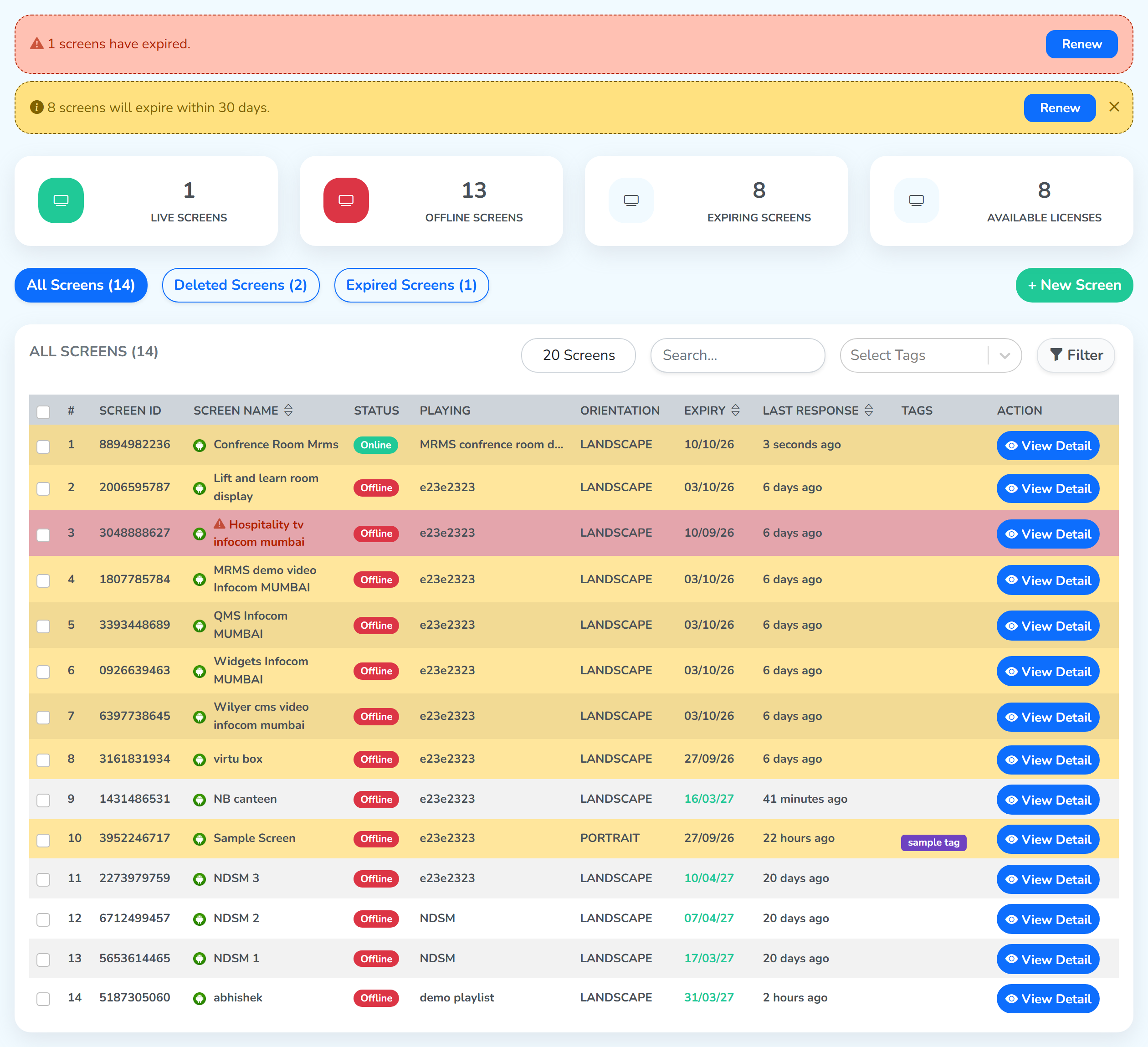 The screen paired most recently
Expiry
Reads the EXPIRY column and puts the soonest date at the top, working down to the furthest away – so the licenses you have to deal with first are the ones you see first.
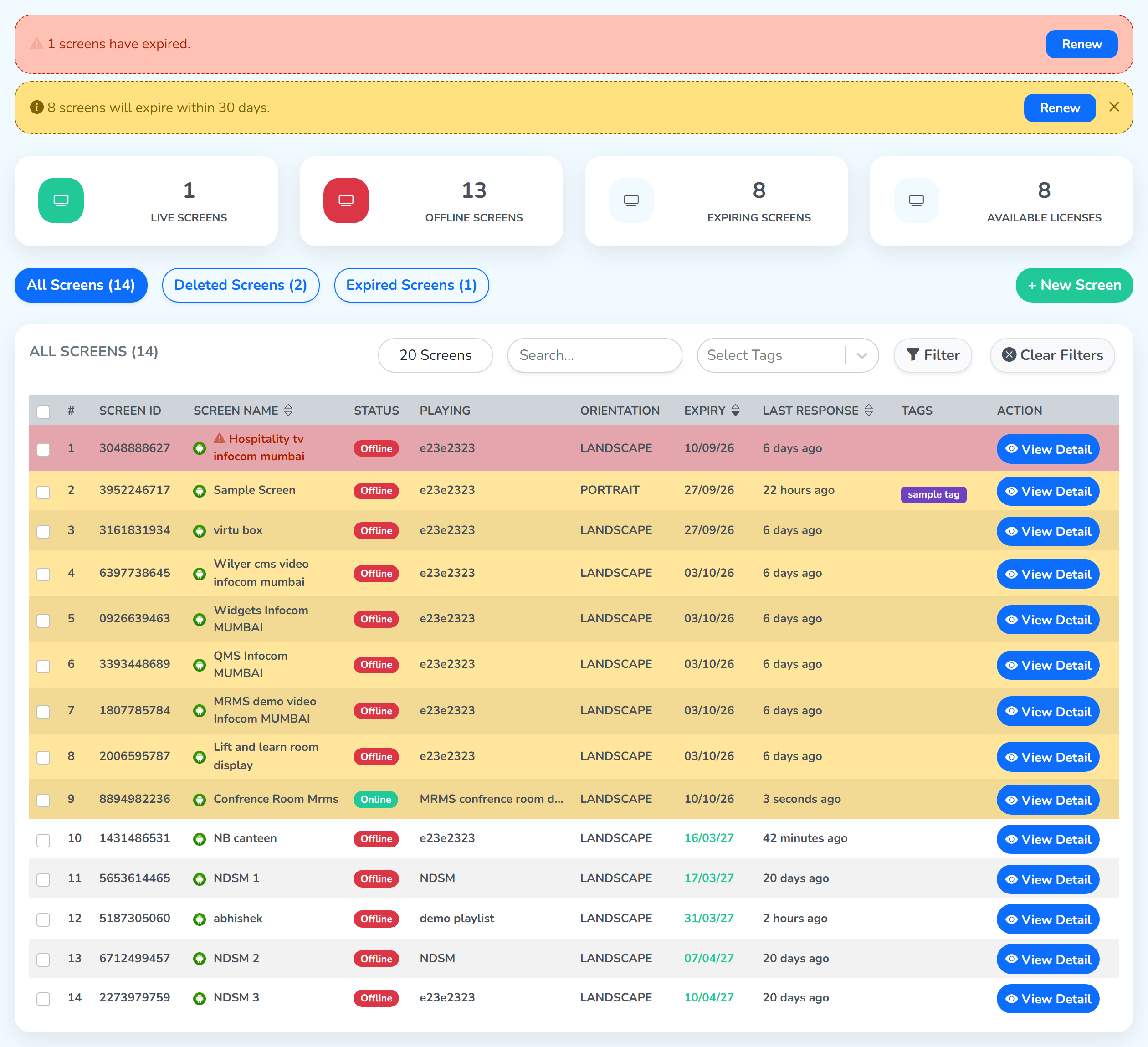 Soonest expiry at the top
Last Response
Reads the LAST RESPONSE column and puts the screen that has been quiet longest at the top, working down to the one that checked in least time ago.
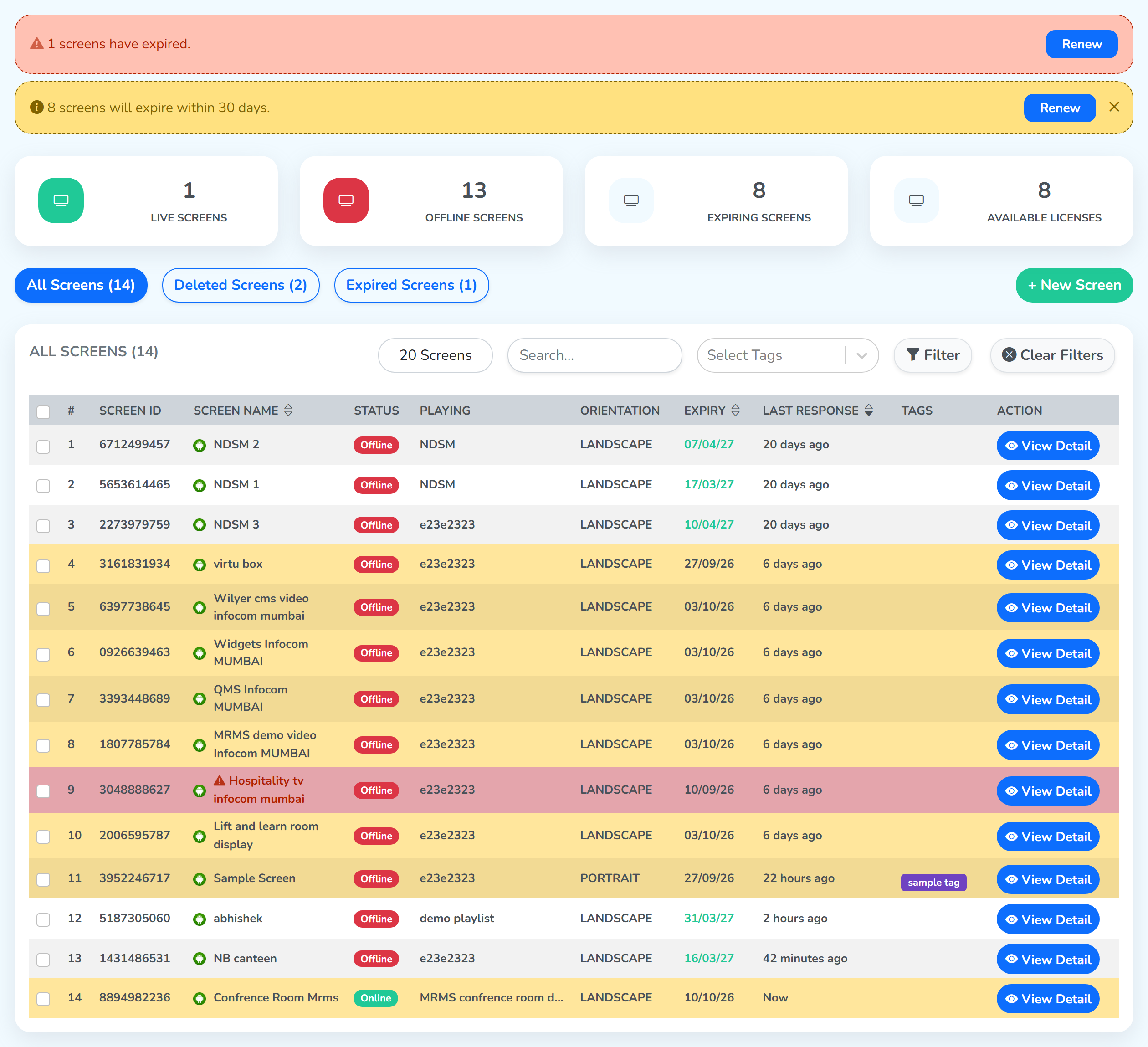 Longest silent at the top
This is the one to reach for when you are looking for whatever has dropped off and stayed off.
Screen Name
Reads the SCREEN NAME column and runs A to Z. One thing to watch: names beginning with a capital letter come first, and names beginning with a lowercase letter follow them.
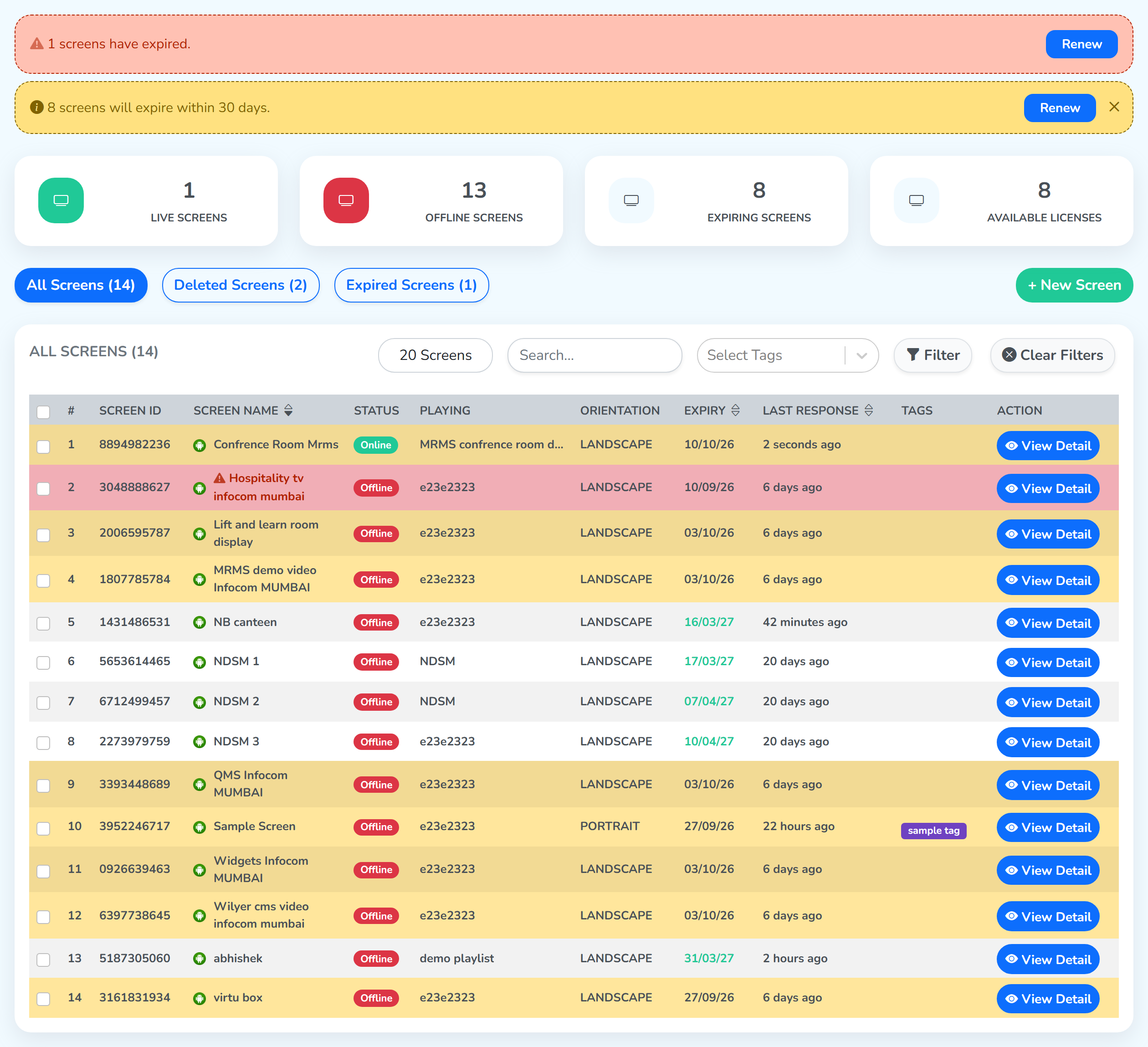 A to Z, lowercase names last
Screen Status
All · Online · Offline – what the STATUS column reads on each row.
Online
Keeps the screens that are playing and connected right now.
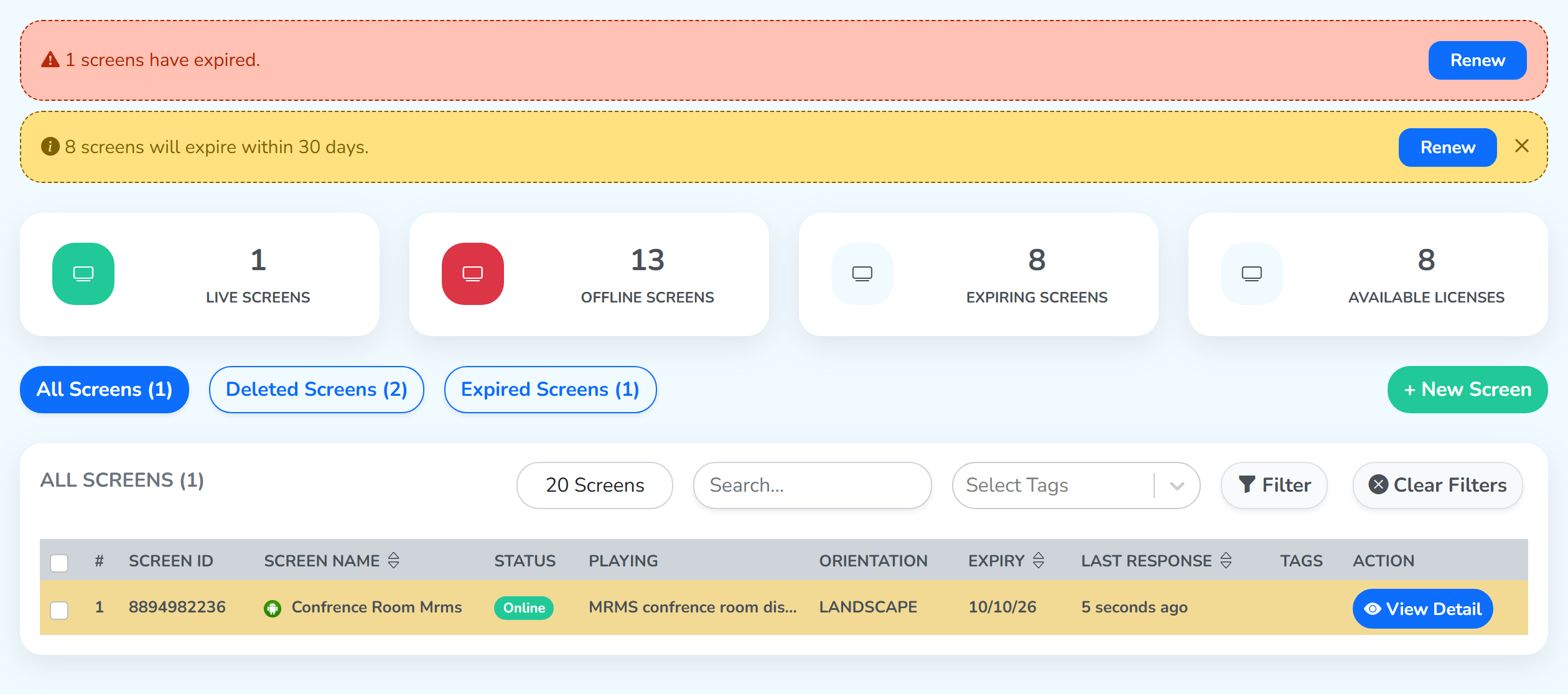 All Screens: 14 → 1Every row is Online
Offline
Keeps the screens that are powered off, off the network, or have the player app closed – the working list when something needs attention.
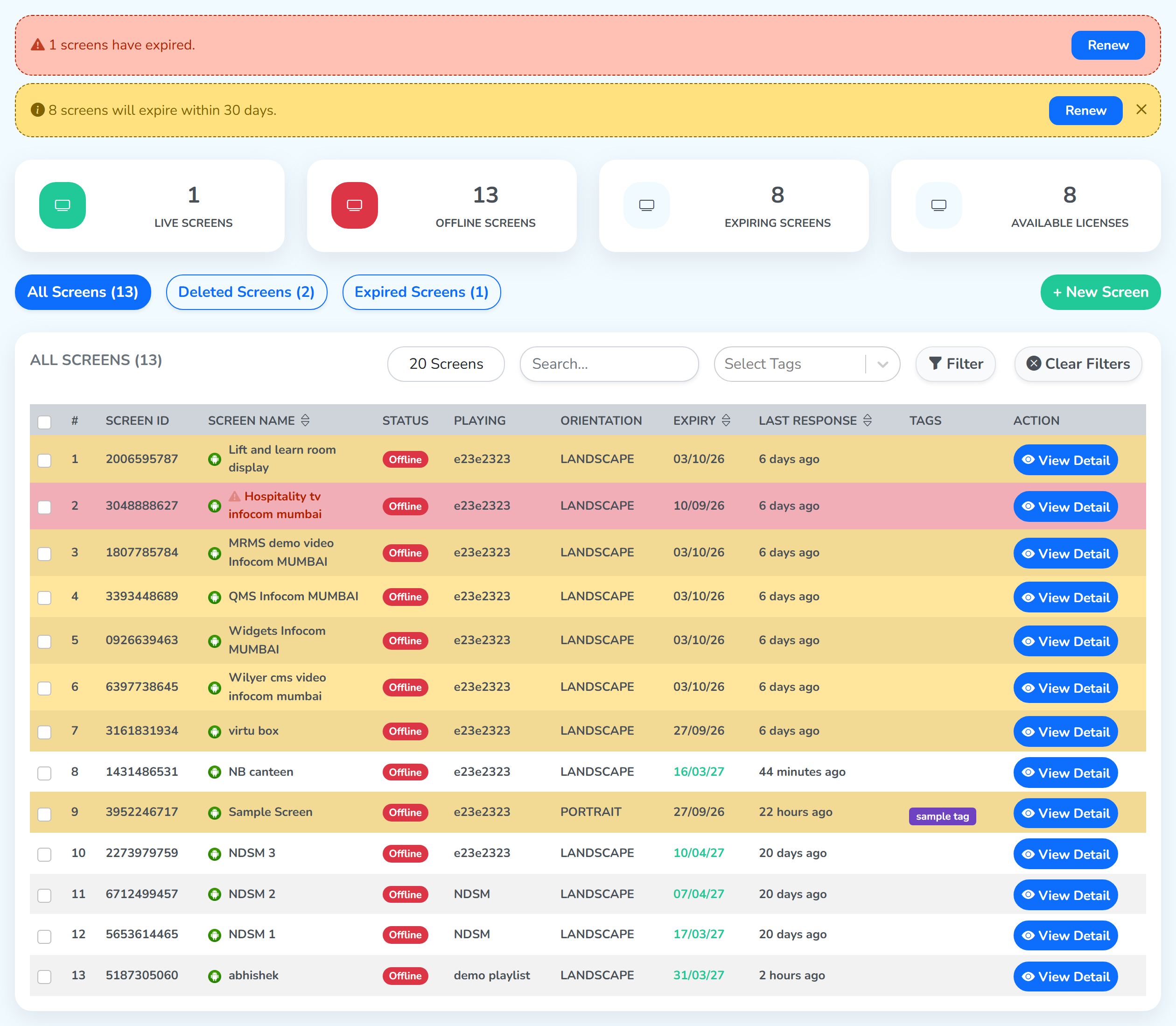 All Screens: 14 → 13Every row is Offline
Expiry Status
All · Expiring Soon · Expired – how much life the license on each screen has left, read from the EXPIRY column.
Expiring Soon
Keeps the screens whose license runs out within the next 30 days – the same set the yellow banner counts, and the same rows the list tints yellow.
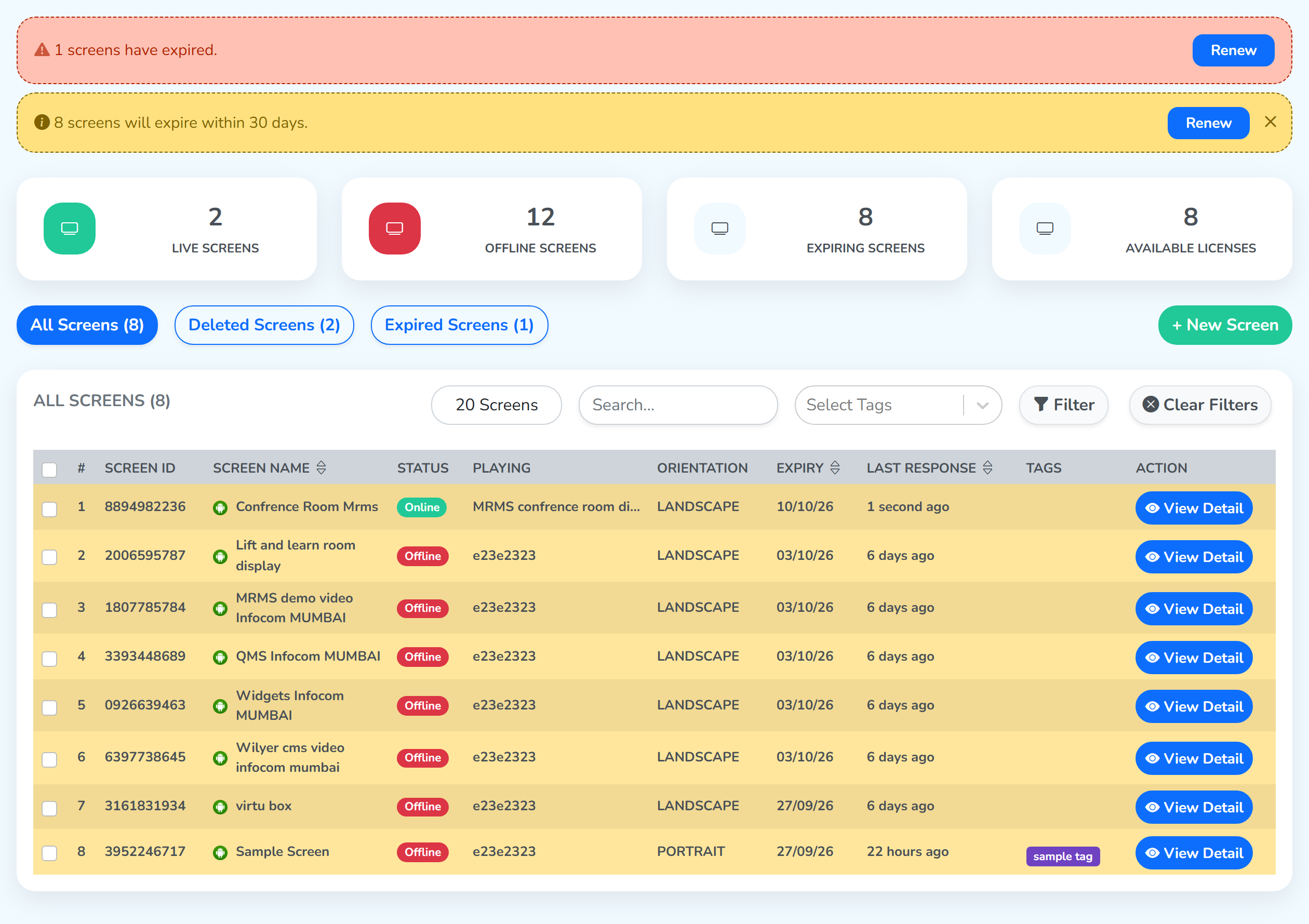 All Screens: 14 → 8All within the next 30 days
Expired
Keeps the screens whose date has already gone by – the set behind the red banner, tinted red in the list.
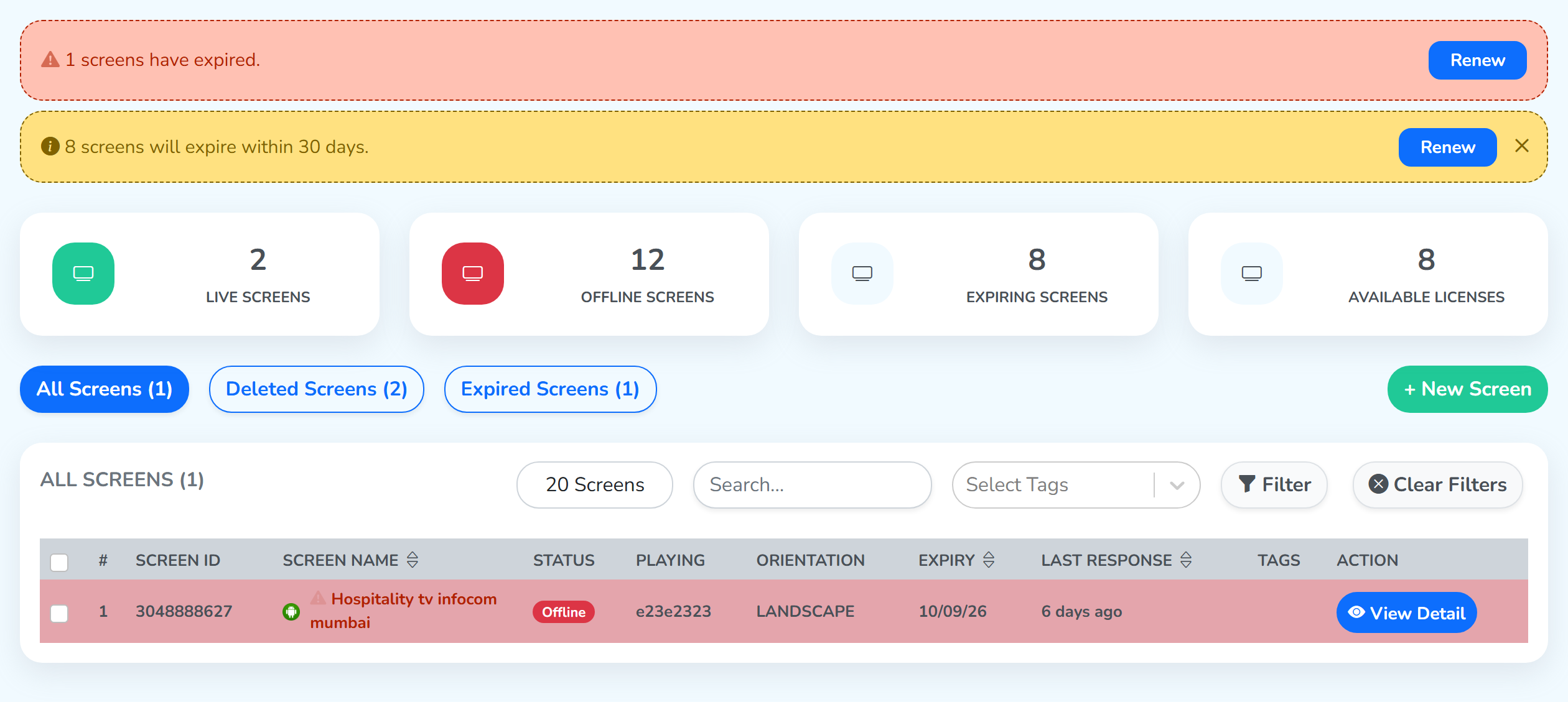 All Screens: 14 → 1The date has gone by
Operating System
All · Android · Tizen · WebOS · Windows · Raspberry Pi · Brightsign – the platform the player app is running on.
The badge at the head of each screen name is the one this condition reads. Every screen on this account runs Android, so picking it keeps the whole list of fourteen; on a mixed network it is how you reach one make of display at a time.
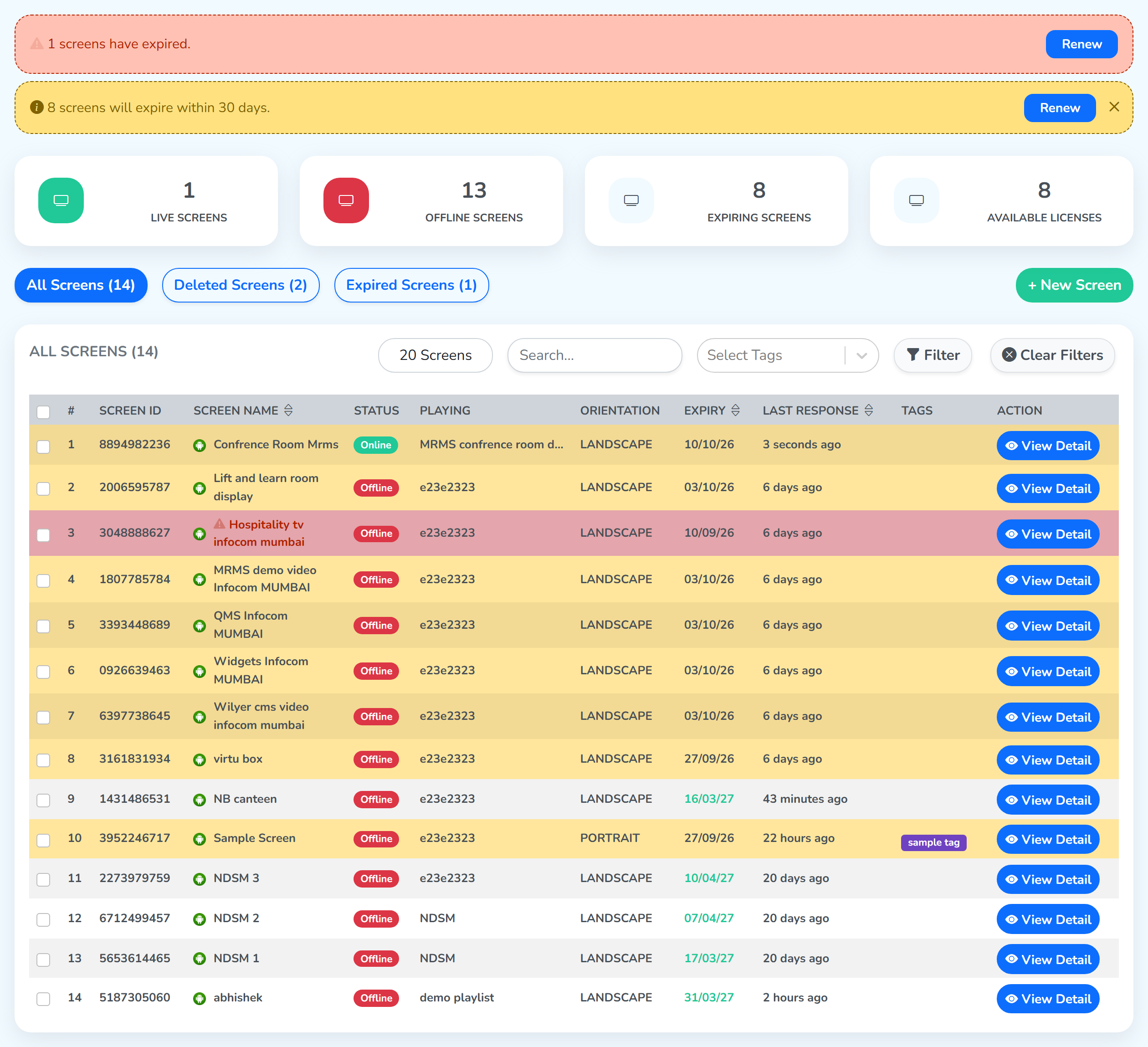 The player each screen runs
Clear Filters
Set any condition and Clear Filters appears beside Filter in the same row. Click it and the whole list comes back.
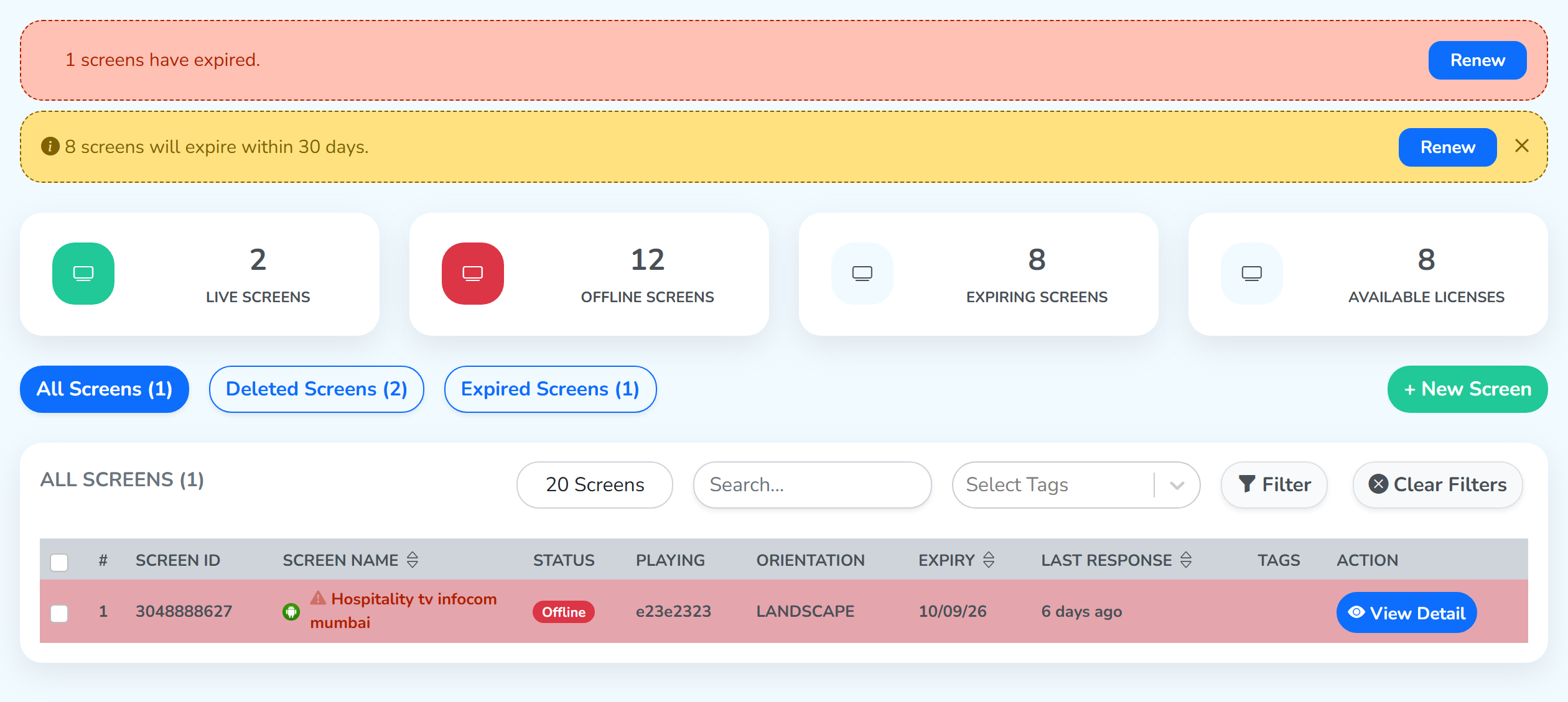 Clear Filters appears
Clear All Filters at the foot of the panel does the same from inside it, so you can reset and start again while the panel is still open.
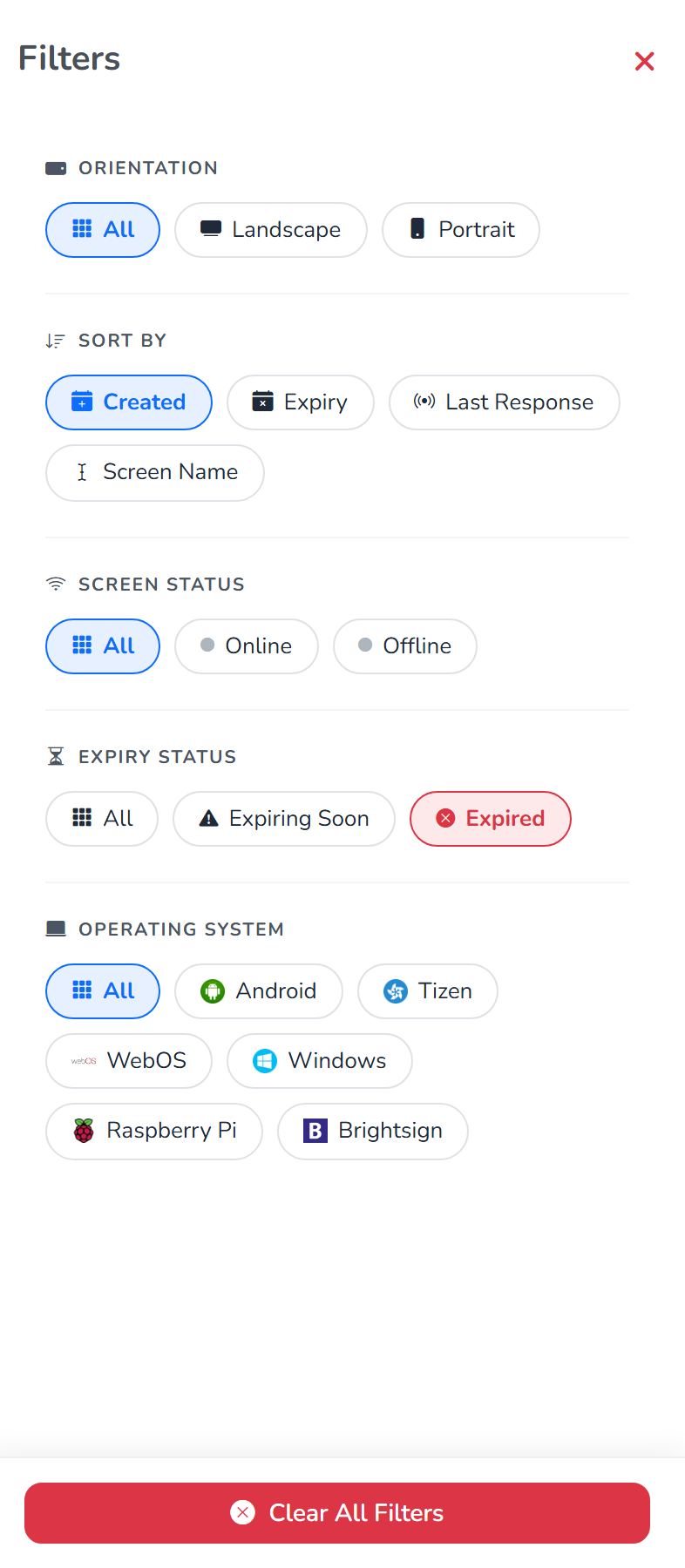
The × at the top right closes the panel, and whatever you set stays on the list behind it.