Schedule
A playlist plays continuously by default, with no time restriction. Schedule gives a playlist, a zone’s content, or a single file a date and time window to play in instead, with the highest priority during that window. Once the window ends, playback falls back to the next active schedule, or to the default.
How to schedule a playlist
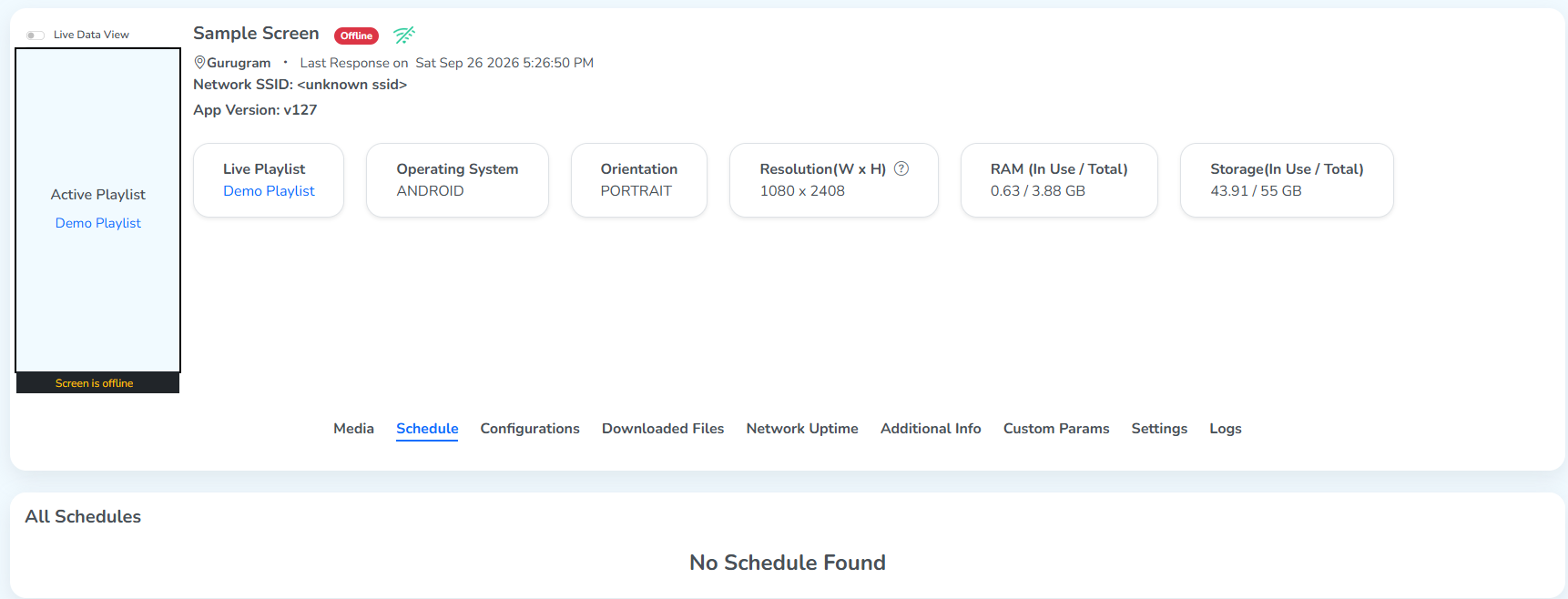
Current state of Sample Screen
Right now, nothing is scheduled for this sample screen.
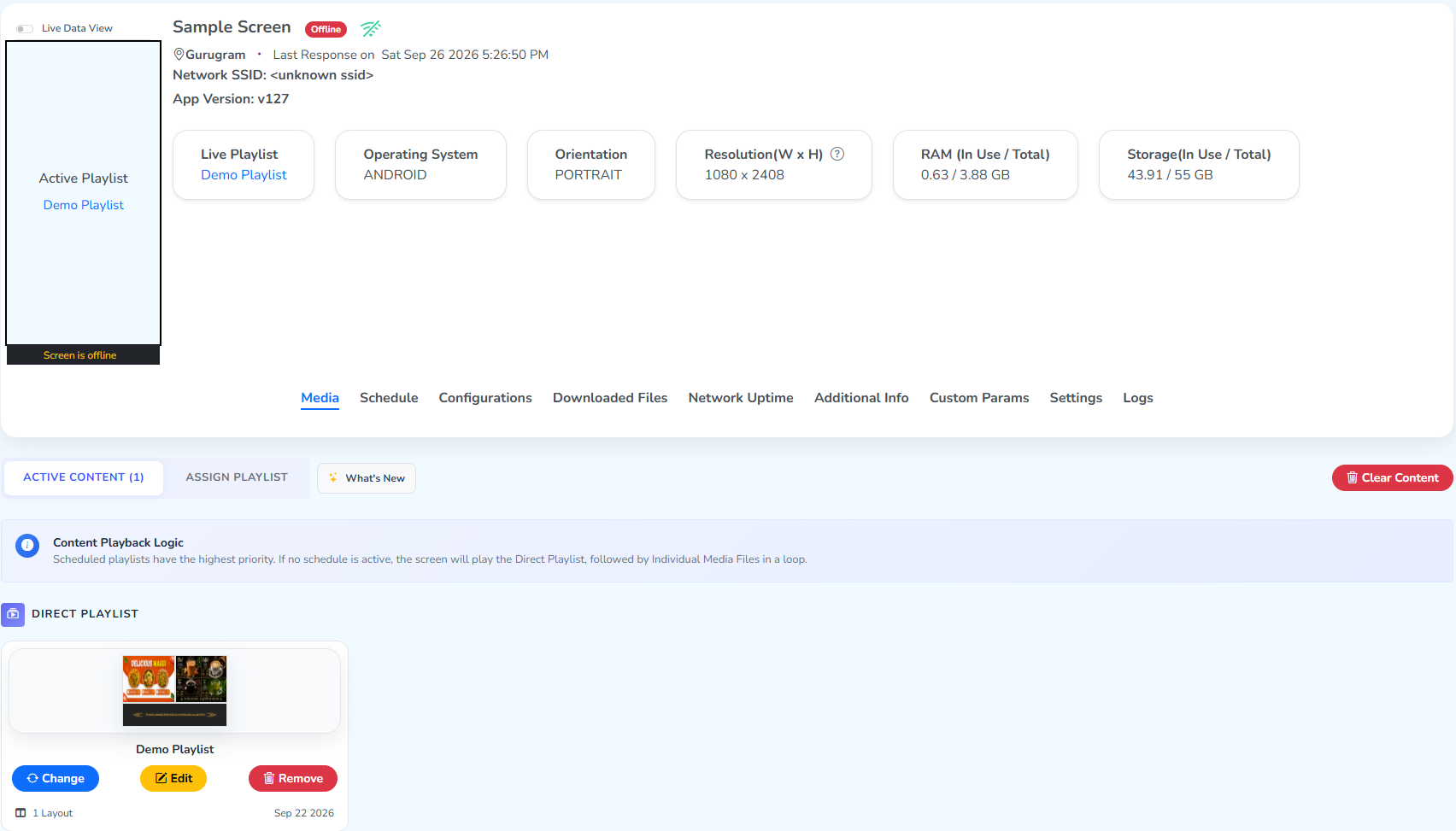
Its Media section shows Demo Playlist playing as the Direct Playlist, with a Content Playback Logic note explaining the order things play in.
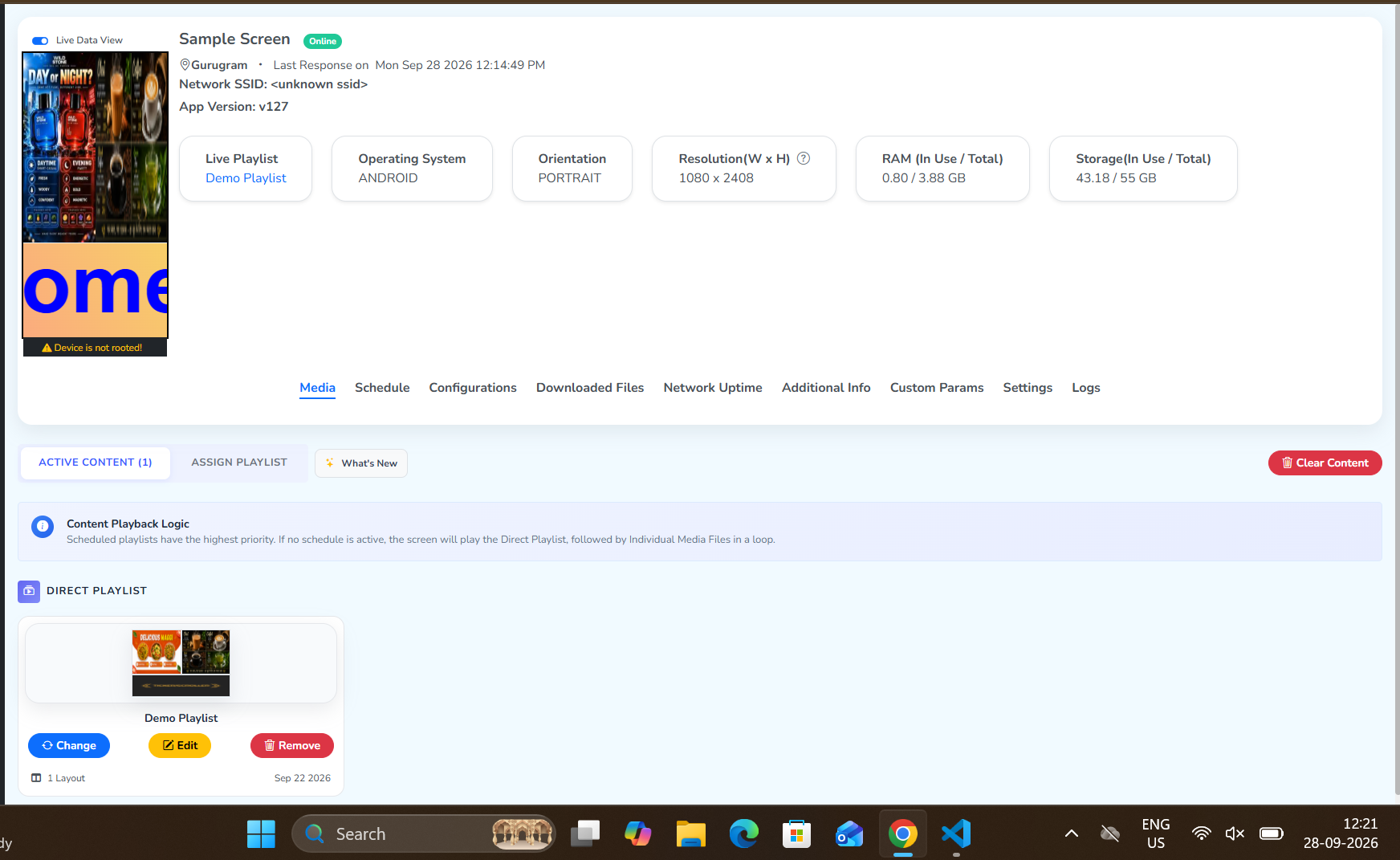
When Sample Screen shows Online, turning on Live Data View fetches its live output. This is Demo Playlist actually playing on it, and the clock in the taskbar shows the current time and date.
Schedule a playlist for Sample Screen
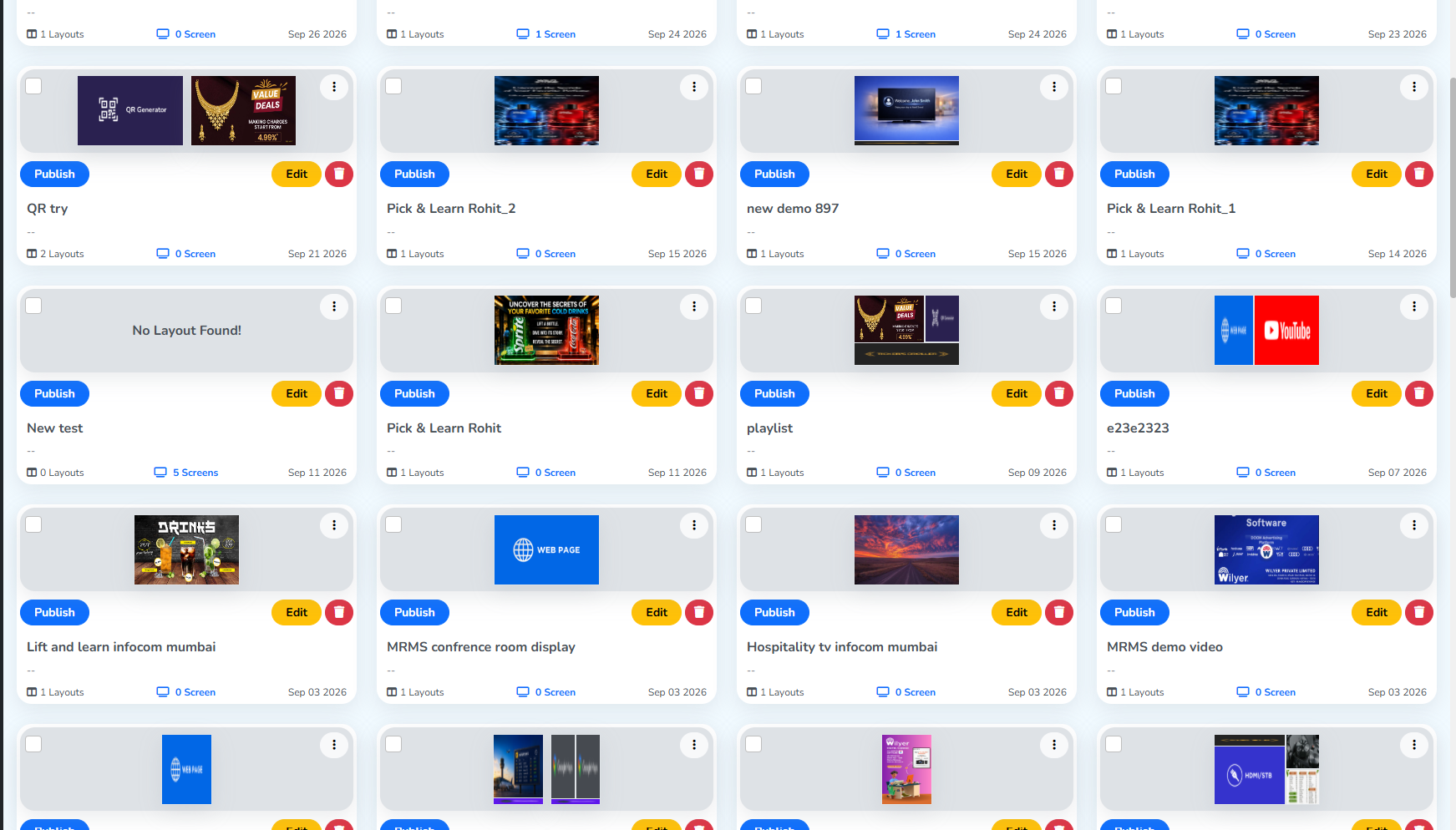
Click Publish on a tile, from the Playlists page.
This opens the publish screen. Sample Screen is selected as the target, and Schedule appears at the top right.
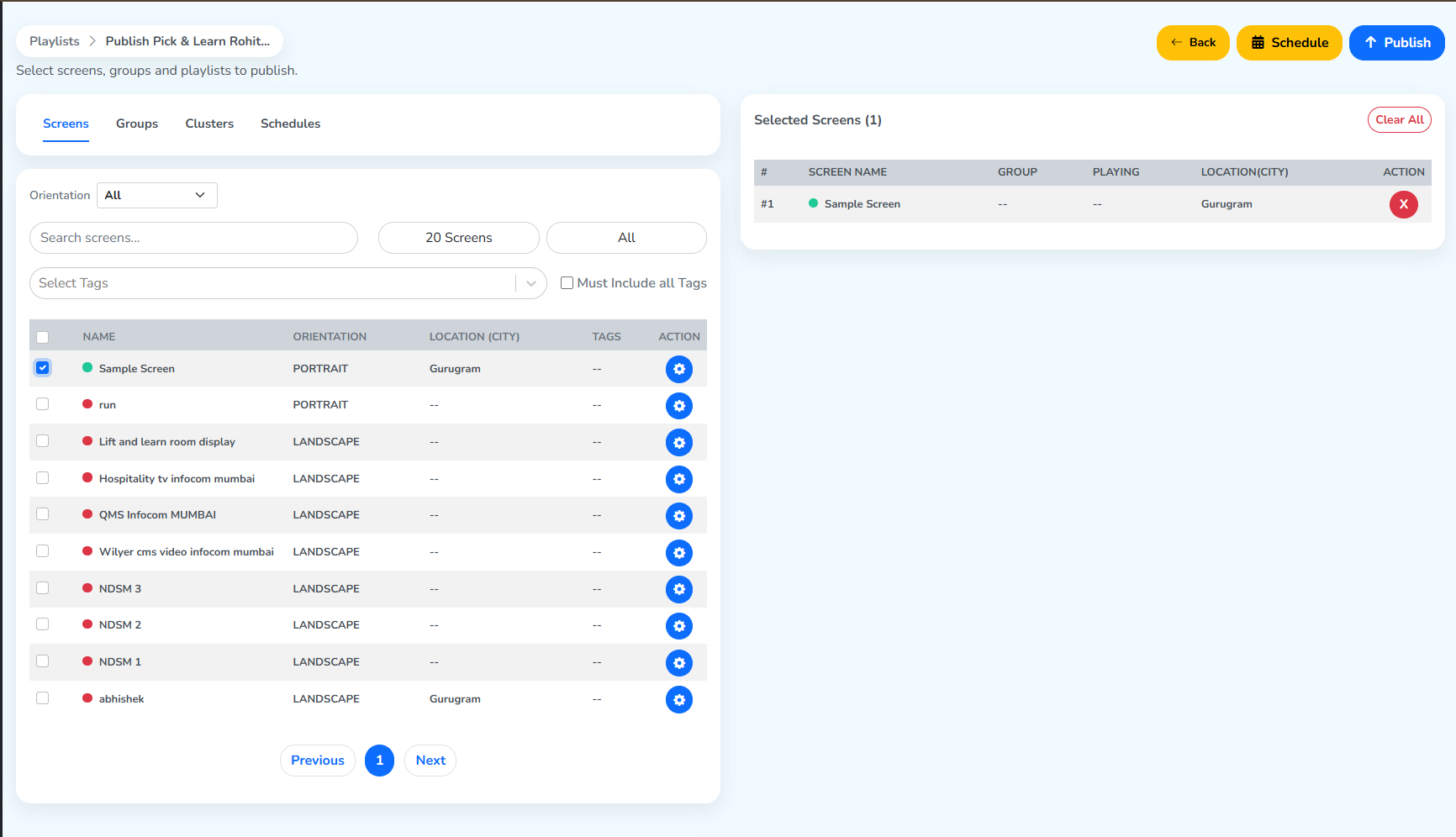
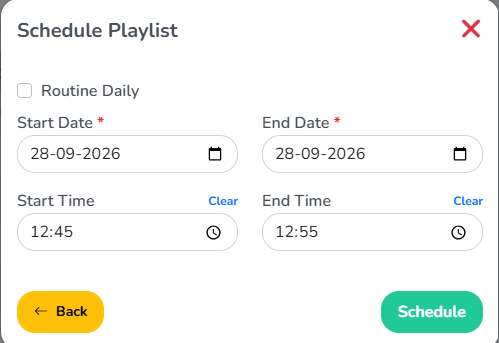
Clicking Schedule opens this panel. We’ve filled in the date, with a start and end time, just to demonstrate how it works.
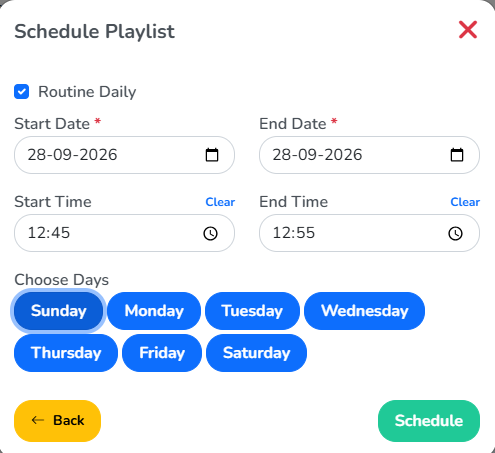
Turning on Routine Daily gives it priority over the date range instead, repeating on the days chosen, at the same time, every week. Clicking Schedule schedules it.
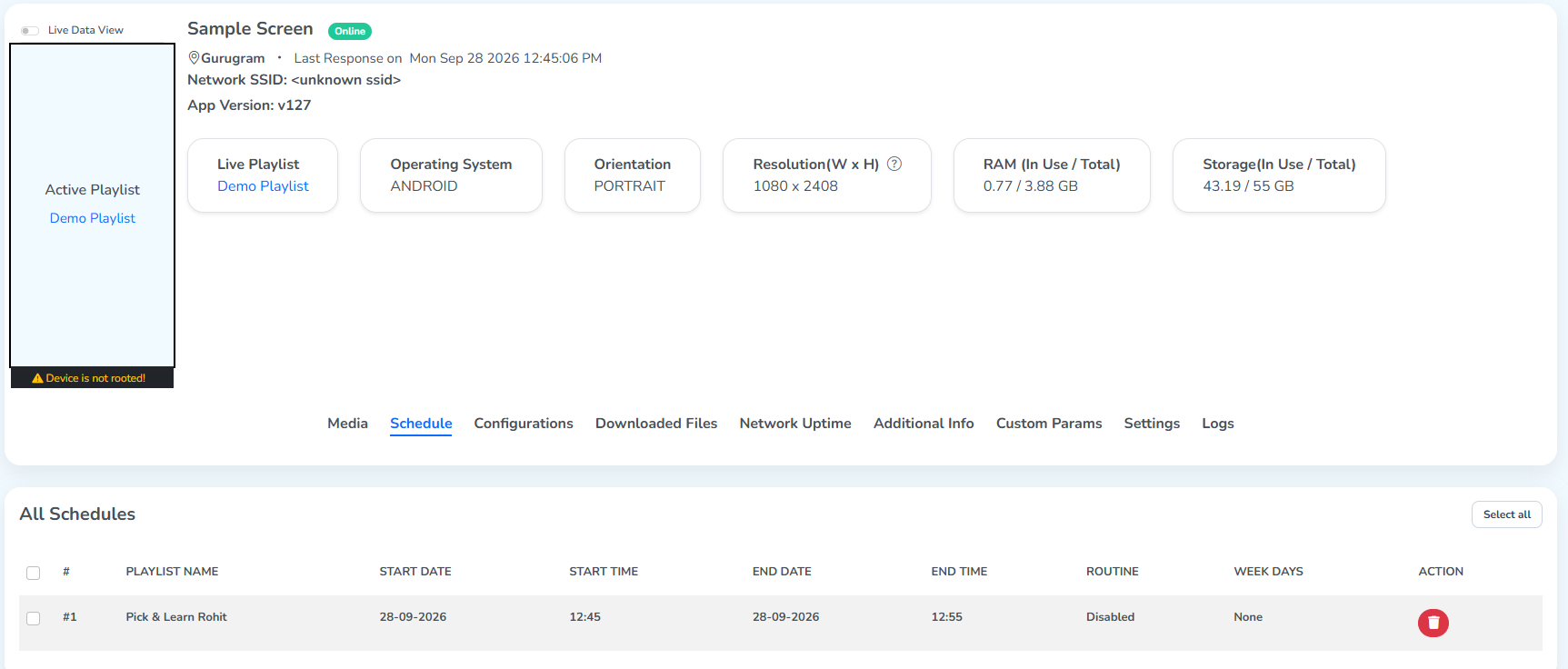
Back in Sample Screen’s Schedule tab, All Schedules now lists it.
Its Media tab now shows a new Scheduled Playlists section above the Direct Playlist, since a scheduled playlist gets priority.
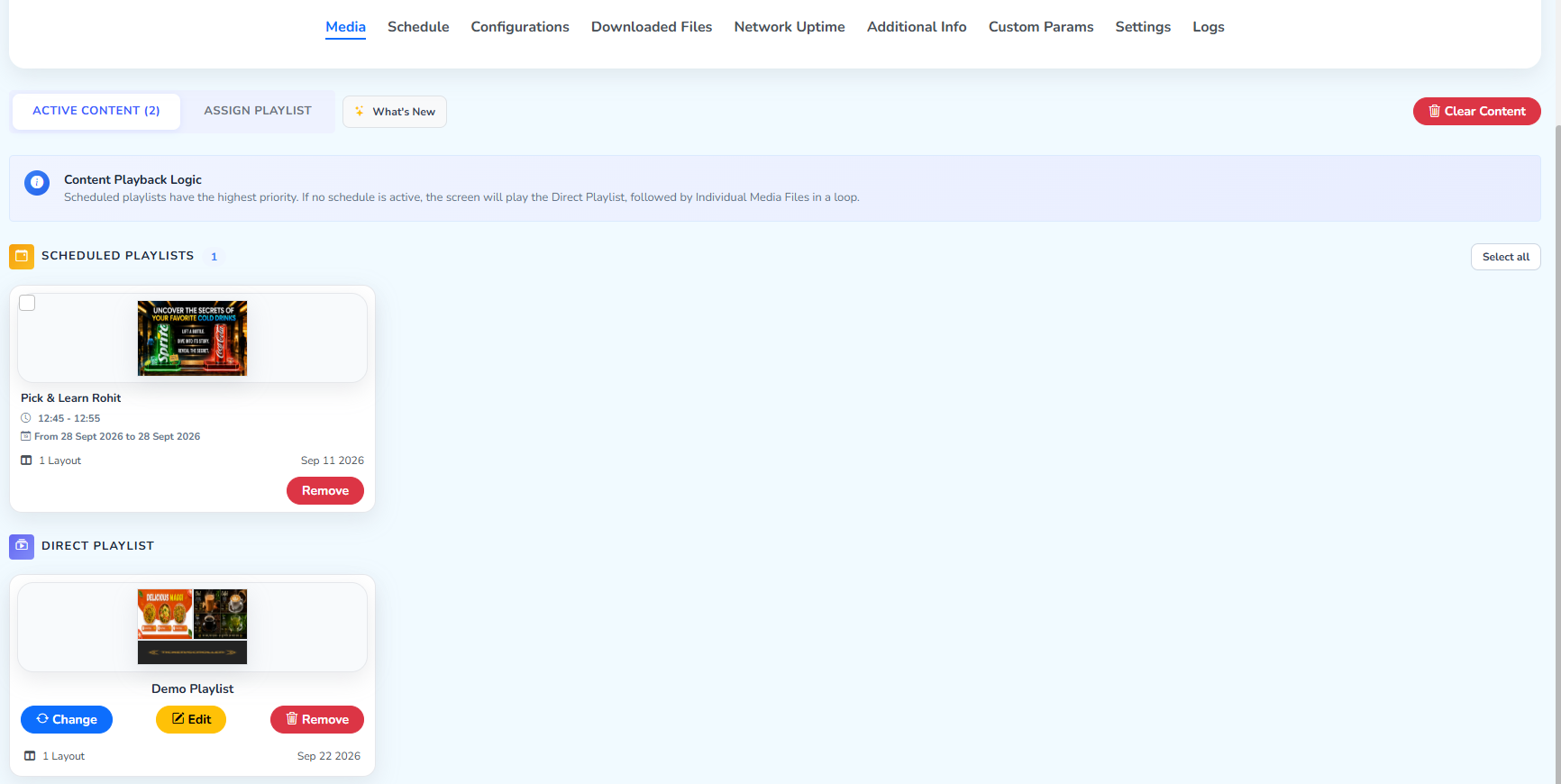
Live Data View, in the given time window, confirms our scheduled playlist is what’s actually playing.
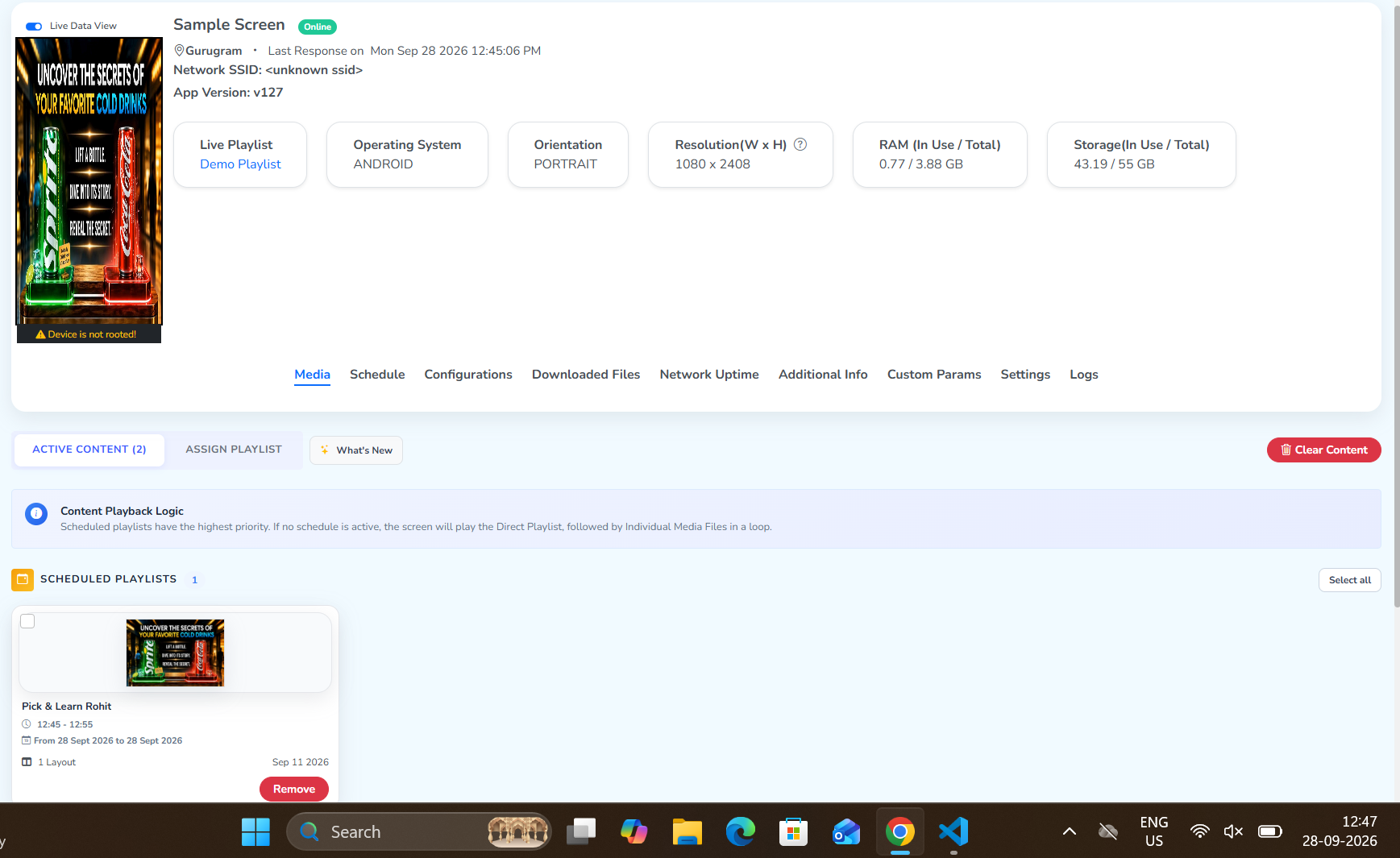 Playing hereScheduled playlistIn the given time
Access Schedule options from here
From Playlists page
The first three sit inside the create/edit playlist panel: open it with + New Playlist in Playlists, or the yellow Edit icon on a playlist tile. It has three sections, each with its own schedule:
- Sequences – schedule a sequence in the playlist.
- Zone Settings – schedule a zone’s content.
- Layout Settings – schedule the whole layout.
Publishing a playlist to a screen carries its own Schedule option too, for the entire customized playlist.
From Screens page
Tick a screen’s checkbox on the Screens page in the left panel, and the Next option appears at the top right. Click it to open Screen Operations on the left, with Publish Playlist among its options. Click a playlist tile there, and a Schedule icon appears beside Publish at the top right – the same publish-time schedule, applied to many screens at once.