Widgets
A widget shows content in its own style, a ticker, a clock, a feed, a web page, and the Widgets tab holds every one built on the account. This document takes the tab in depth: what a widget card carries, and what each widget type is for.
There are more than 15 widget types on the account. This document takes each one in depth: what it displays, and what it needs to run.
Every type follows the same pattern: open the Widgets tab, click the type’s card, then Add New.
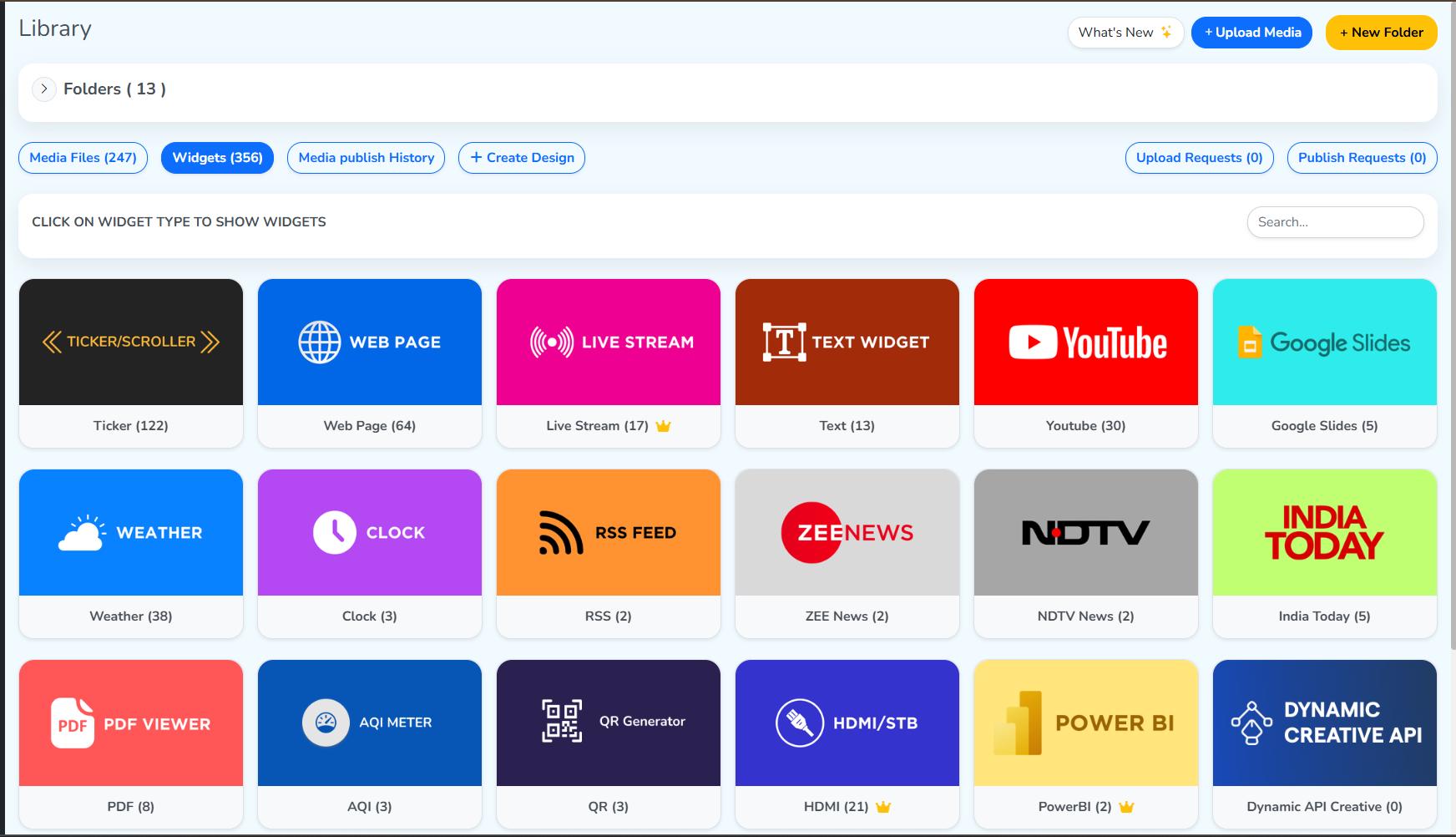 Widgets selectedWe'll open this one first
Clicking a card opens every widget built from that type. The next step from here is to click +Add New.
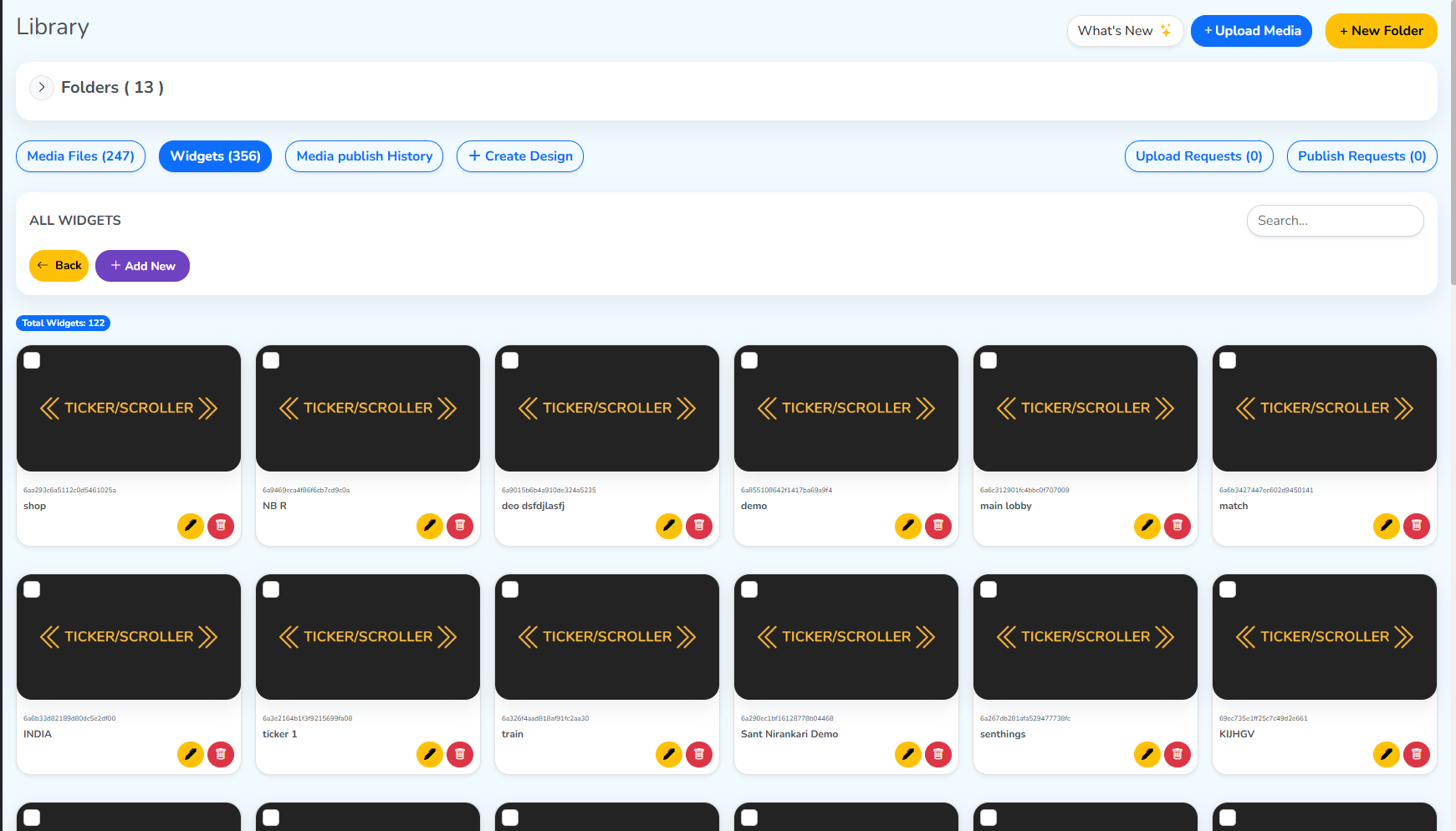 Creates a new widget of this type
Ticker/Scroller
A ticker runs a line of text across the screen, like the strip along the bottom of a news channel. Add New Widget – Ticker/Scroller in Tabs walks through building one, field by field.
Web Page
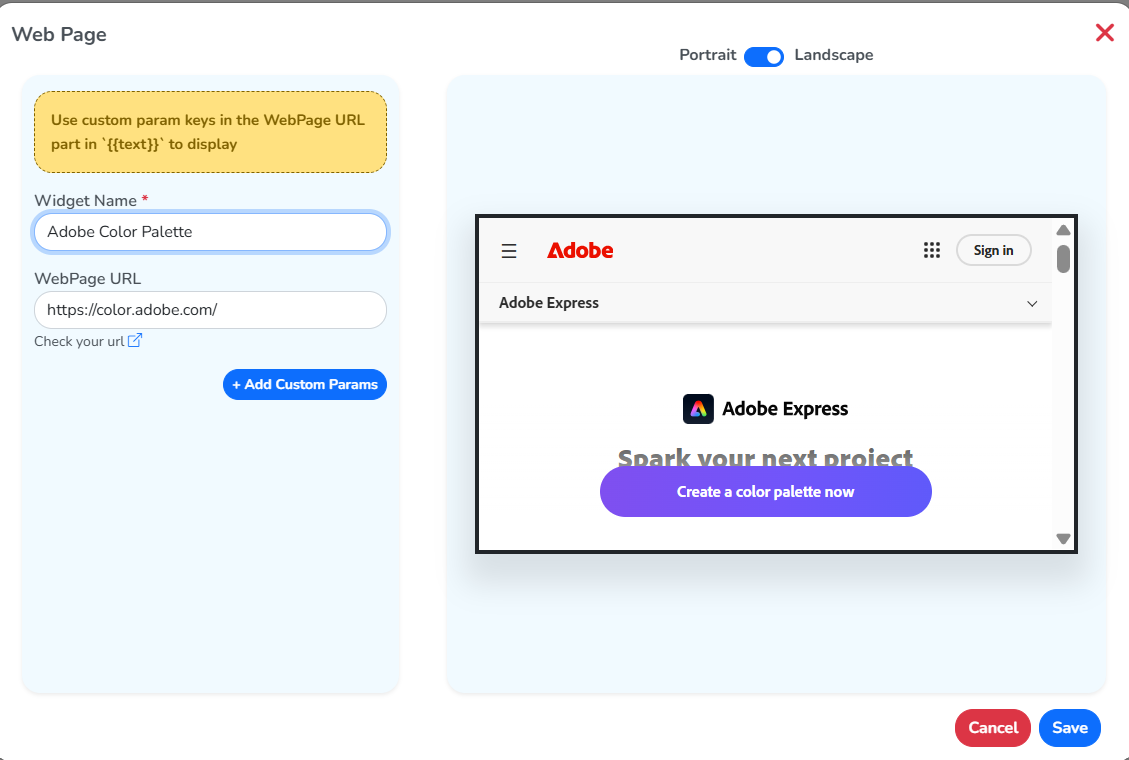
A Web Page widget plays a live website on the screen. Add New opens a WebPage URL field alongside the Widget Name. Enter the site’s address and give the widget a name, and the panel on the right loads that page as a preview.
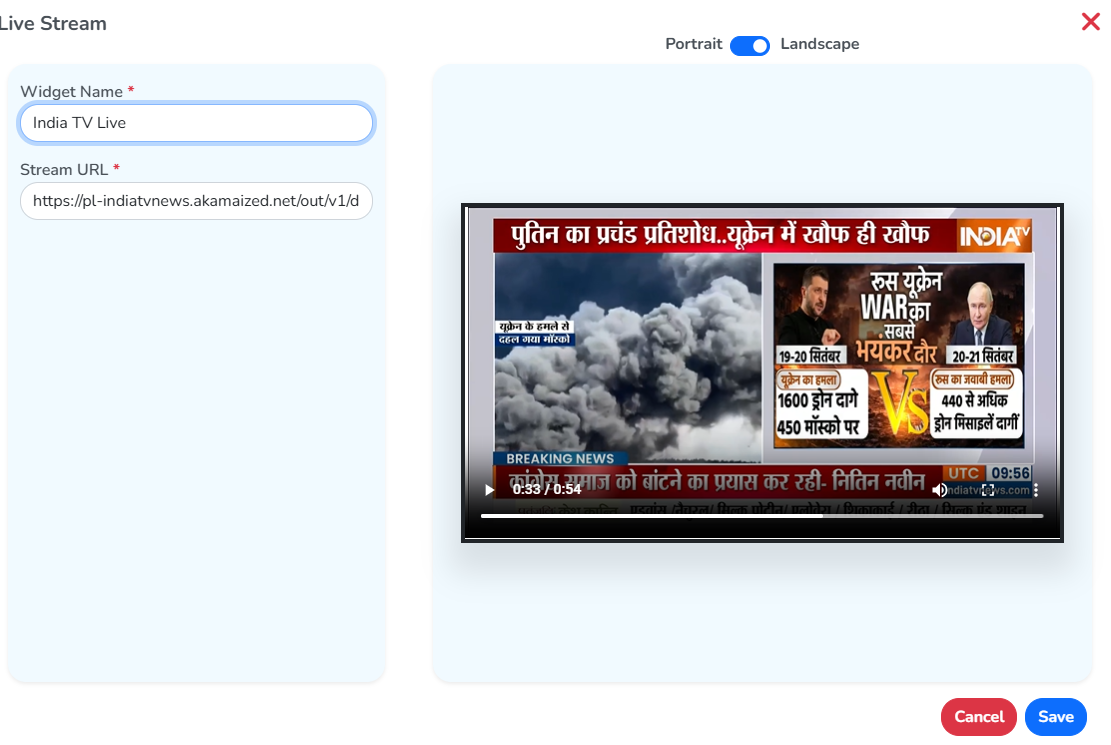
Live Stream
A Live Stream widget plays a live video feed on the screen. Give it a Widget Name and a Stream URL, and the panel on the right plays the stream back.
What kind of link works here?
This widget needs a direct stream link. That’s a link that points straight at the video feed itself, not at a web page that has a video on it.
Direct stream links usually end in .m3u8.
Text
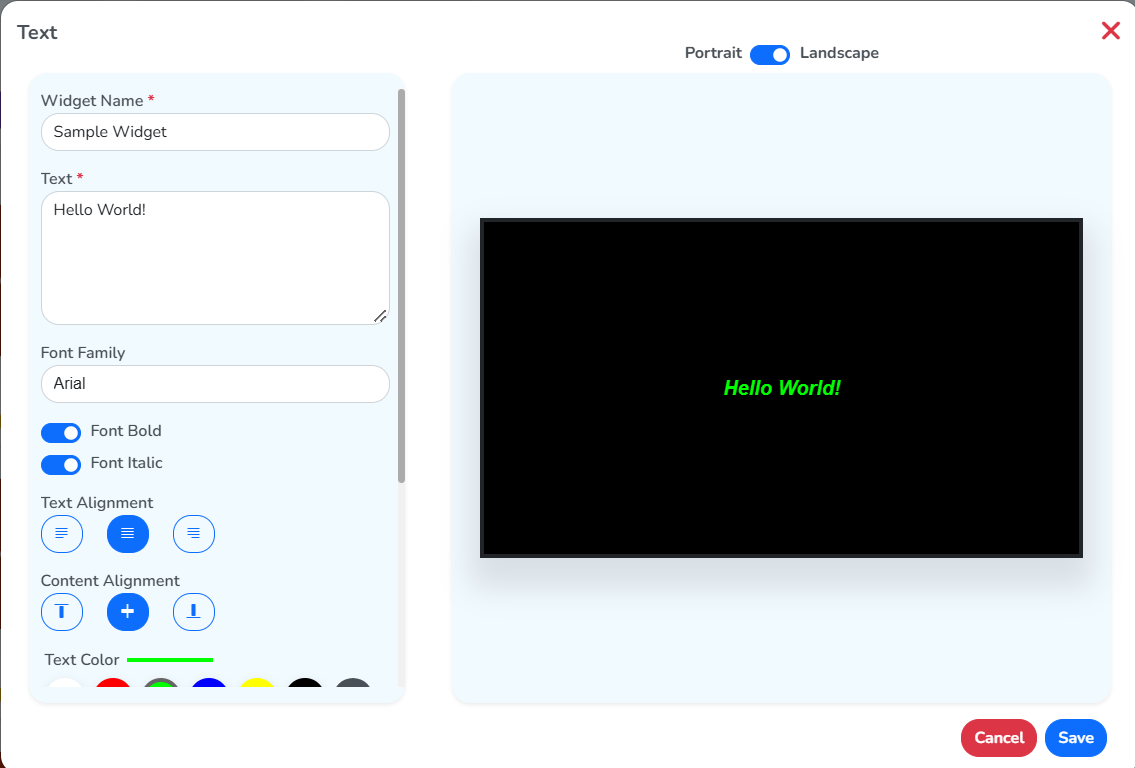
A Text widget shows a line of text you style yourself. Give it a Widget Name and the Text it carries, then set its Font Family, Font Bold, Font Italic, Text Alignment, Content Alignment, text color and more further down. The panel on the right shows the text exactly as styled.
YouTube
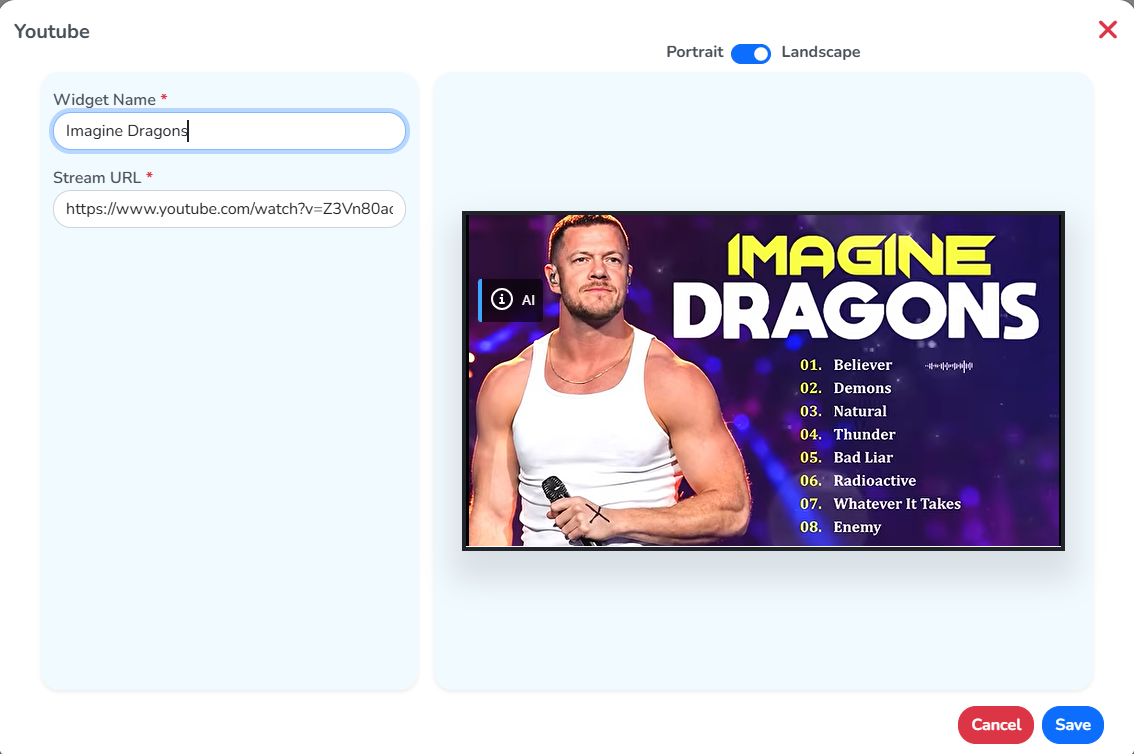
A YouTube widget plays a YouTube video on the screen. Give it a Widget Name and the video’s Stream URL, and the panel on the right shows the video.
Google Slides
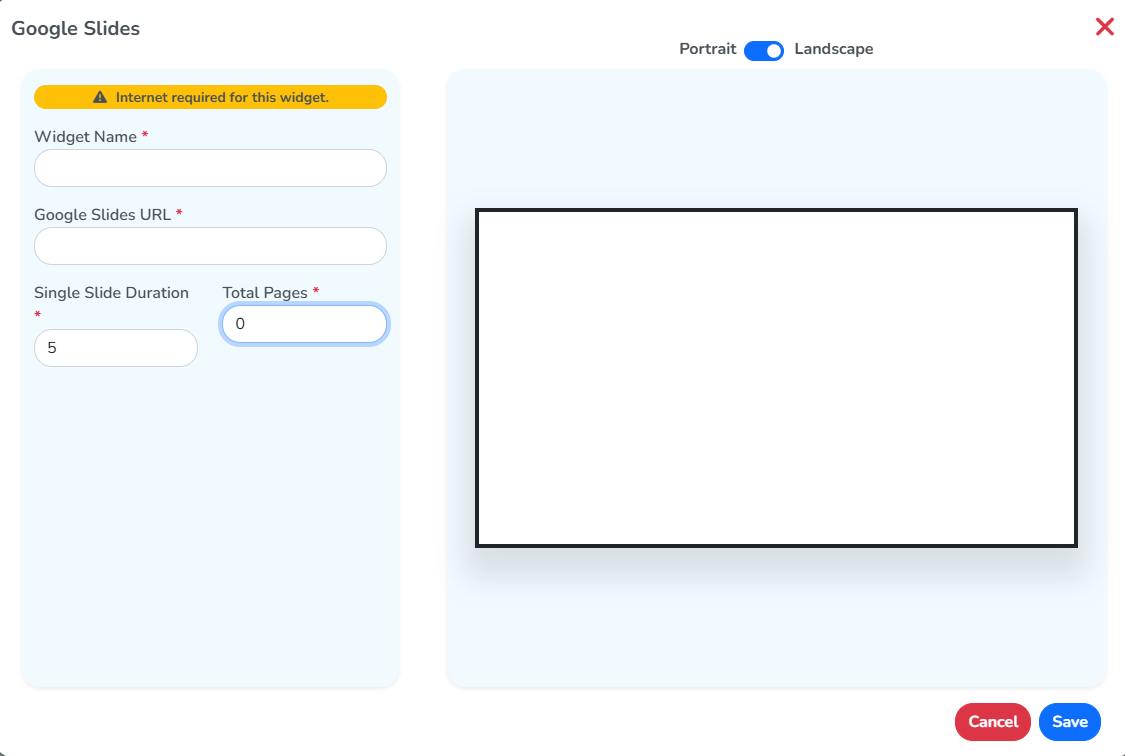
A Google Slides widget plays through a slide deck. Give it a Widget Name and the Google Slides URL, then set the Single Slide Duration and Total Pages. This widget needs an internet connection to show the slides.
Weather
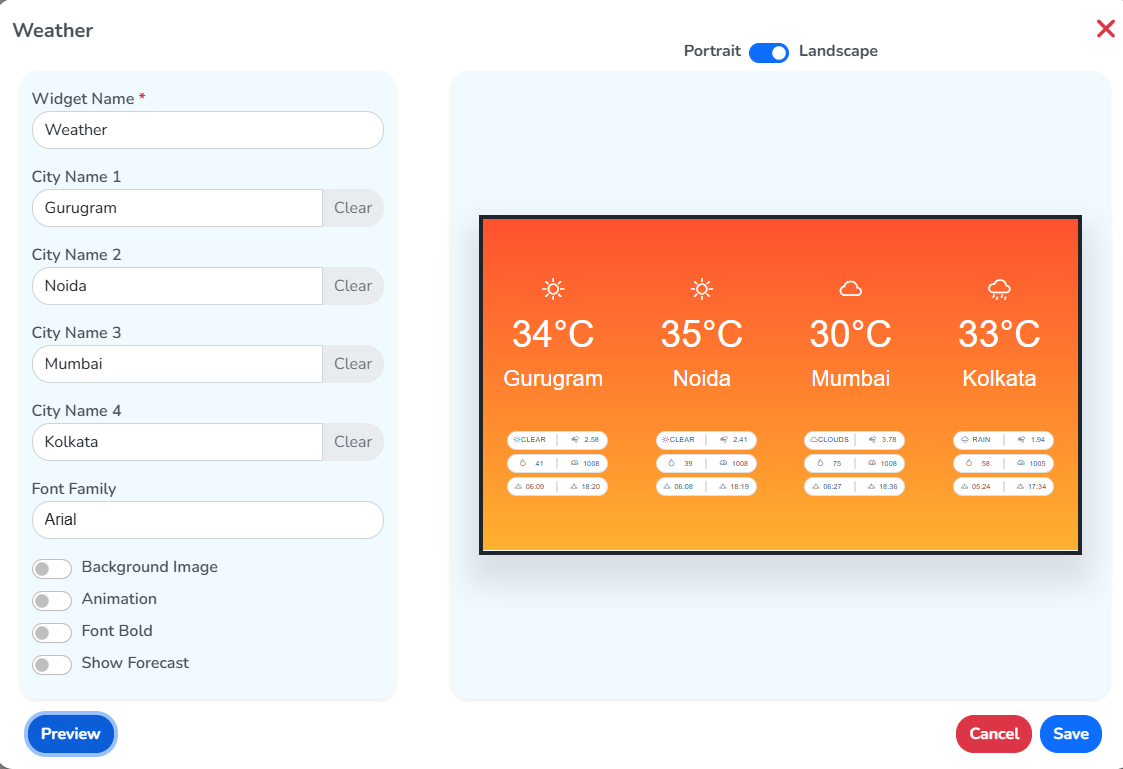
A Weather widget shows the forecast for up to four cities. Give it a Widget Name and a city under each City Name field, then click Preview to see it on the right.
Clock
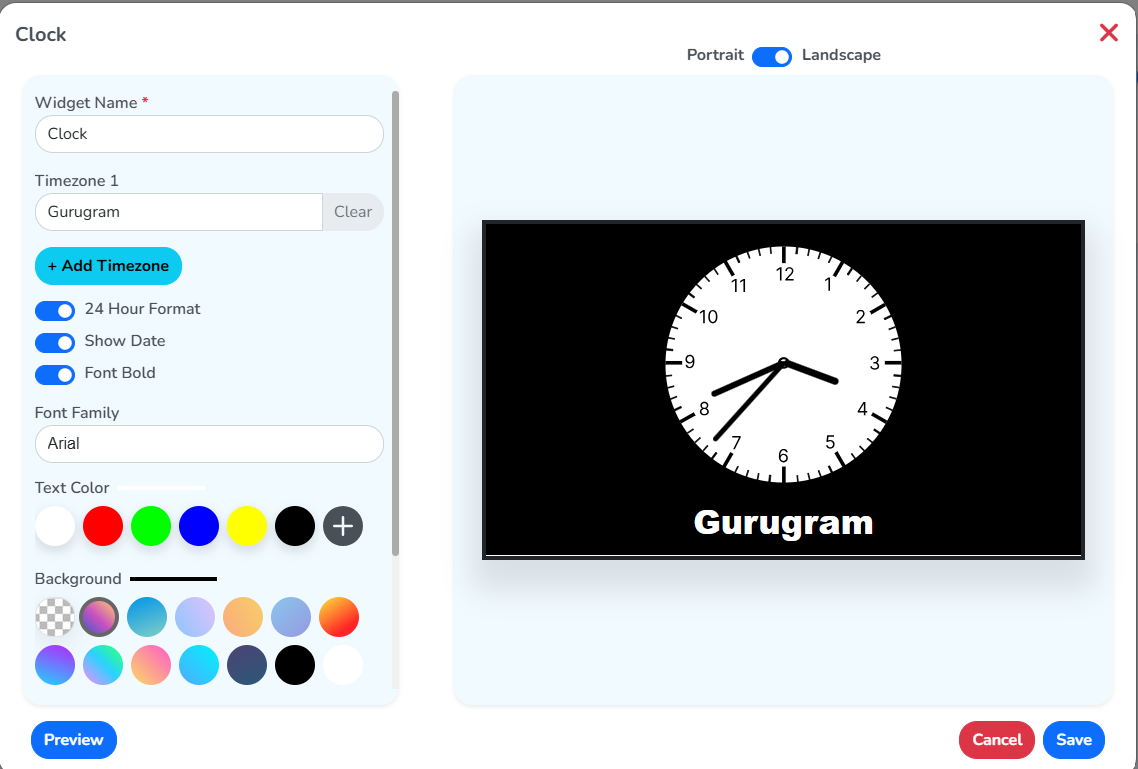
A Clock widget shows the time for a timezone you set. Give it a Widget Name and a Timezone, choose what it displays, and pick a clock type, digital or analog, before clicking Preview.
RSS Feed
RSS stands for Really Simple Syndication.
- Really Simple: it’s a very basic, lightweight format.
- Syndication: sharing content from one place so it can show up in many other places.
In short, RSS is a simple way for a website to share its latest updates, so other apps and screens can show them automatically.
What kind of feed is it?
An RSS feed is a live list of a website’s latest posts. It isn’t a video or a web page, just a list of headlines, and it keeps updating by itself.
Every time the website publishes something new, such as a news story or a blog post, it gets added to the top of the list. The widget reads this list and shows the newest items on your screen.
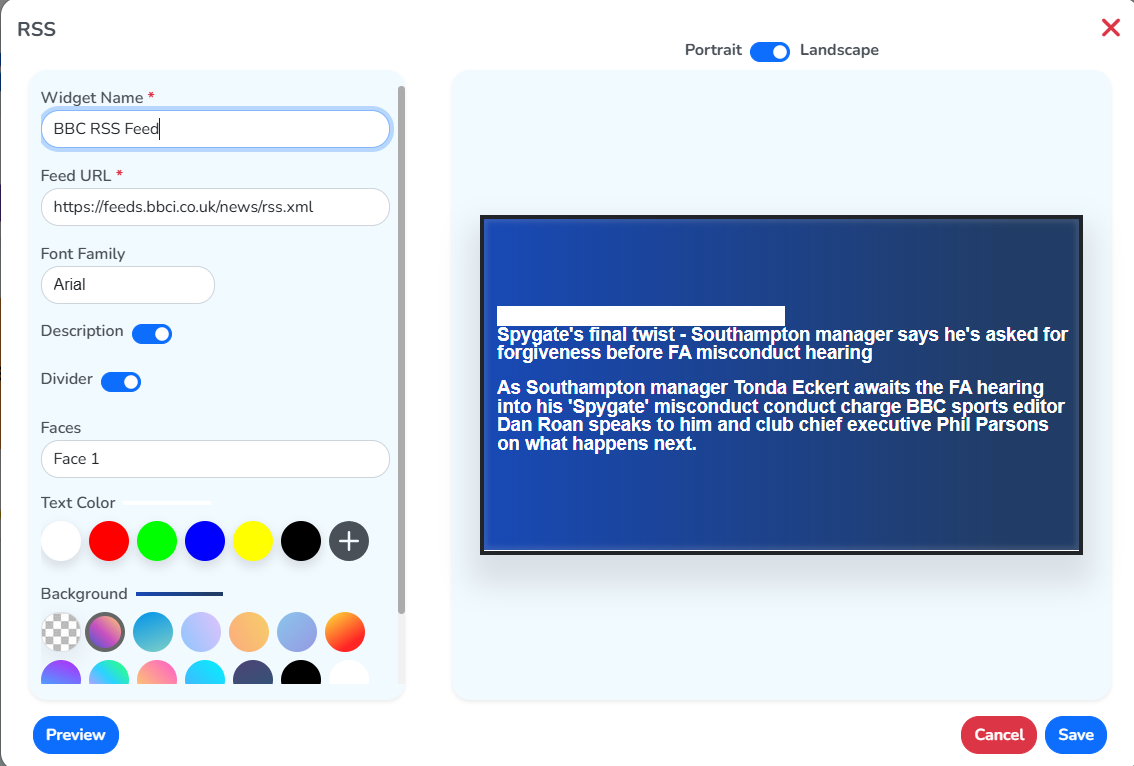
Give it a Widget Name and the Feed URL, then set its font, whether it shows a Description and a Divider, and its colors. The panel on the right shows the latest headline from that feed.
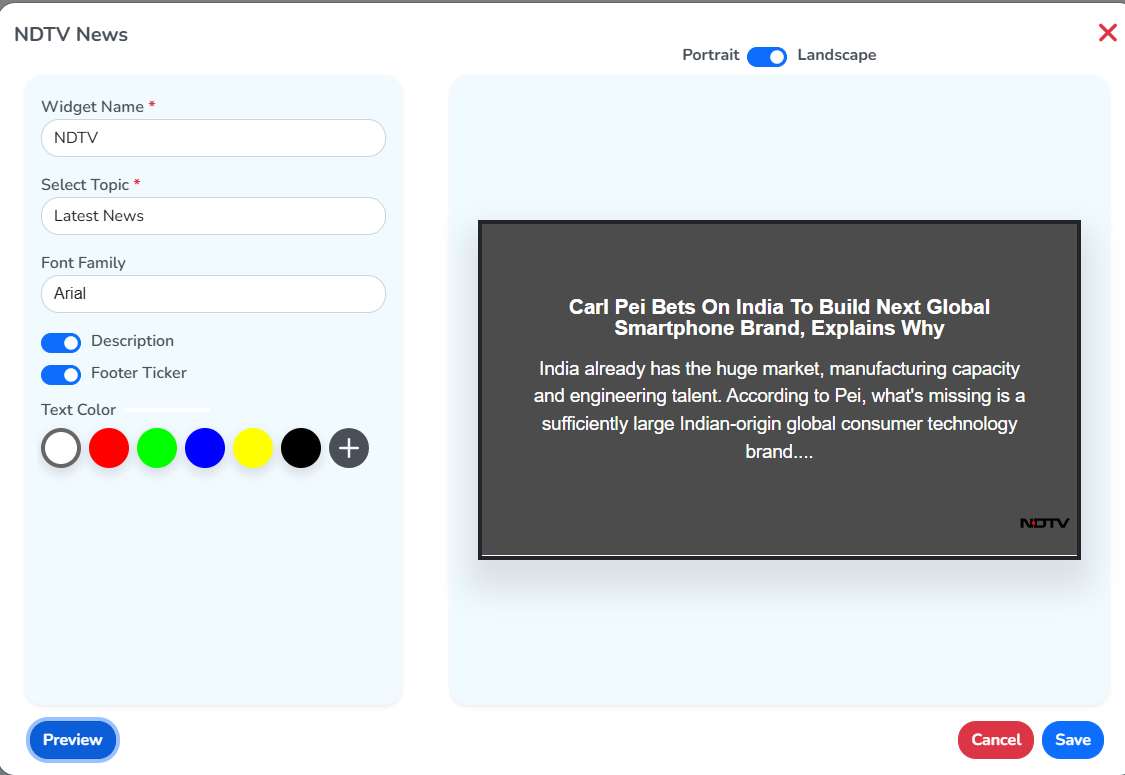
ZEE News, NDTV News and India Today run on this same RSS pattern, each pulling from that channel’s own feed. They’re for getting the RSS feed of those particular channels.
NDTV News, for example, opens the same kind of form, with a Select Topic field in place of a feed URL.
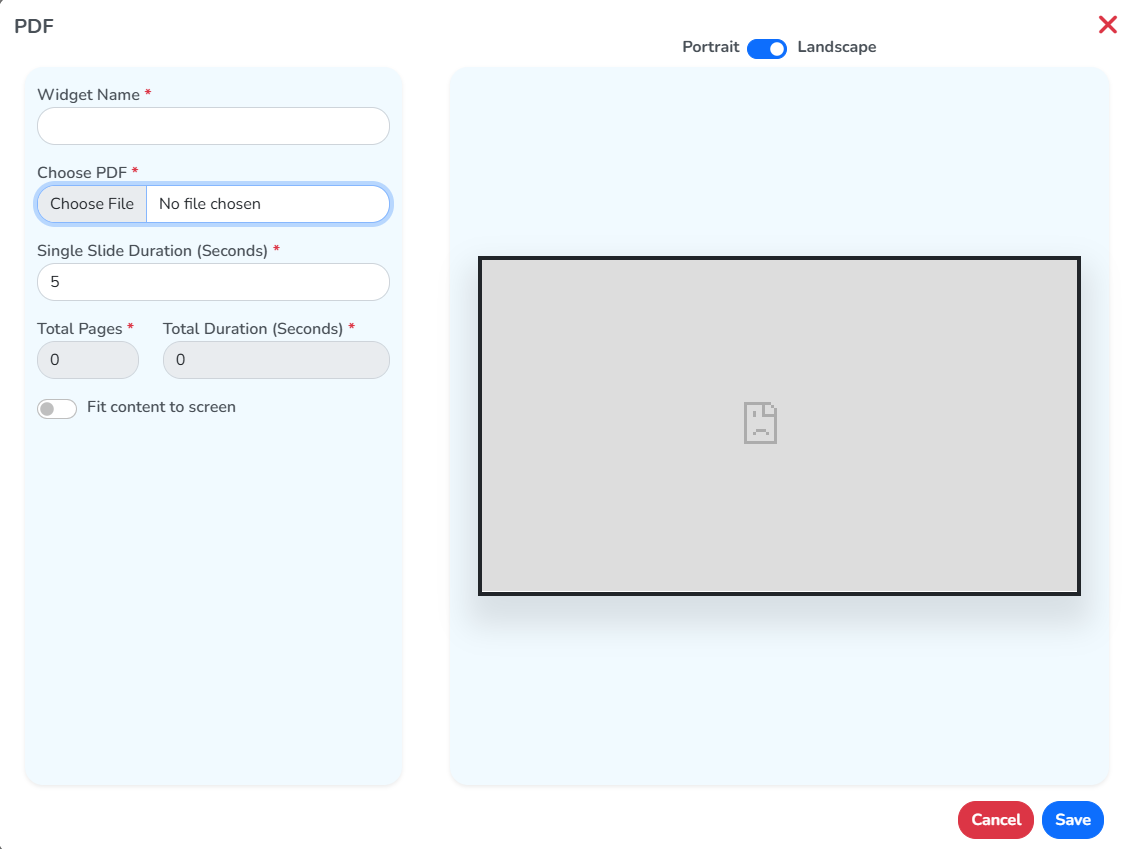
A PDF widget shows a PDF file on the screen, one page at a time. Give it a Widget Name, then click Choose File to open a file picker and select the PDF. Set the Single Slide Duration, and Total Pages and Total Duration fill in once the file is chosen. Fit content to screen scales the PDF to the screen’s size.
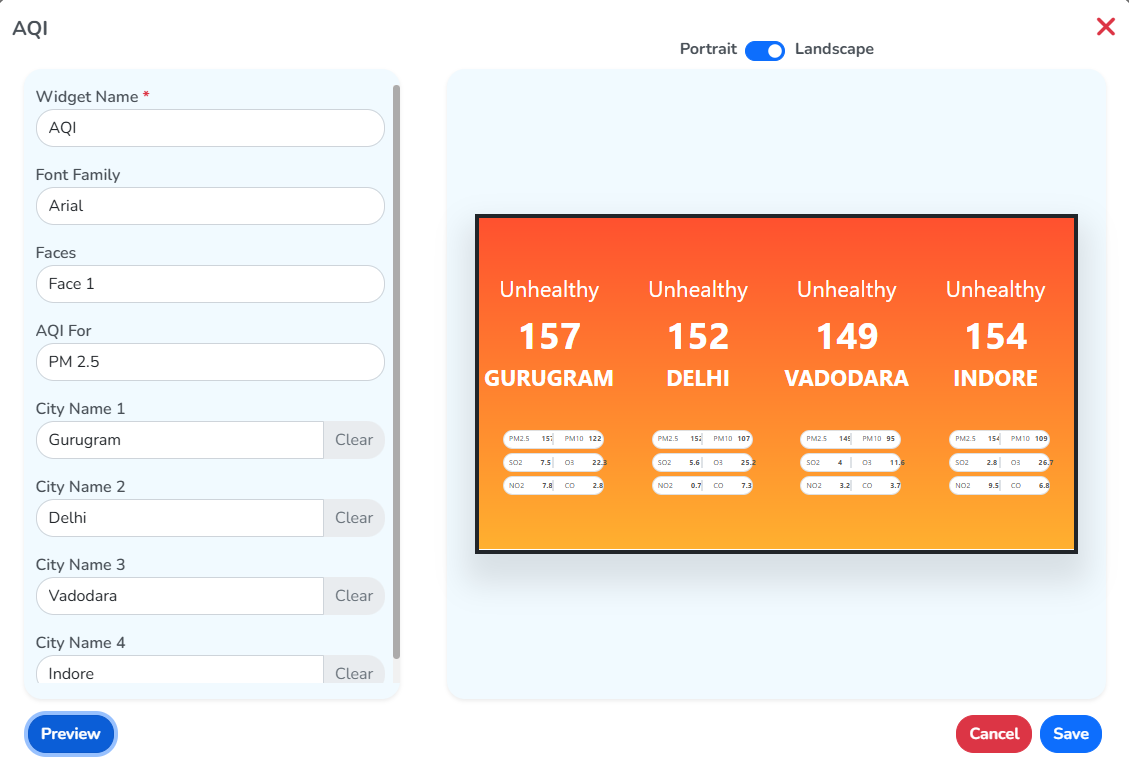
AQI Meter
An AQI Meter widget shows the air quality for up to four cities. Give it a Widget Name, a city under each City Name field, and choose whether AQI For reads PM 2.5 or PM 10. Click Preview to see it on the right.
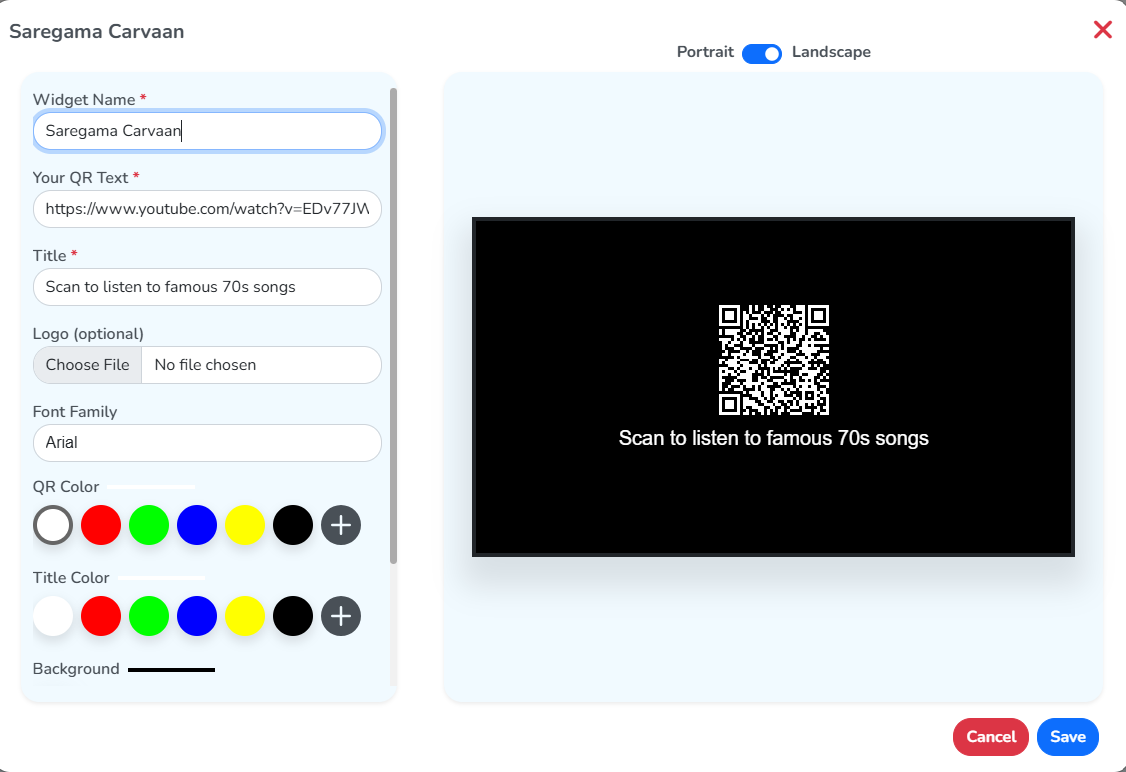
QR Generator
A QR Generator widget draws a QR code on the screen. Give it a Widget Name, then Your QR Text, the link or text that opens when someone scans it, and a Title shown under the code. A Logo in the middle of the code is optional. The panel on the right shows the generated code.
PowerBI
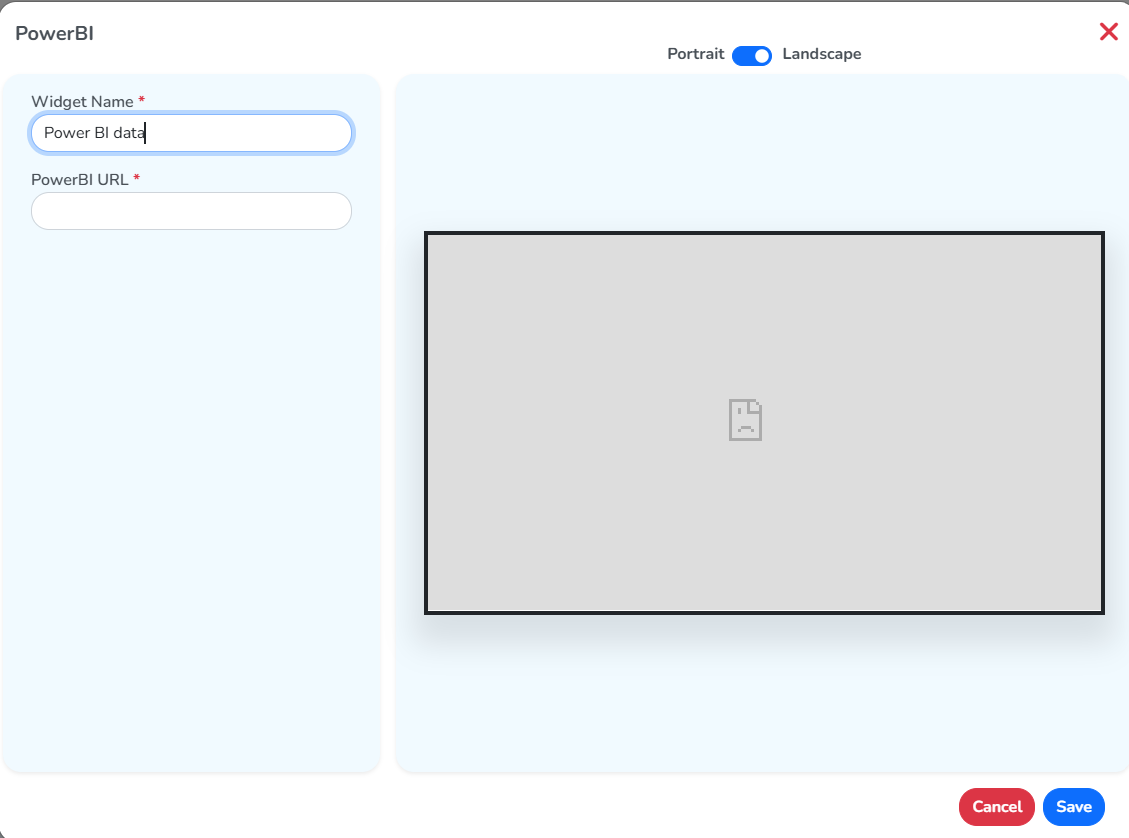
A PowerBI widget shows a Power BI report on the screen, for data analytics. Give it a Widget Name and the PowerBI URL.
Live ETA
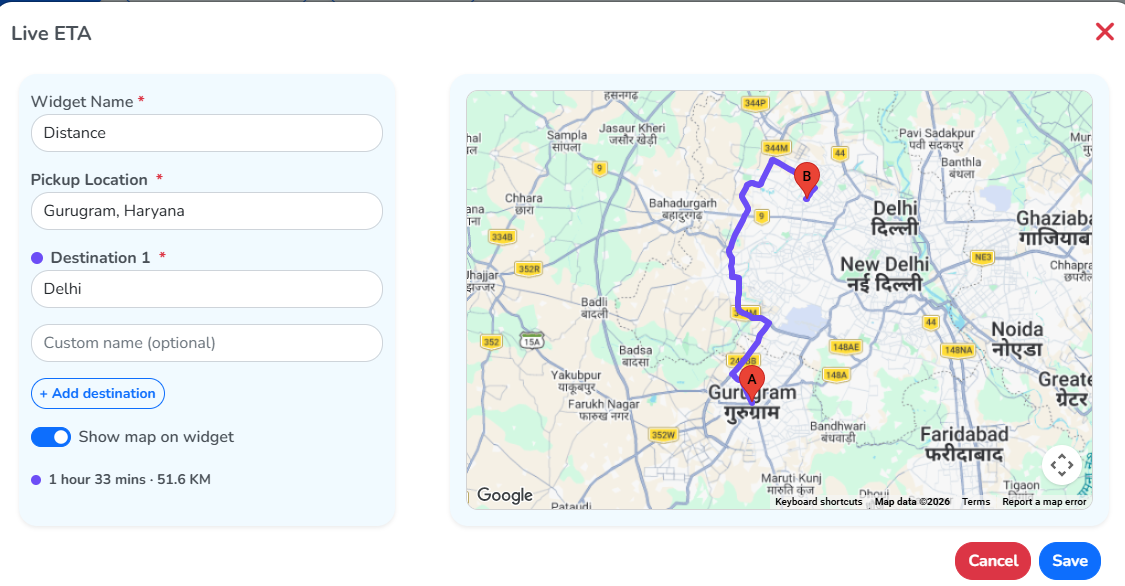
A Live ETA widget shows a route on a map with the time it takes to travel it. Give it a Widget Name, a Pickup Location and at least one Destination. + Add destination adds more. Show map on widget draws the route on the right, along with the trip’s distance and estimated time.
Flight Information Display
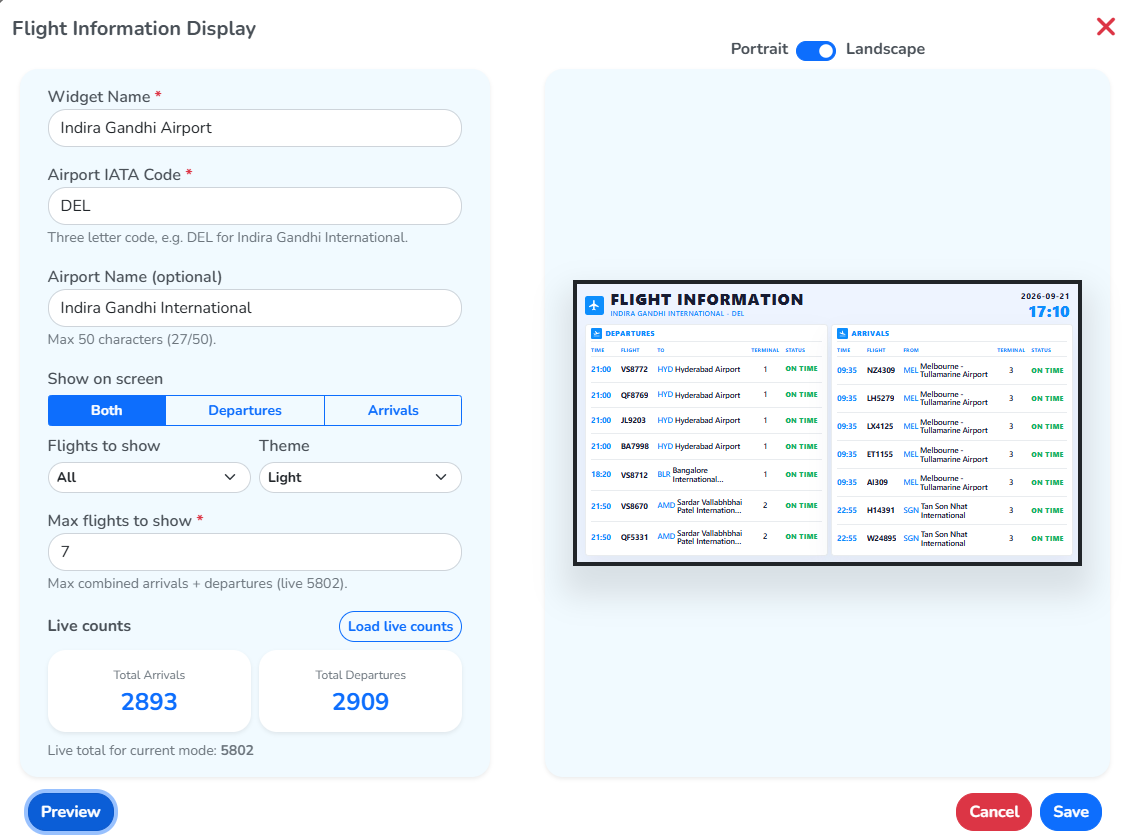
A Flight Information Display widget shows a live arrivals-and-departures board. Give it a Widget Name and the airport’s Airport IATA Code, the three-letter code, like DEL for Indira Gandhi International, and the data loads on the right.
Stocks
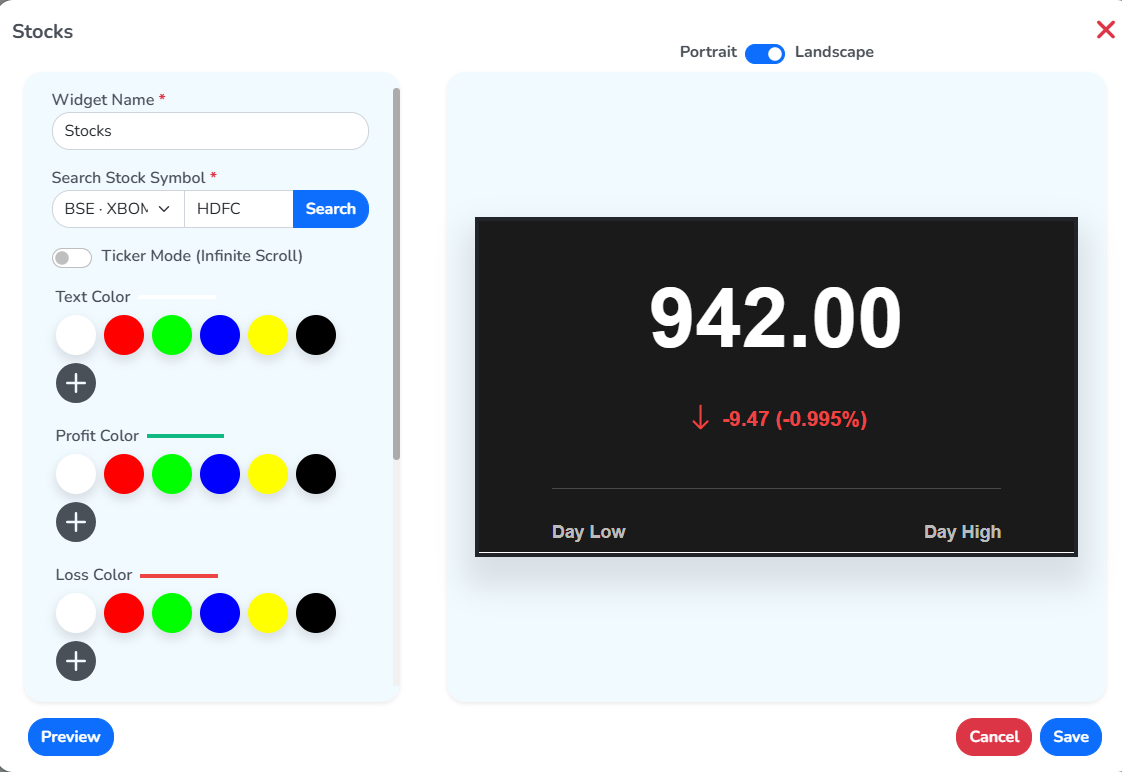
A Stocks widget shows a live stock price. Give it a Widget Name, search for the Search Stock Symbol, and click Preview to see the price on the right.