Top Toolbar
This is the row of controls at the top of the Playlists page. Layered options are covered in detail below.

Sorting options
Clicking Sort by Created opens this menu, with three ways to sort playlists on this page. Each criterion also has a direction arrow beside it.
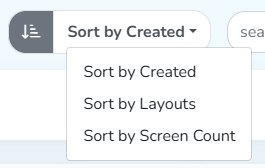 Three sort criteria
Sort by Created
The grey arrow pointing down sorts the playlist tiles from the latest created to the earliest. Pointing it up reverses this, earliest created first, latest last.
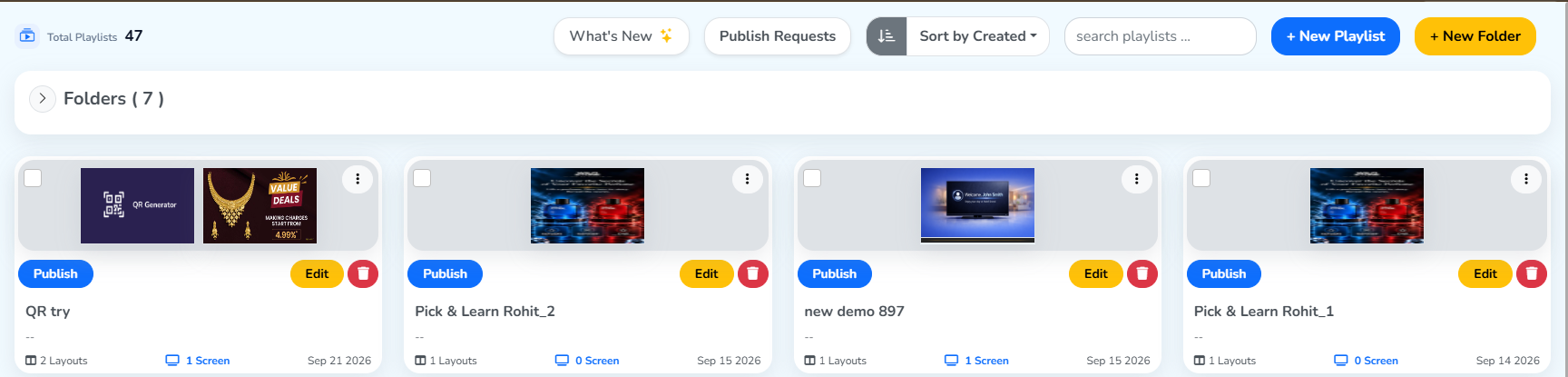 Latest to earliest
Sort by Layouts
Pointing the arrow down sorts playlists from the most layouts to the fewest. Pointing it up reverses this, fewest layouts first, most last.
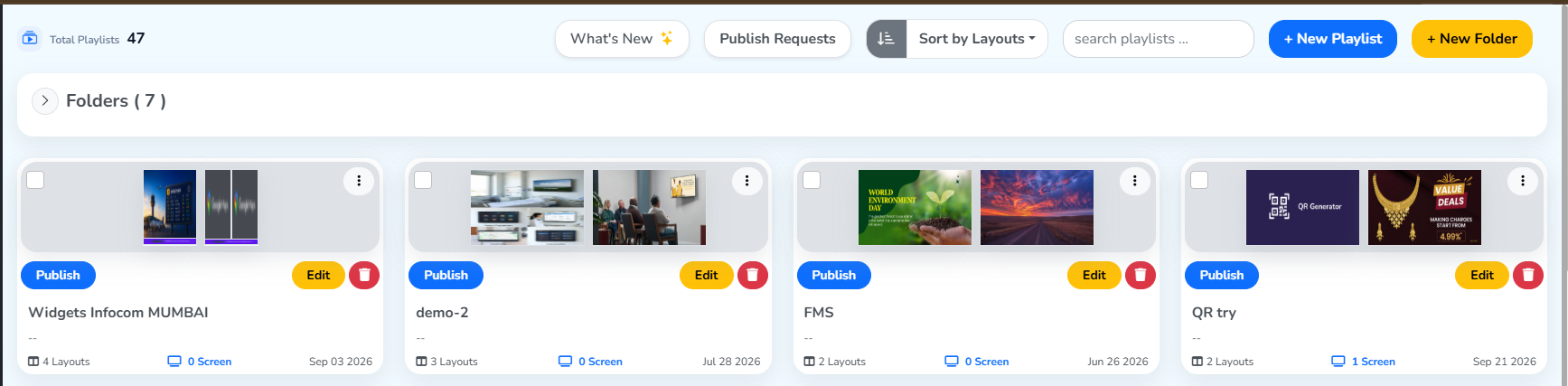 Most to fewest layouts
Sort by Screen Count
Pointing the arrow down sorts playlists from the most screens to the fewest. Pointing it up reverses this, fewest screens first, most last.
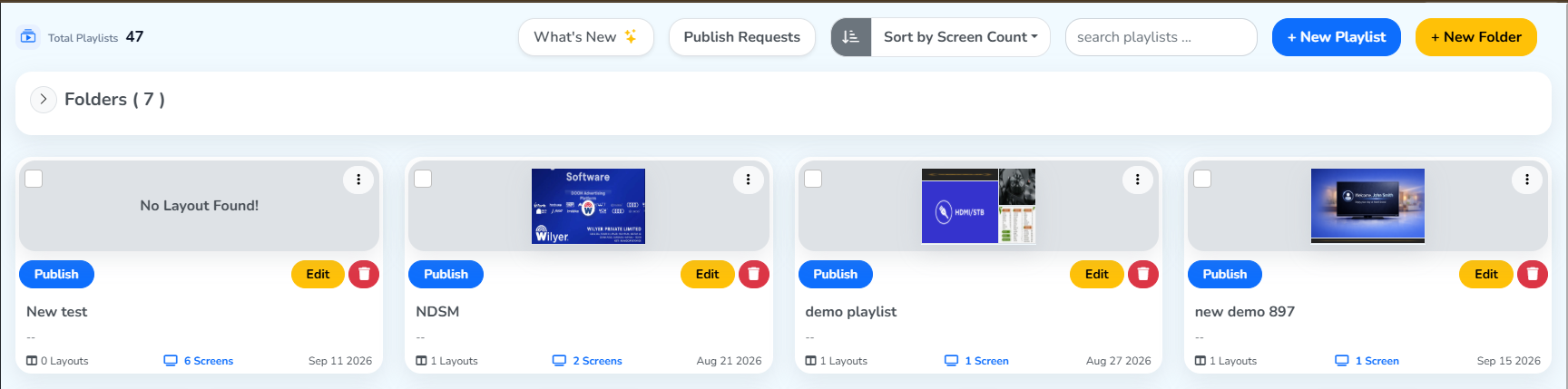 Most to fewest screens
Create a new playlist
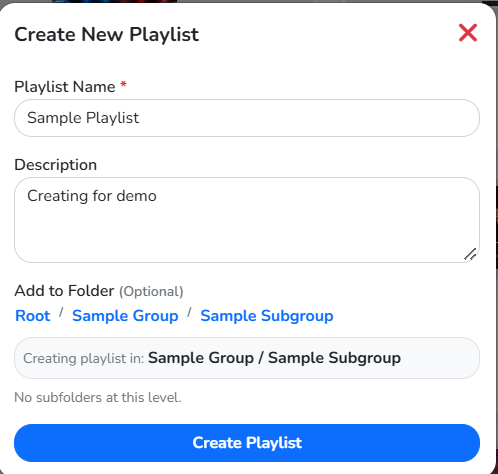
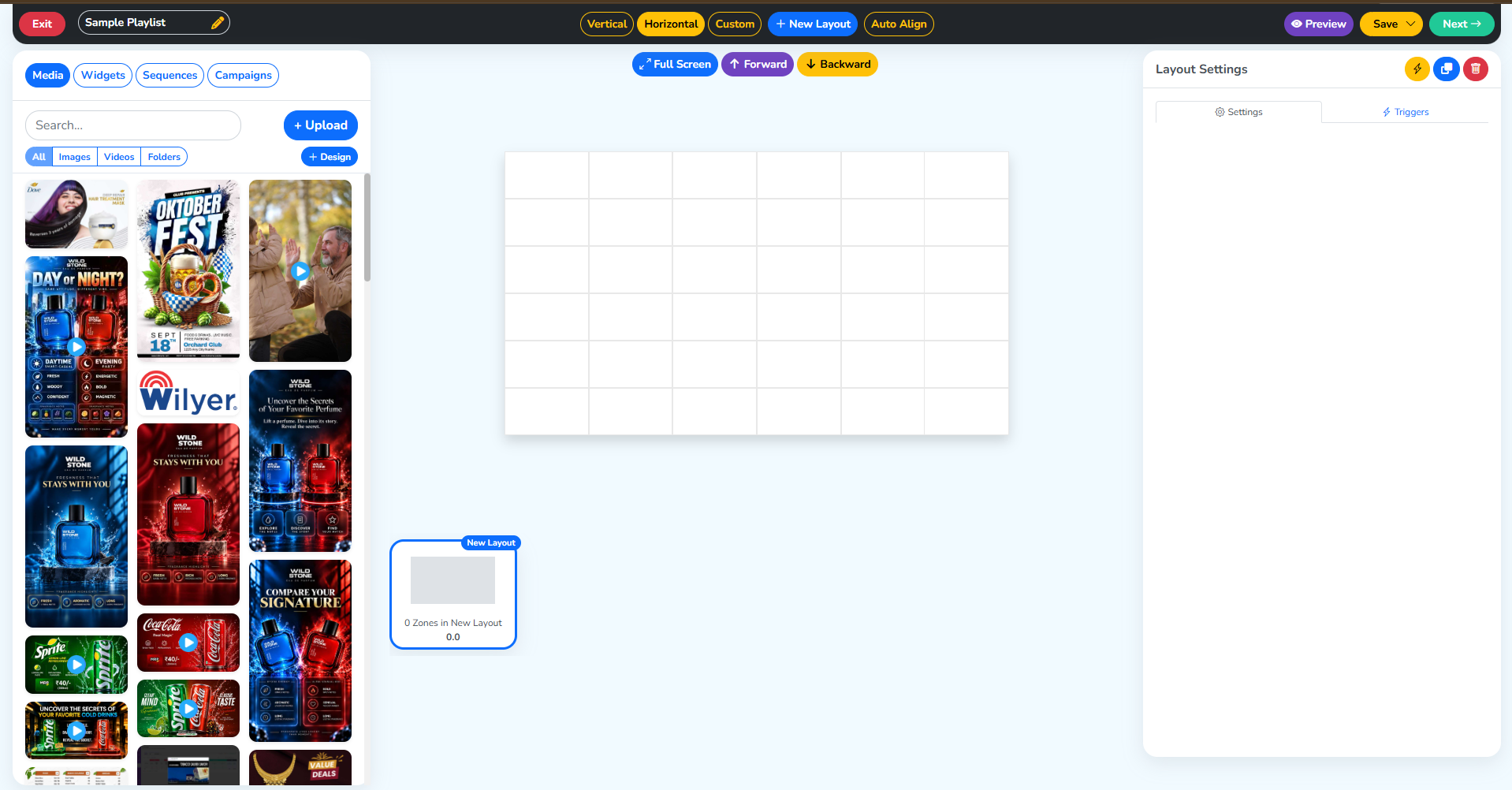
Clicking + New Playlist opens this panel. Fill in the given details, some are optional, like the Add to Folder field where we gave a folder path for example, and click Create Playlist. The playlist is created and you’re taken to its customizing panel.
Customize your playlist covers every feature of this panel. For now, clicking the red Exit option beside new playlist name.
 New playlist
Create a new playlist folder
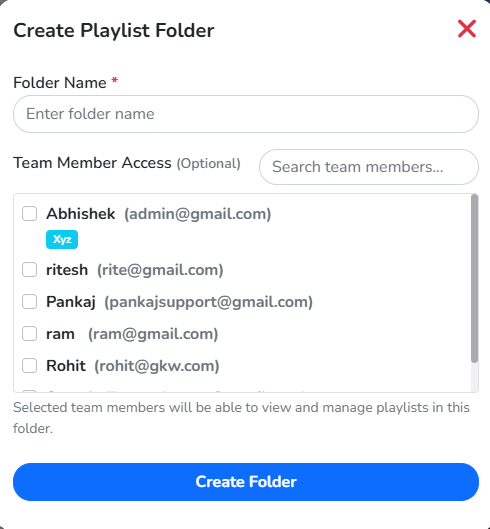
Clicking the + New Folder icon opens this panel, where you name the folder and choose who has access.
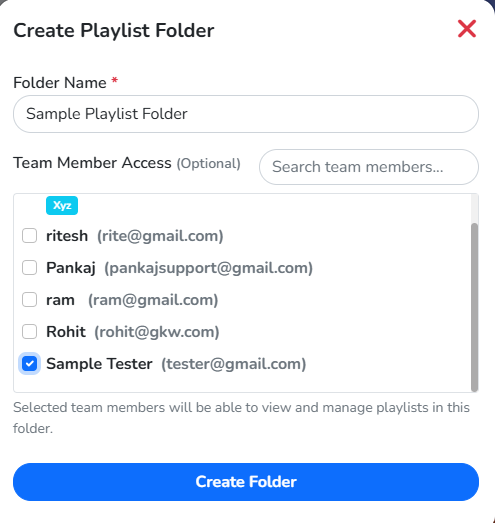
As an example, naming a folder and giving one team member access to it, then clicking Create Folder:
The new folder appears in the Folders list, and the folder count increases by one.
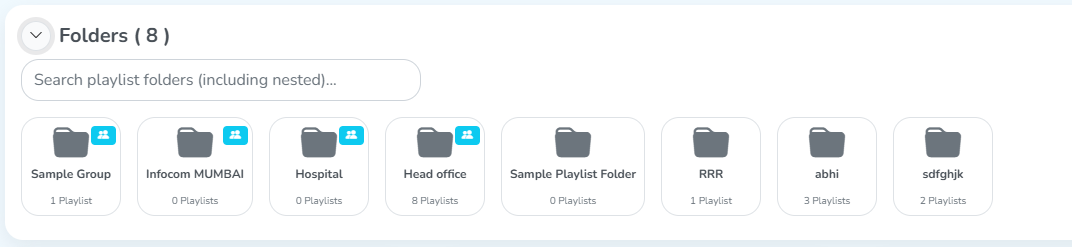 The new folder