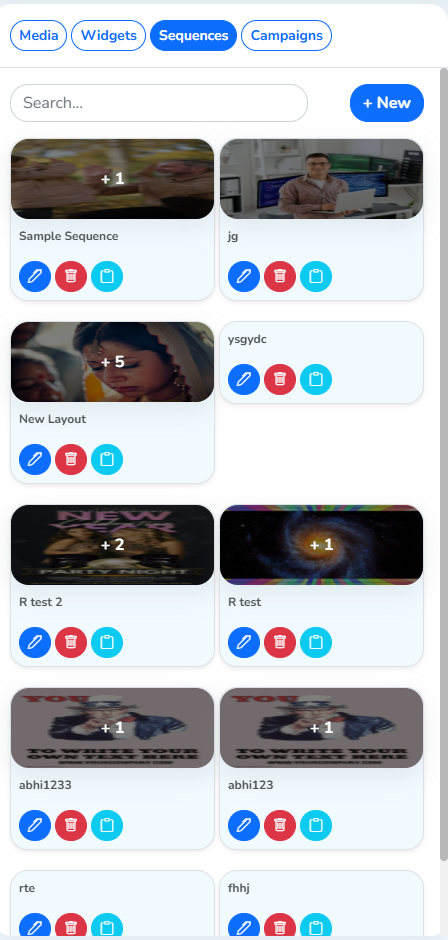
Left Panel
This is the left panel of the playlist customizing page. The Media section, and its options, are covered in Starting with a media file.
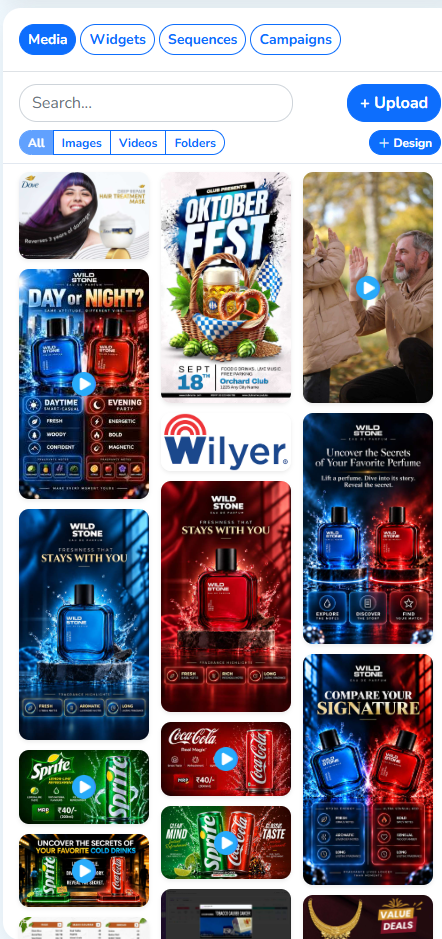
Widgets
We can see all the widget types here. Clicking a tile shows the different widgets we’ve created for that type. Widgets covers every type in detail.
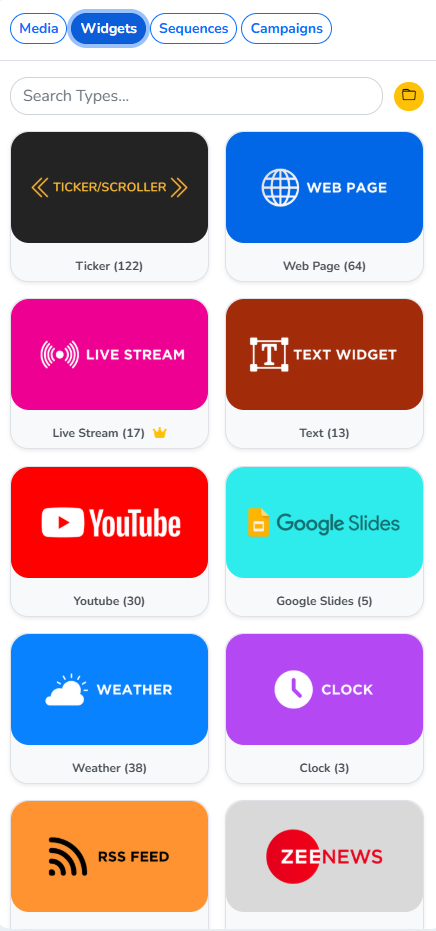
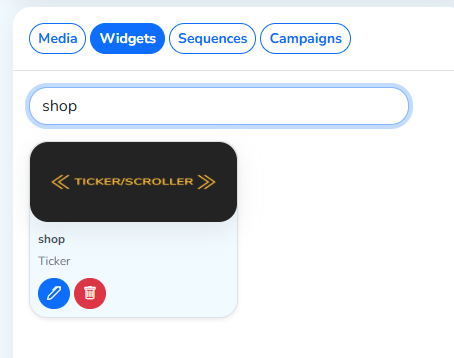
The search bar finds a widget by name, of any type.
A widget added to the layout, three zones now.
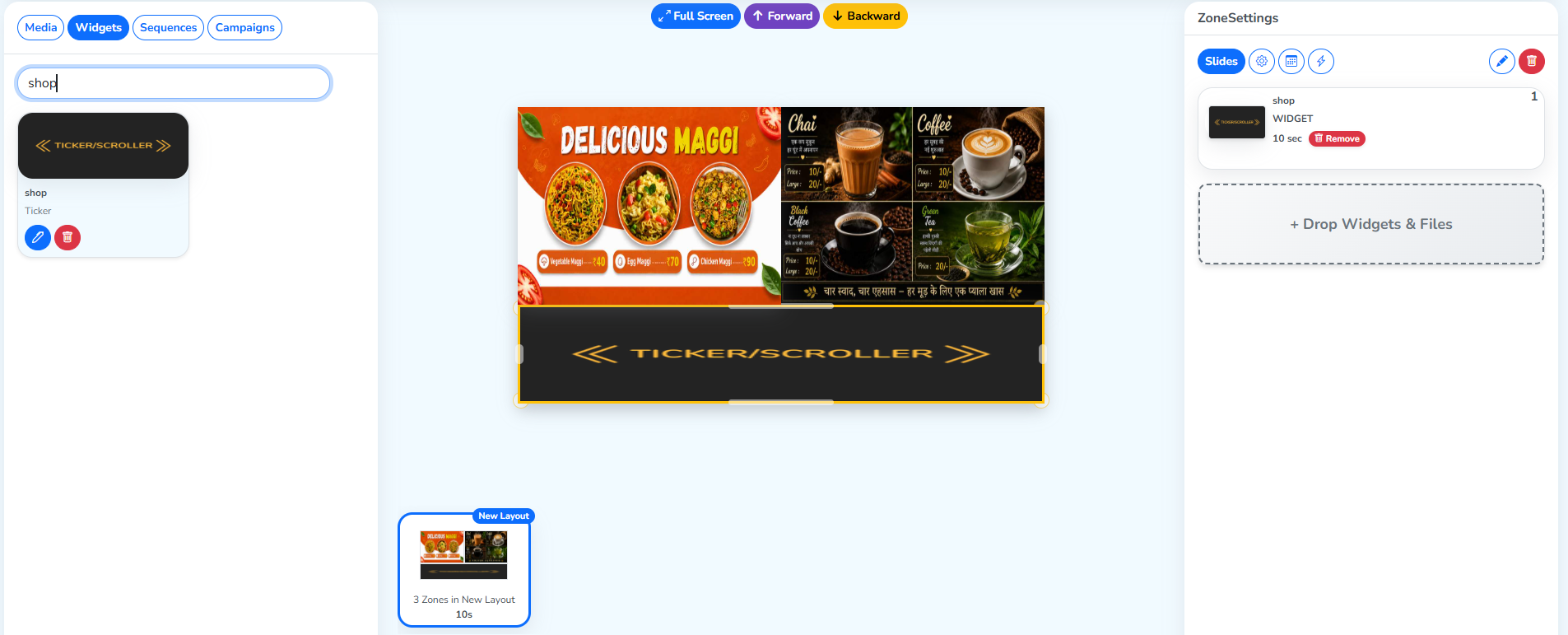
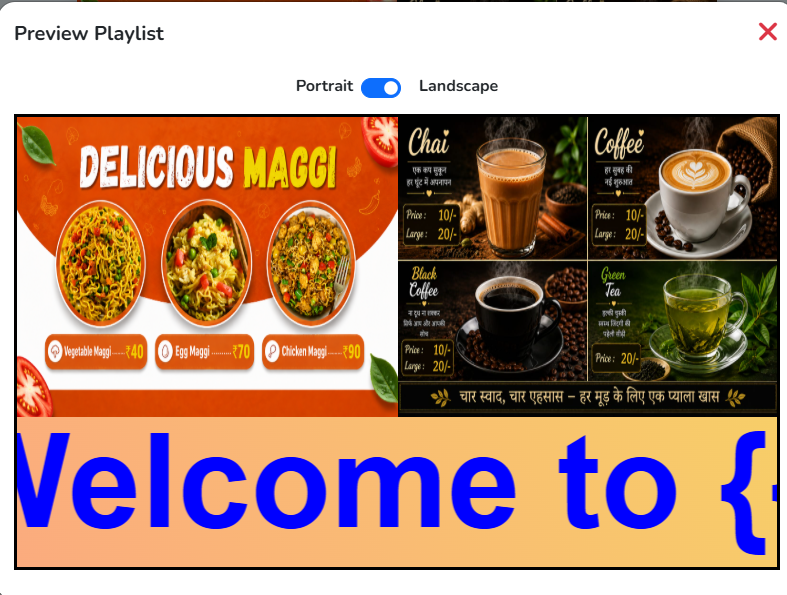
Clicking Preview:
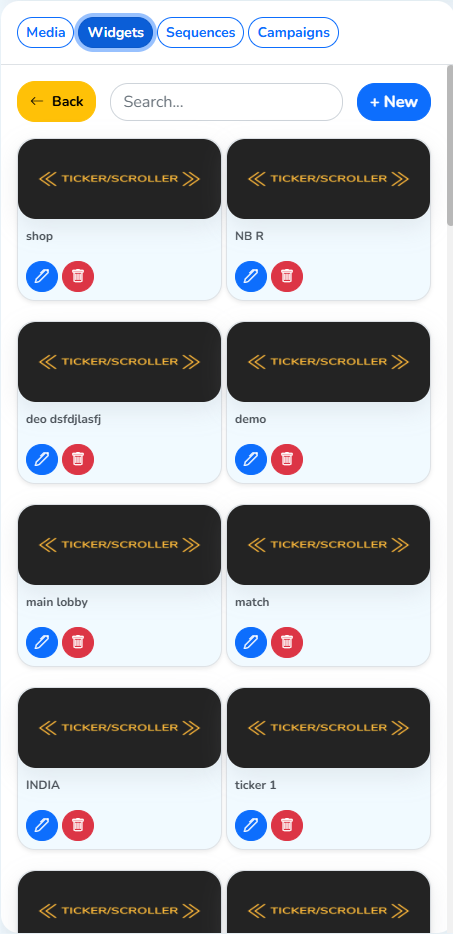
Each widget tile in the left panel also has its own edit and delete options, alongside + New to add a widget, and a Back option.
After making any change, always click
Save.
Sequences
When you need to group different media files together, customize their properties, and reuse it many times, an important sequence repeated across different playlists, you can create it here in Sequences, and access it later without customizing it again and again.
Clicking + New:
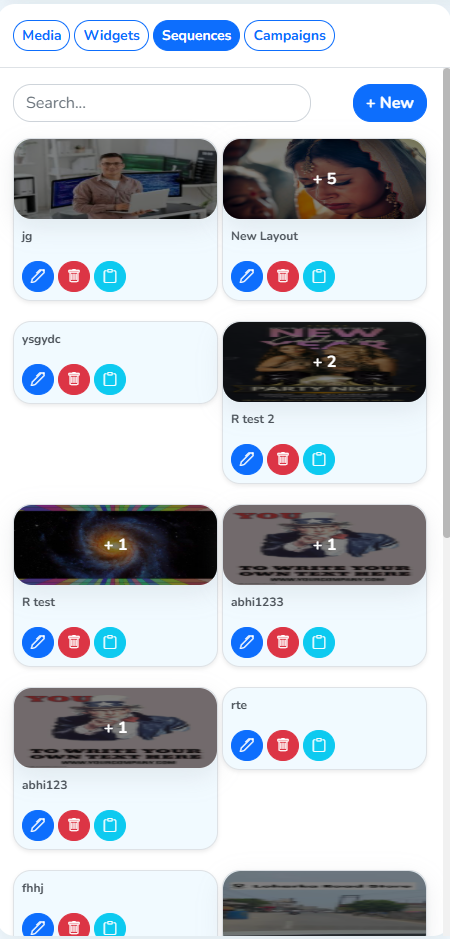 Creating a new sequence
This is how the Create Sequence panel opens.
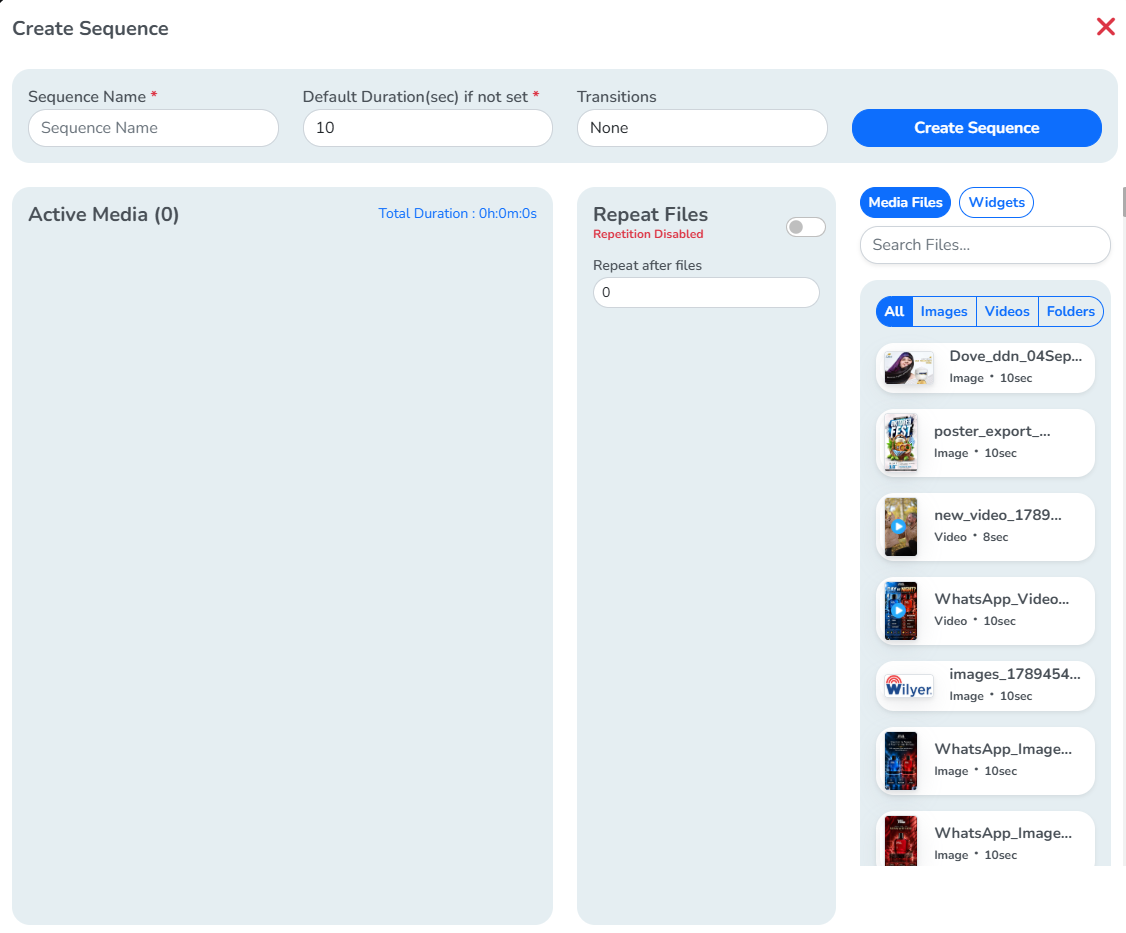 Top sectionActive Media sectionRepeat FilesContent from Media and Widgets
Let’s understand each option here in detail.
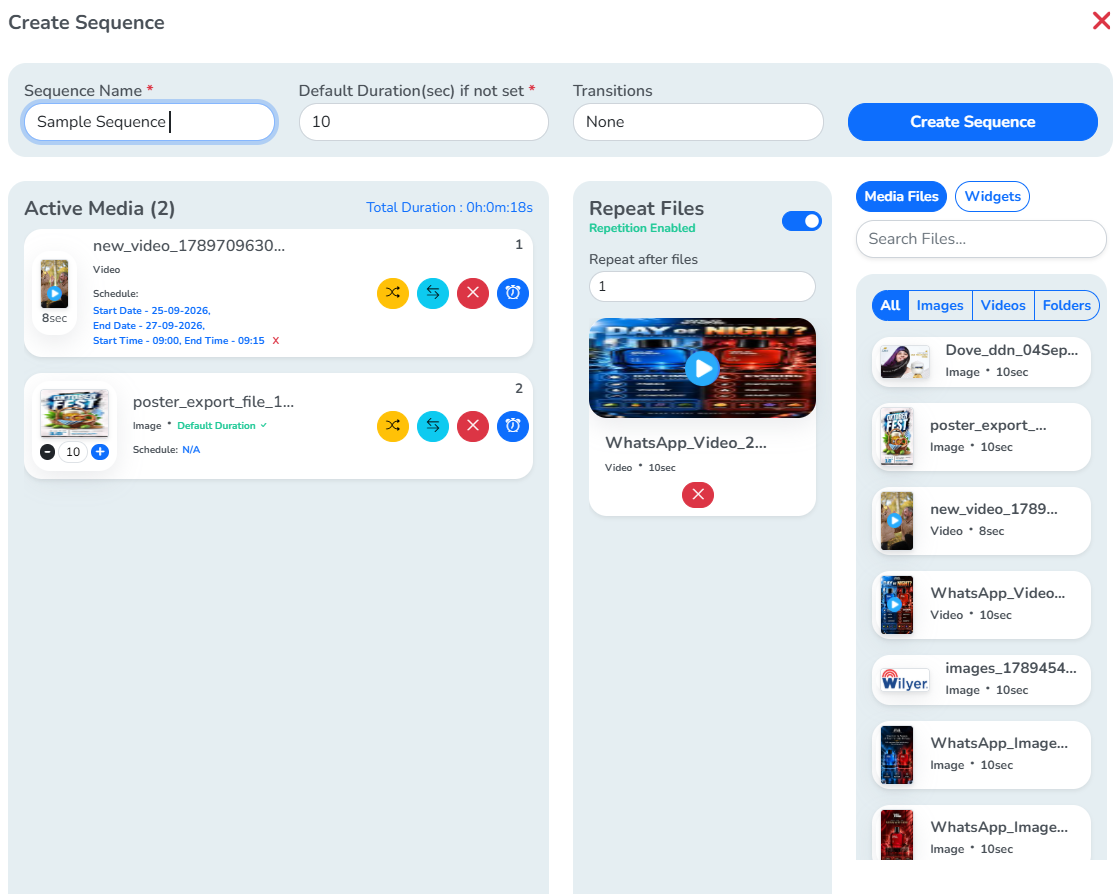
The top section has fields for the sequence’s name, its default duration on screen, and transitions between its files.
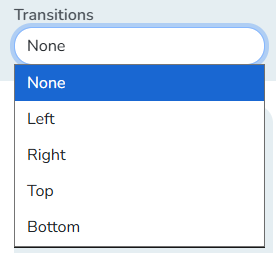
At the end, Create Sequence in the top section creates the given content sequence.
The right side shows Media again with the same All, Images, Videos and Folders divisions, along with Widgets.
Clicking a file on the right adds it to Active Media on the left, for sequencing.
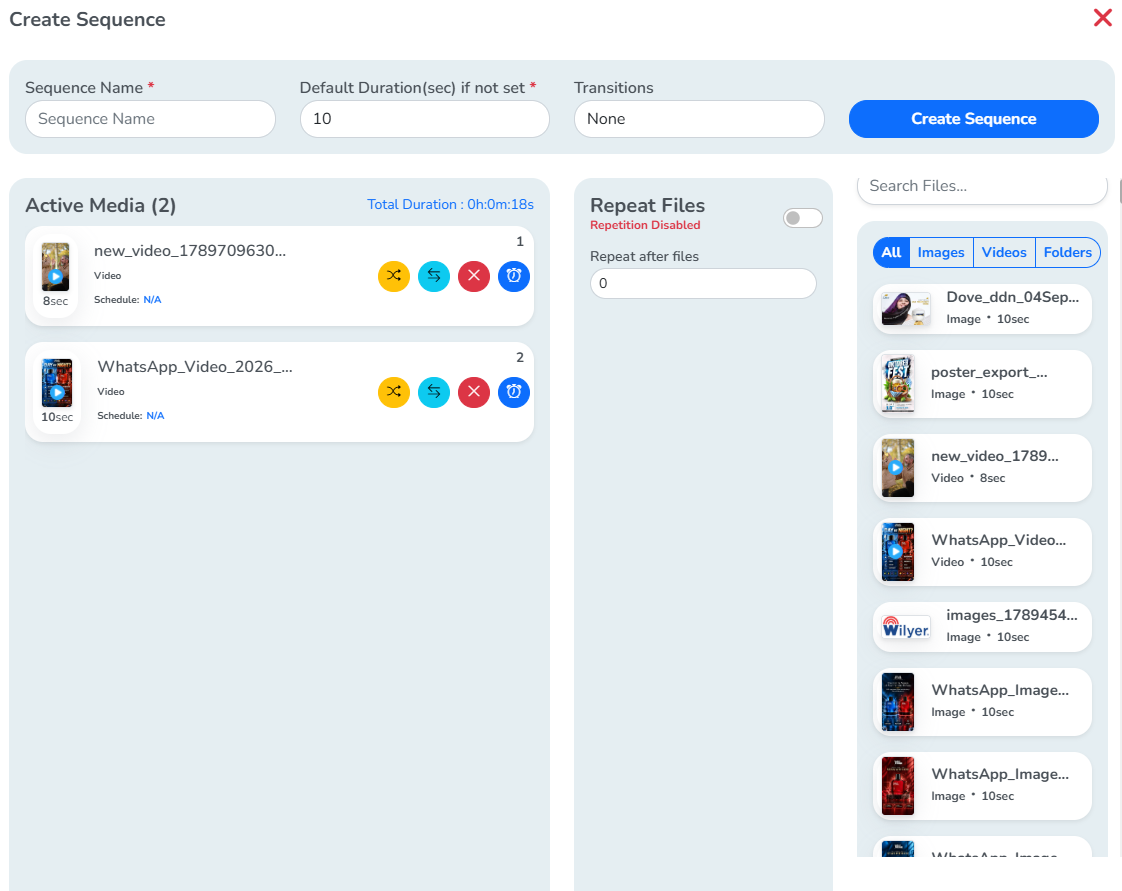 Files we selectedHere in Active Media
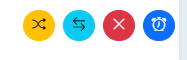
File options in Active Media
The yellow, cyan and blue icons below are clickable and take you to their explanation.
Replace Media
Clicking the yellow Replace icon opens selection boxes on each file in the right section, to replace the active media file with.
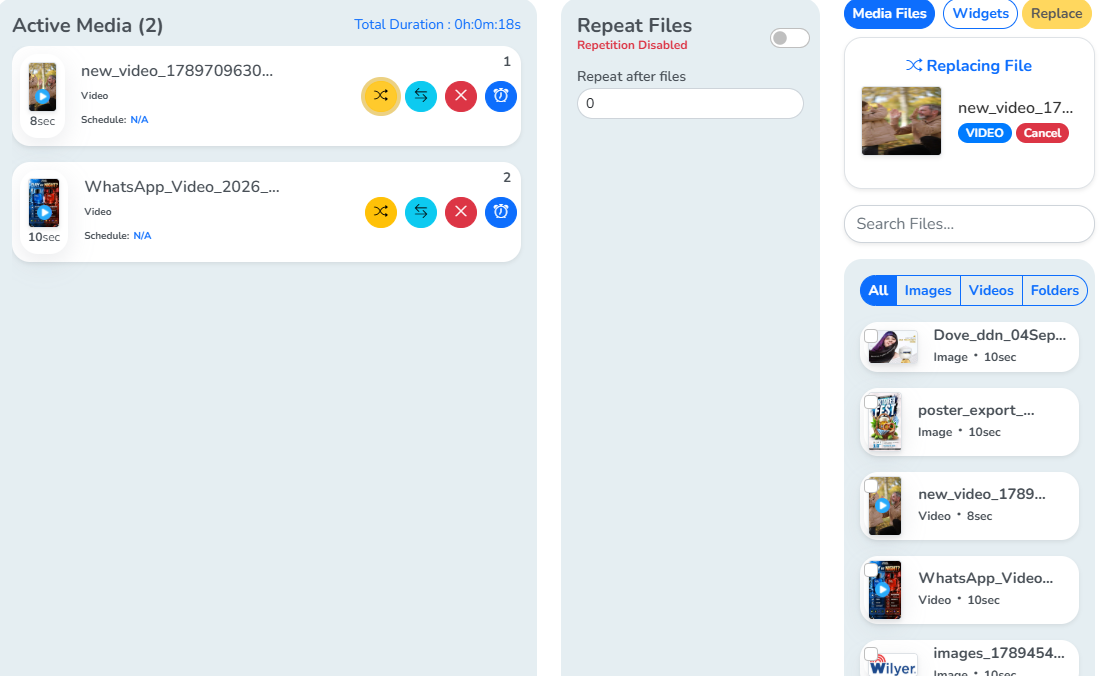
Selecting a file, then clicking Replace at the top:
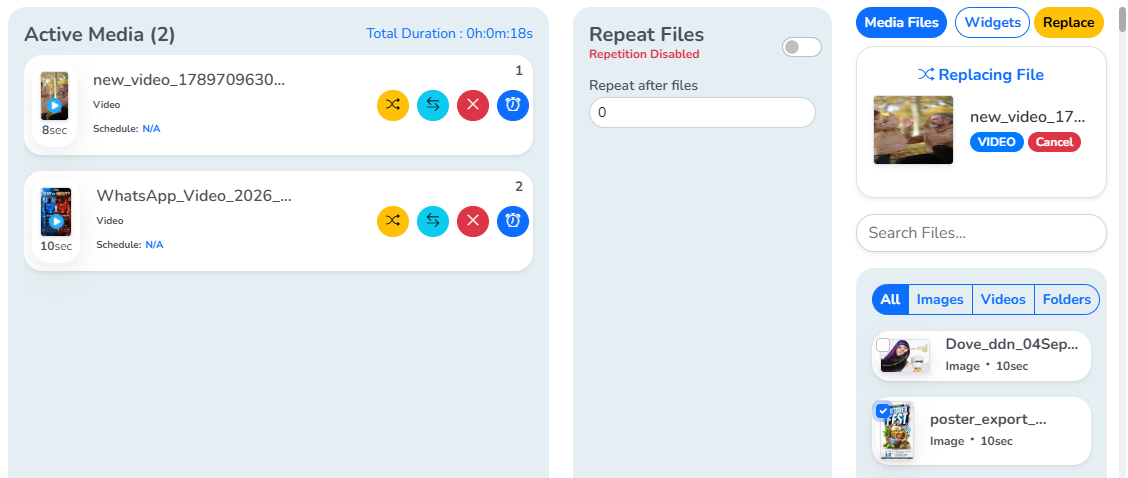 We will click this to replace
The file is replaced in Active Media.
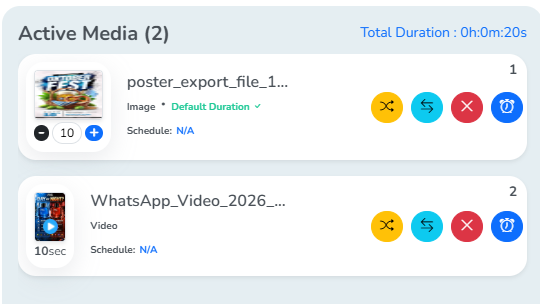
Change Position
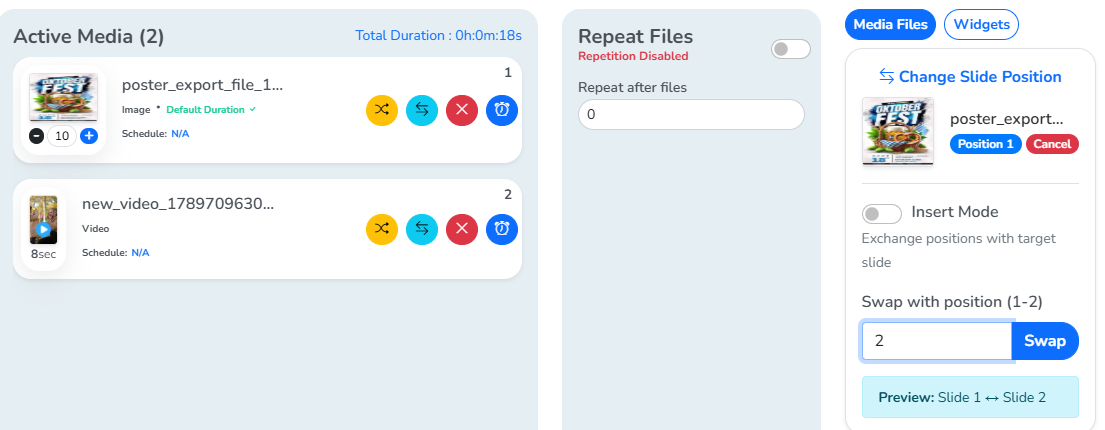
Clicking the cyan icon opens this option on the right.
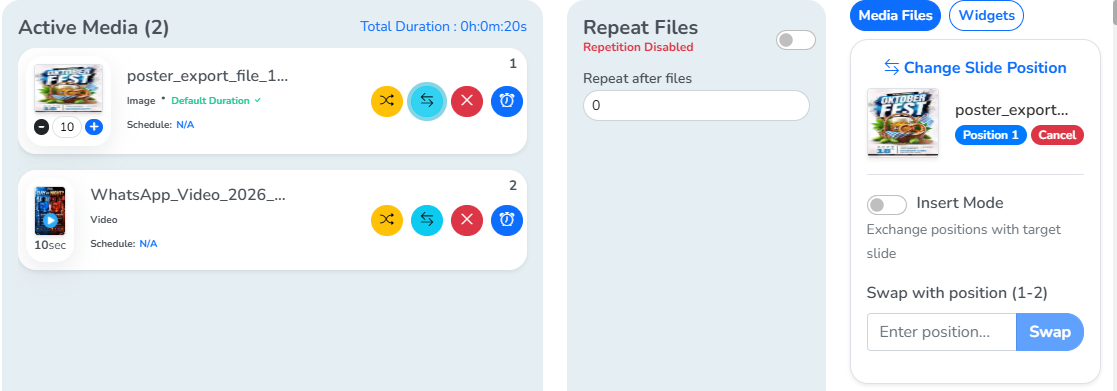
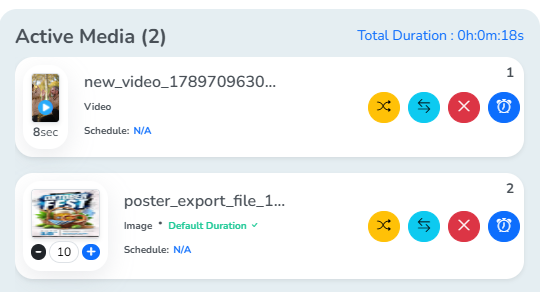
Entering 2, then clicking Swap:
The file moves to the second position.
The red cross icon removes a file from Active Media.
Set Schedule
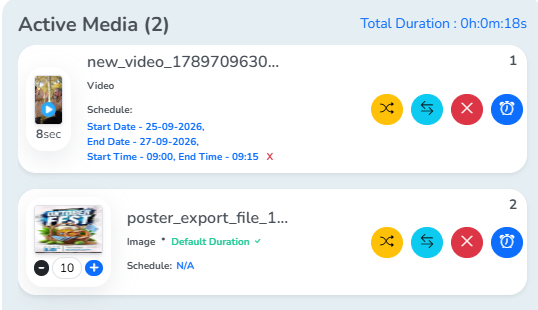
Clicking the blue clock icon opens this panel. Schedule covers this option in depth. Here’s an overview.
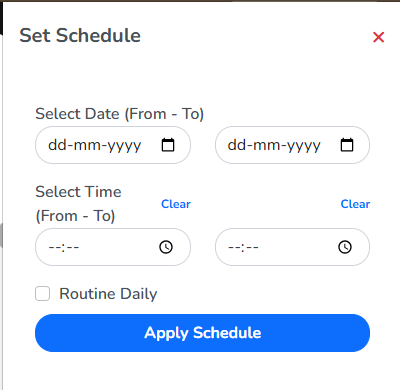
Filled in, this file gets priority for the given date range and time, and plays first.
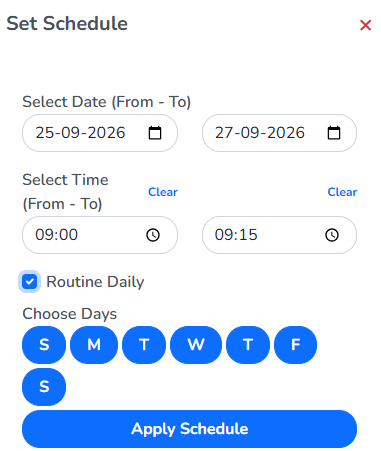
Routine Daily, enabled, repeats this window on the days chosen under Choose Days. Disabled, it runs once, for the given date range only.
Clicking Apply Schedule applies it. This can also be reviewed in the Schedule section of Screen Settings.
The schedule details appear with the file in Active Media.
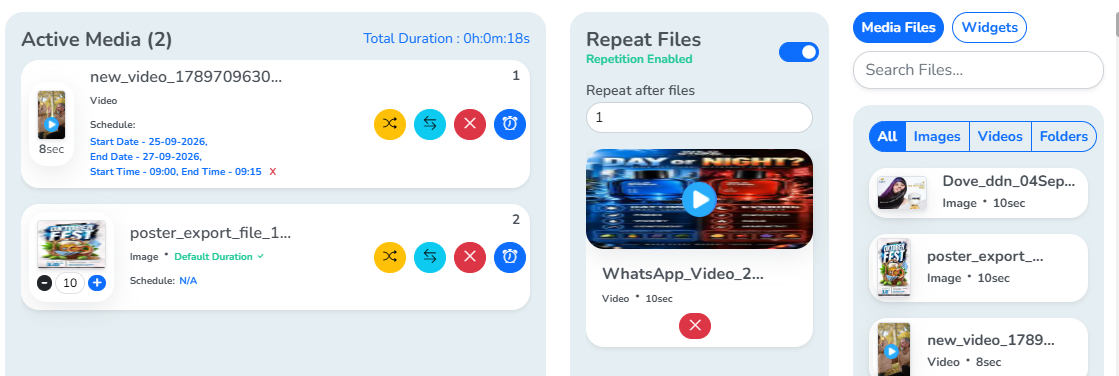
Repeat Files in sequence
When you want to repeat a particular file after every few files in a sequence, enable Repeat Files and set that number, how many files to repeat it after. Here, that number is 1, so this file repeats after every file in Active Media.
Naming the sequence, then clicking Create Sequence:
The sequence now appears in the left panel.